
What Nobody Tells You About AI Automation Costs - Start Tracking Them Now!
Learn AI automation cost tracking with n8n to monitor API usage, get budget alerts, and prevent unexpected bills.

Usage-based pricing of AI models is easy to ignore when you’re experimenting.
You run a workflow. Claude processes 5,000 tokens. Cost: $0.08. You think: this scales fine. So you set it on a schedule, add two more workflows, automate a third thing. Weeks pass. You’re building.
Then the invoice arrives. Not a spike. Not an error. Just the quiet compound interest of dozens of daily automations, each making API calls you stopped thinking about after you verified they worked.
This is the part every tutorial skips.
The exciting bit is always: “Look, I built this in 10 minutes!”
What they don’t show is Month 4 when you’re processing 10,000 operations and wondering why your “cheap” automation stack costs $300, broken down across APIs you can’t even identify from the invoice line items.
Without per-workflow visibility, you have no leverage to fix it.
How do I track my AI automation costs before they spiral?
Build a zero-touch cost scanner that monitors every LLM call across all your n8n workflows, sends weekly cost reports, and alerts you before budget overruns. This system runs inside n8n, reading token usage directly from execution metadata. No modifications to your existing workflows.
By the end of this article, you’ll have a working n8n AI cost tracking system for your LLM API calls that shows exactly where your money goes: $47 on Claude content generation, $23 on Perplexity research, $8 on Firecrawl scraping.
You’ll never get blindsided by a surprise bill again.
Blueprint Check: Map every node and decision branch before touching n8n. If you can’t draw the flow, you’re not ready to build it. No map, no build..
This is Part 1 of the “From Demo to Dependable” series: what happens after the tutorial ends.
Why Do Production AI Costs Catch Everyone Off Guard?
Think about a free gym model. Here’s how it works:
No monthly fee to join.
But $5 every time you use the treadmill.
$3 per weight machine session.
$8 for a shower.
$2 to use the locker.
After a month of normal gym use, your “free” membership cost $400.
That’s AI automation for solopreneurs.
n8n is free (self-hosted).
OpenAI or Gemini or Claude API may read cheap ($3 per million input tokens and $15 per million output tokens).
Perplexity is affordable ($1 per million input tokens and $1 per million output tokens).
But when you run 50,000 tokens through Claude per workflow, 500 Perplexity searches, and 200 Firecrawl scrapes per month, your “cheap” automation stack costs $300, and you never saw it coming because nobody tracks the per-use charges.
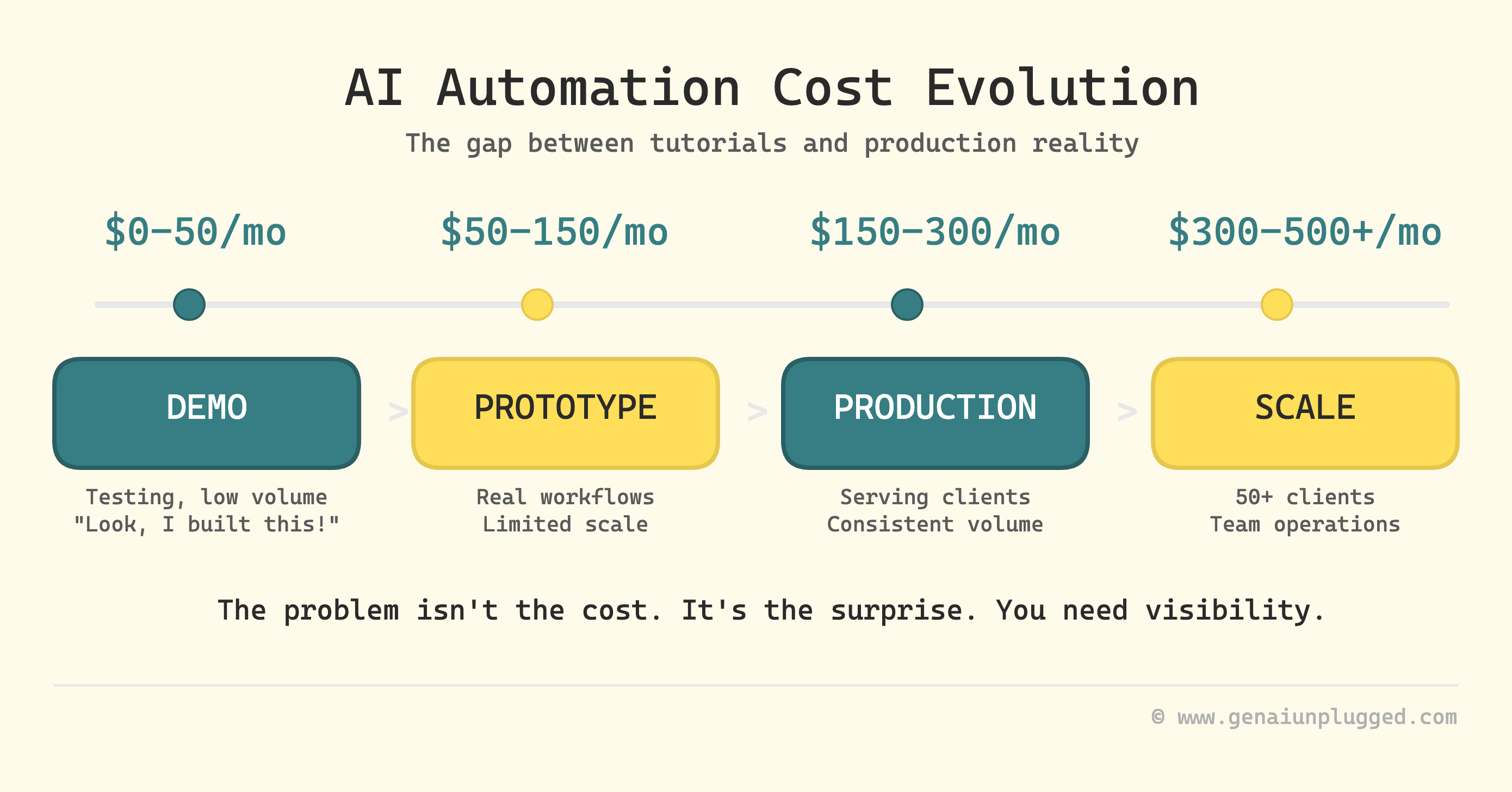
The cost evolution looks like this:
Demo phase: $0-50 per month (testing, low volume)
Prototype phase: $50-150 per month (real workflows, limited scale)
Production phase: $150-300 per month (serving clients, consistent volume)
Scale phase: $300-500+ per month (50+ clients, team operations)
This isn’t a problem. It’s the economics of leverage. You’re trading money for time.
A $300 monthly automation bill that saves you 20 hours per week is a steal. That’s 80 hours saved for $3.75 per hour.
But you need to KNOW what you’re trading.
What Are the Five Hidden Costs in AI Automation?
Category 1: API Token Costs
Claude, GPT-4, and Perplexity charge per use. The math sneaks up on you.
Claude Sonnet 4.6: $3 per million input tokens, $15 per million output tokens (see Anthropic’s current pricing)
Real-world translation: 1,000 content generation calls = $30. 10,000 calls = $300.
Perplexity API: $5 per 1,000 searches
Real-world translation: 100 research queries per week = $2 per month. 500 queries per week = $10 per month.
Example scenario - YouTube workflow:
You built an automation that takes your video transcript, generates descriptions, titles, and social posts. Each video processes 10,000-15000 tokens through Claude.
At 8 videos per month, that’s 100,000 tokens = $2 in API costs. Feels cheap.
But if you are agency managing multiple channels, then scale to 50 videos per month (daily posting for content creators), and you’re at $12+ just for that one workflow.
Example scenario - Lead research workflow:
You scrape LinkedIn profiles, run them through Perplexity for company research, then generate personalized outreach. (Here’s how an AI research assistant workflow looks at full scale.)
Each lead uses 1 Perplexity search. At 50 leads per week, that’s ~$1 per month. Scale to 500 leads per week (service business growth), and you’re at ~$10 per month.
Pro Tip: If you’re scaling AI workflows, see how integrating AI assistants with n8n workflows multiplies both power and costs.
Category 2: Execution Limits
n8n tracks “executions” not API calls. One workflow run = one execution, regardless of how many API calls happen inside it or how complex your workflow gets.
n8n Cloud pricing (see n8n pricing page):
Starter: 2,500 executions per month ($24)
Pro: 10,000 executions per month ($60)
Real-world translation: If your lead research workflow runs 96 times per day (checking for new leads every 15 minutes), that’s apporximately 2880 executions per month. You just outgrew Starter n8n plan with just one workflow.
The AI Automation value trap: Executions scale with frequency, not value. A workflow that checks email every 5 minutes uses 8,640 executions per month. A workflow that generates $5,000 in client deliverables once per day uses 30 executions per month. The low-value workflow costs more.
Category 3: Data Processing Costs
Firecrawl, Apify, and scraping services charge per page or per credit.
Firecrawl: pricing varies by plan ($19 per 3,000 pages - see firecrawl.dev/pricing)
Apify: $29/month Starter plan (includes $29 in credits; $0.30 per compute unit)
Real-world translation: You built a competitor analysis workflow that scrapes 50 websites per week. That’s 200 sites per month. If each site is 10 pages deep, you’re scraping 2,000 pages. Feels negligible.
But scale to daily monitoring of 500 competitor sites (enterprise content research), and you’re scraping 150,000 pages per month needing $99-$399 plans.
Category 4: Storage and Database Costs
Google Sheets is free until it’s not. Airtable is cheap until your base hits 50,000 records.
Airtable pricing:
Free: 1,000 records per base
Team: 50,000 records per base ($24 per user per month)
Business: 125,000 records per base ($54 per user per month)
Real-world translation: You log every workflow execution to Airtable for tracking. Each execution creates 1 record. At 100 executions per day, you hit 3,000 records per month. You outgrow Free in 10 days. At 500 executions per day (production scale), you hit 15,000 records per month. You need Team within 90 days.
Category 5: Maintenance Hours
This is the cost nobody mentions. Production systems require care.
Weekly maintenance tasks:
Monitor for failed executions (30 minutes)
Update prompts when AI models change (1 hour per month)
Fix broken integrations when APIs update (2 hours per quarter)
Review cost reports and optimize workflows (1 hour per month)
Real-world translation: That’s 4-5 hours per month in maintenance. At $50 per hour (conservative solopreneur rate), that’s $200-250 per month in opportunity cost.
Your “free” automation system costs $200 in your time before you even count API bills.
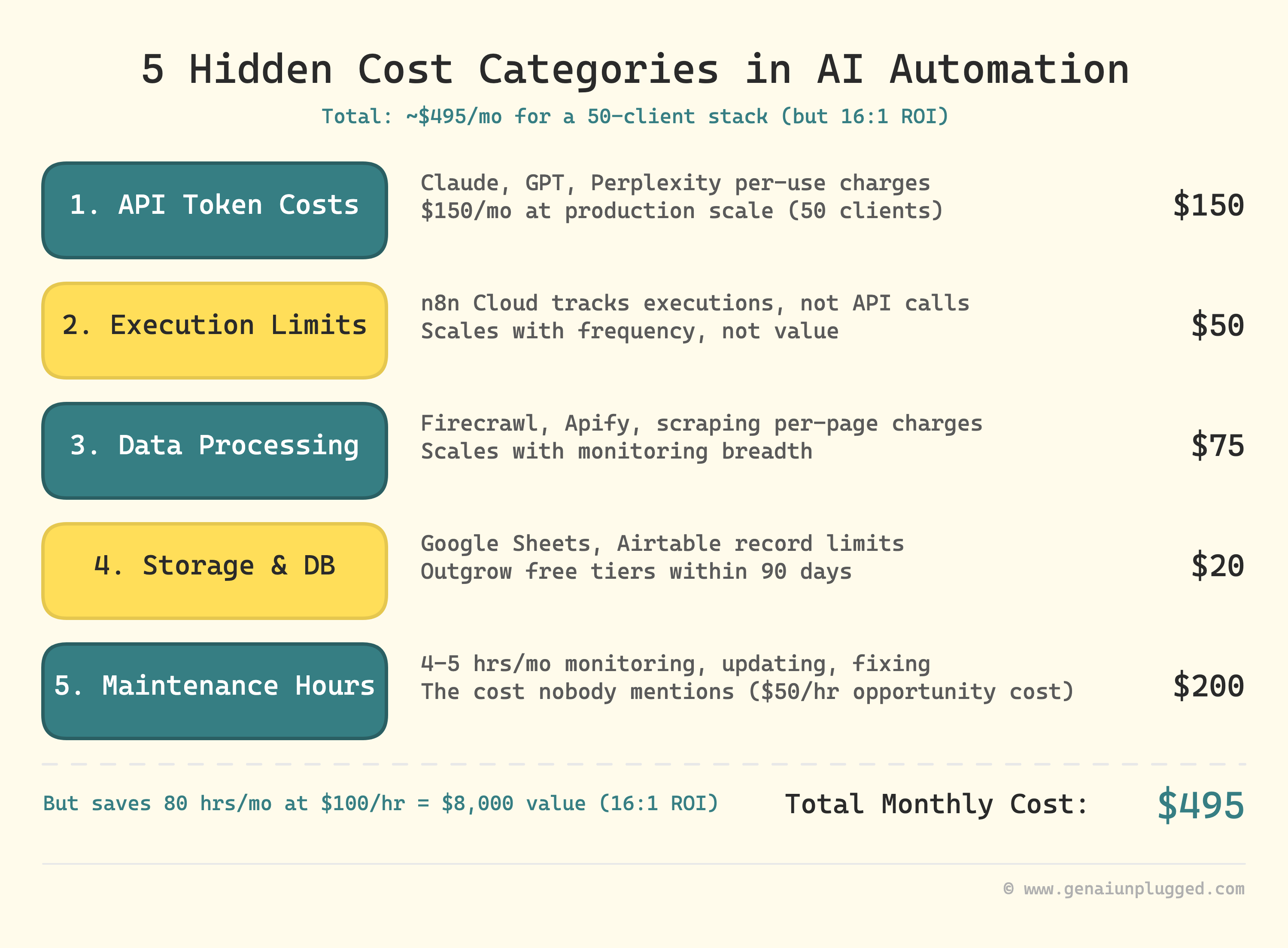
The total hidden cost for a production automation stack running 50 clients:
API tokens: $150 per month
n8n executions: $50 per month
Data processing: $75 per month
Storage: $20 per month
Maintenance hours: $200 per month
Total: $495 per month
But if it saves you 20 hours per week, that’s 80 hours per month. At $100 per hour, you’re saving $8,000 in time for $495 in costs. That’s a 16:1 ROI.
The problem isn’t the cost. It’s the surprise. You need visibility before the bill arrives.
Further reading: The Agent Tax: Why Your $0.01 API Call Actually Costs $0.47 by Cash & Cache - great breakdown of how agent workflows cost 50x more than expected, and why 84% of companies miss their AI cost forecasts.
What You’re Building: Zero-Touch LLM AI API Cost Scanner
Most cost tracking tutorials teach you to manually add tracking nodes to every workflow. That’s O(n) effort: one modification per workflow, and you’ll forget to update the new ones.
This system takes a fundamentally different approach. You build ONE scanner n8n workflow that automatically monitors ALL your AI workflows by reading token usage directly from n8n’s execution metadata.
Zero modifications to existing workflows. Zero manual logging. Zero maintenance as you add new automations.
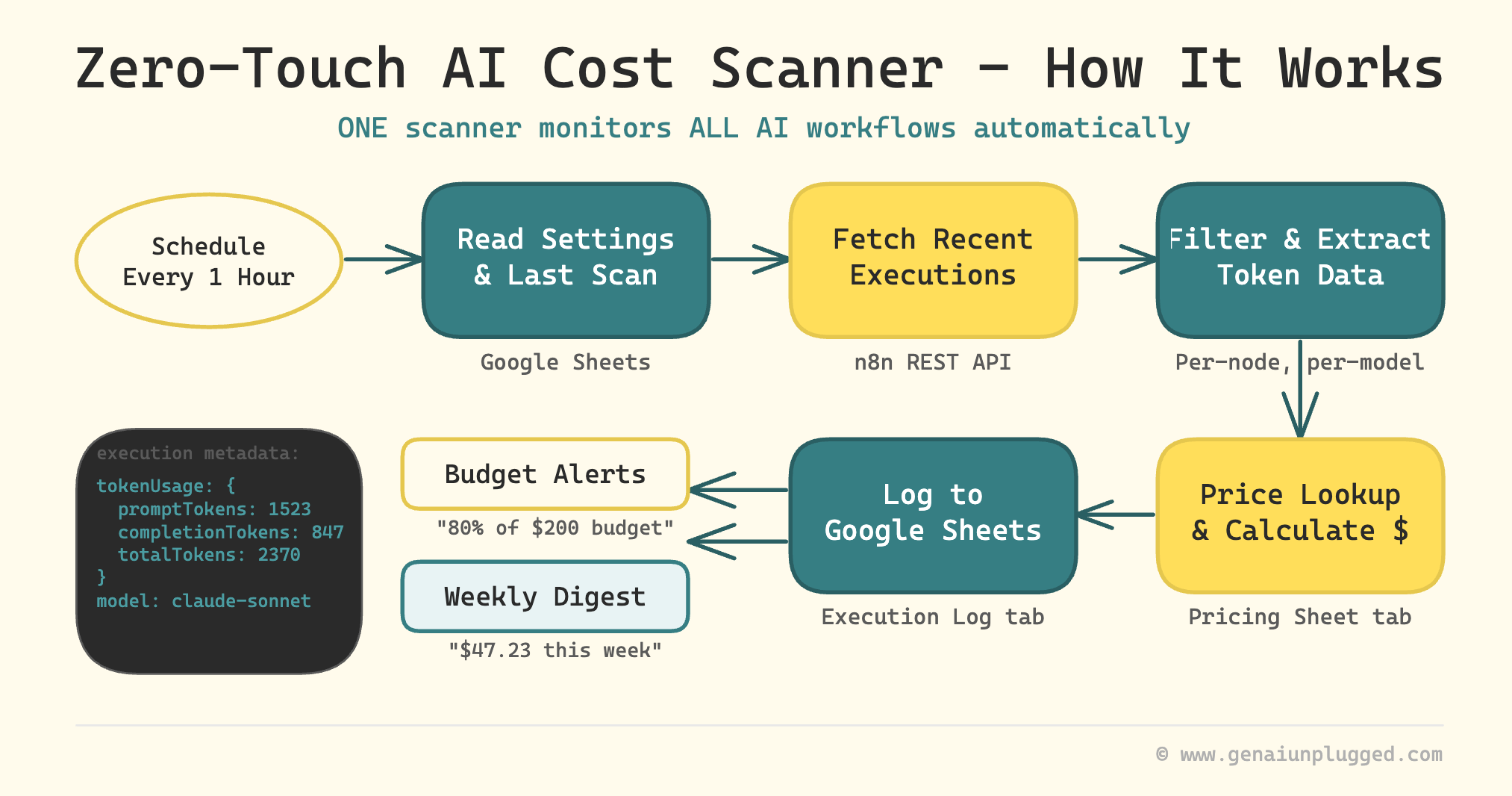
How my Zero-Touch API Cost scanner works:
n8n already records token usage for every LLM call in its execution metadata
Your scanner lists recent executions through n8n’s REST API every hour (lightweight call, no execution data)
It filters to new executions, then fetches detailed data one-at-a-time (safe even with image-heavy workflows)
It extracts per-node, per-model token counts and joins them with a pricing table
Costs get logged to Google Sheets with automatic dashboard formulas
Budget alerts fire when you hit your threshold, once per day, not per execution
A weekly digest email summarizes your top workflows and models by cost
Expected outcomes:
Per-node, per-model cost tracking across every AI workflow, automatically
Google Sheets dashboard showing monthly totals, daily trends, and top spenders
Weekly email: “Last week you spent $47.23. Top costs: Content Generator ($23.45), Lead Research Agent ($15.30).”
Budget alerts: “You’ve hit 80% of your $200 monthly budget. 12 days remaining.”
Should you build or buy?
If you call LLM APIs directly (outside n8n), tools like Helicone or LangFuse handle cost tracking natively. They sit in front of your API calls and capture everything automatically. CostGoat and AgentsTower offer dashboards that aggregate across providers.
This automation workflow is purpose-built for n8n:
it ties cost data directly to your n8n workflow and execution metadata,
shows per-node granularity inside your automations, and
lives entirely in Google Sheets without adding another SaaS subscription.
If your AI stack is n8n-native, build it. If you’re calling APIs from multiple surfaces, a dedicated observability tool may cover more ground.
Time to implement: 60 minutes (45 minutes build, 15 minutes testing)
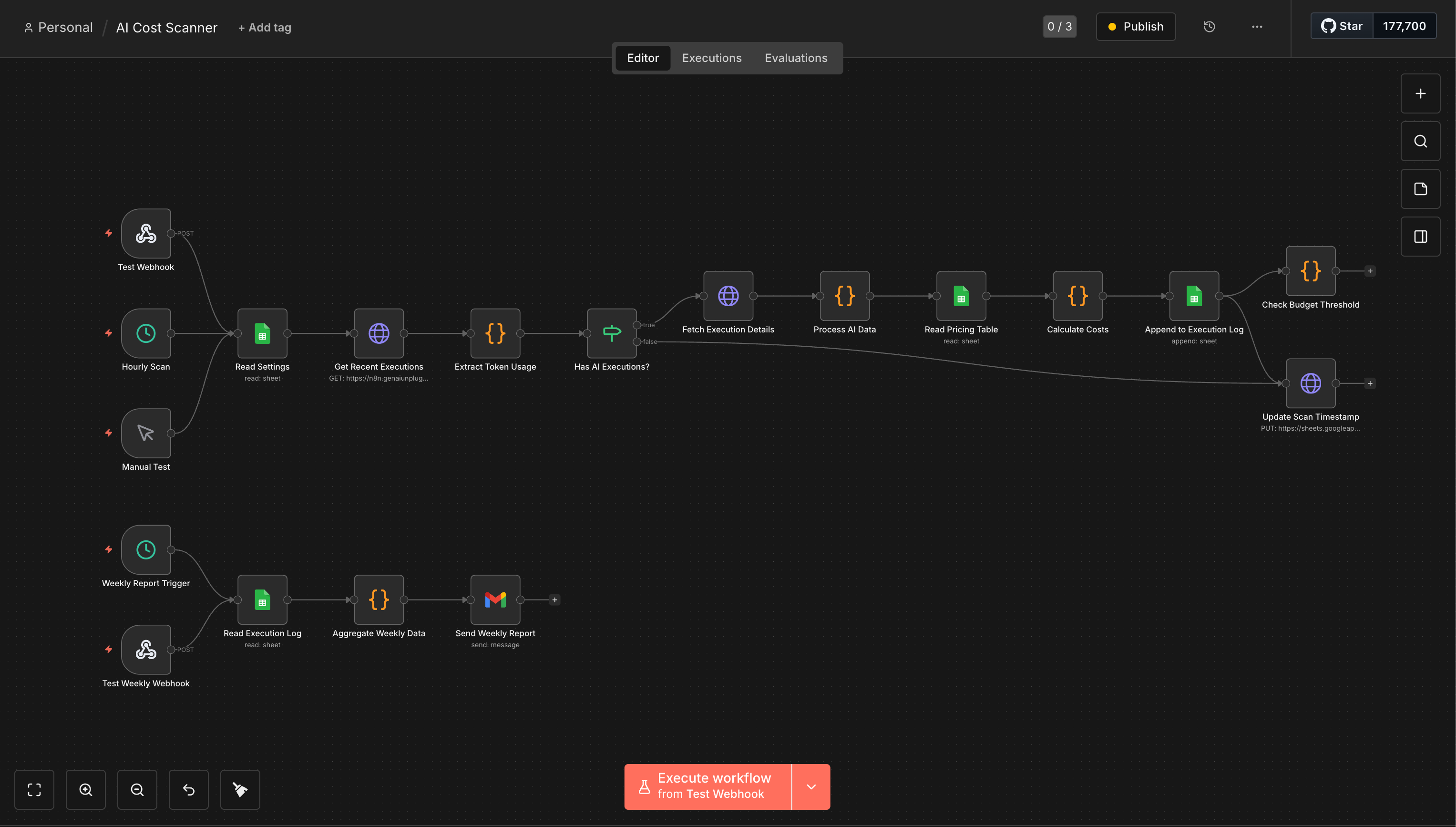
Total nodes: 18 in the main workflow (plus 2-3 test trigger nodes for debugging)
PluggedIn members: the complete workflow is already in your library. Import it and skip the build, you’ll be live in 10 minutes.
How Does n8n Track Token Usage Automatically?
Here’s what most n8n users don’t know: every time an AI node runs (OpenAI, Anthropic, Google Gemini, or any LLM), n8n silently records the exact token count in the execution’s metadata. Prompt tokens, completion tokens, total tokens, even the model name.
This data sits in execution.data.resultData.runData at the path data.ai_languageModel[0][0].json.tokenUsage. It’s the same data n8n shows you when you click into an execution’s detail view. We’re just reading it programmatically.
Why this matters:
You don’t need to modify a single existing workflow. You don’t need to guess token counts or hardcode pricing in JavaScript. The source of truth already exists. You just need a scanner to read it.
What about non-AI costs?
This scanner catches ~80% of your automation costs automatically (every LLM call). For the remaining ~20% (Perplexity searches, Firecrawl scrapes, external APIs), we’ll add an optional manual tracking pattern in Step 7. But the core system requires zero changes to your existing workflows.
Why Does AI Automation Cost Tracking Matter?
Manual cost tracking fails at scale. You build 5 workflows. Then 10. Then 20. Each workflow uses different APIs with different pricing models. Tracking becomes a full-time job.
This system solves three problems:
Problem 1: Surprise bills.
You don’t know what you spent until the credit card charge hits. This system shows you daily, so you can course-correct before month-end.
Problem 2: Invisible waste.
That competitor analysis workflow that runs every hour? It’s costing $75 per month. You’d never know without per-workflow cost tracking. Now you can pause low-value automations.
Problem 3: Poor scaling decisions.
You’re deciding whether to add 50 more clients. Will your automation costs scale linearly? Exponentially? This data answers that question. “Each new client adds $3 in monthly API costs” is a number you can plan around. (For a broader look at how AI writing systems scale content output, including what that costs, see our breakdown.)
The time saved: 3 hours per month you’d spend manually calculating costs + the 10 hours per month you’d waste running workflows you don’t need.
Want to build cost-aware Claude Projects for manual analysis? That’s the companion approach for one-off deep dives.
The money saved: the first time you run this, you’ll spot workflows you forgot were running. Pausing the low-value ones typically cuts your monthly API bill by 30-50%. That’s the system paying for itself.
Step-by-Step Build for AI Cost Scanner
Step 1: Copy the Google Sheets Template (5 minutes)
Your cost data needs a home. We’re using Google Sheets because it gives you a live dashboard with zero additional tools.
Copy the template: AI Cost Scanner Template → Click “Make a copy”
The template has 4 tabs. Here’s what each does:
Tab 1: Execution Log
Raw data written by the scanner. Every LLM call gets one row.
Timestamp
What It Records: When the execution finished
Execution ID
What It Records: n8n’s unique execution identifier
Workflow Name
What It Records: Which workflow made the LLM call
Node Name
What It Records: Which specific node (e.g., “AI Agent”, “Generate Summary”)
Model
What It Records: The LLM model used (claude-sonnet-4-5, gpt-4o-mini, etc.)
Prompt Tokens
What It Records: Tokens sent TO the model
Completion Tokens
What It Records: Tokens generated BY the model
Total Tokens
What It Records: Sum of prompt + completion
Input Cost USD
What It Records: Prompt tokens × input price
Output Cost USD
What It Records: Completion tokens × output price
Total Cost USD
What It Records: Input + Output cost
Is Estimate
What It Records: “Yes” if n8n estimated tokens, “No” if actual

Tab 2: Pricing
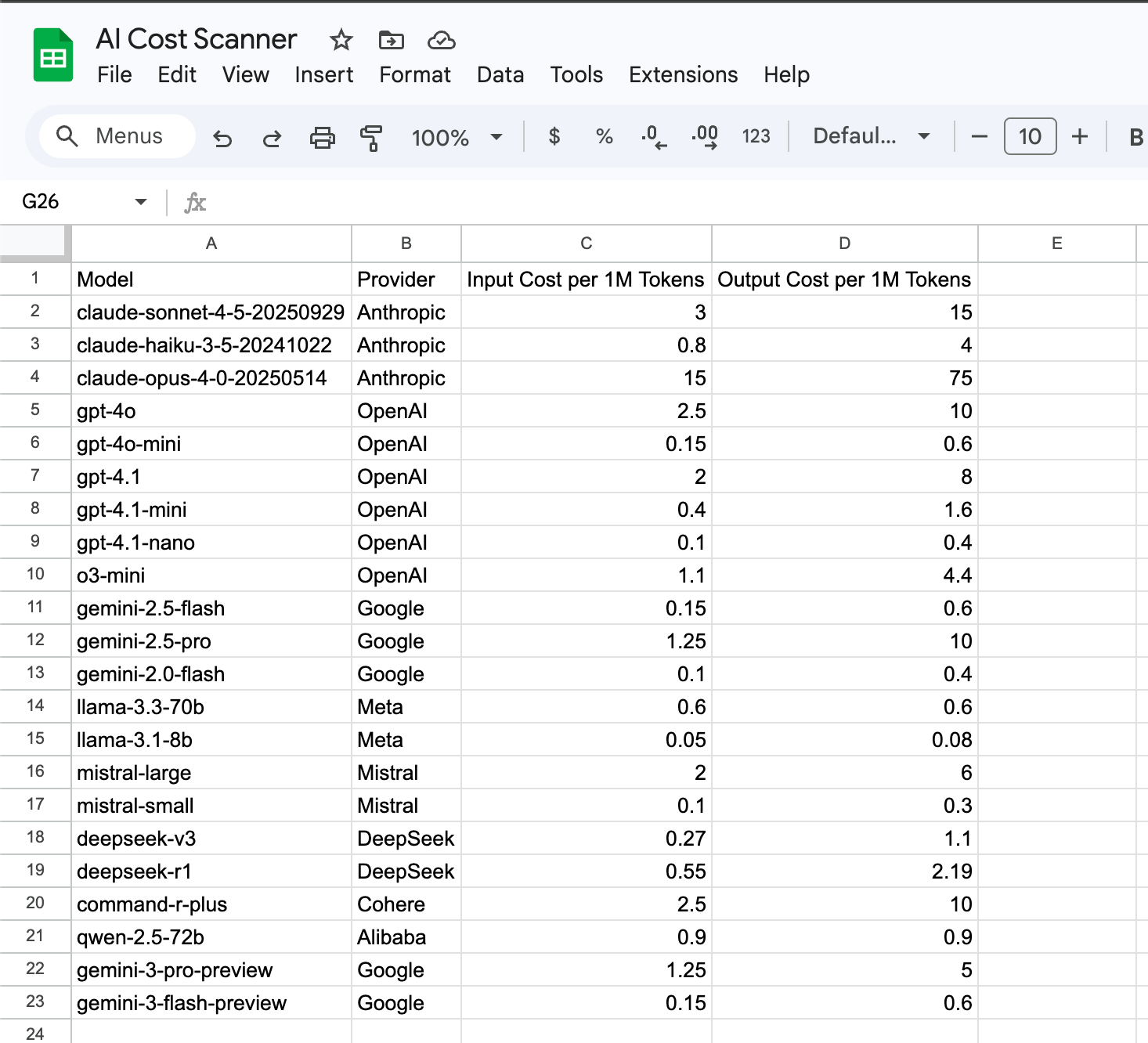
Model lookup table. This is where your cost-per-token rates live.
The template comes pre-populated with 20 models (Claude Sonnet 4.5, GPT-4o, Gemini 2.5 Flash, and more). When prices change or you add a new model, update ONE cell. The scanner picks it up on the next run. No code changes.
You should see the Pricing tab with columns: Model, Provider, Input Cost per 1M Tokens, Output Cost per 1M Tokens. Pre-populated with 20 rows of current pricing.
Tab 3: Dashboard
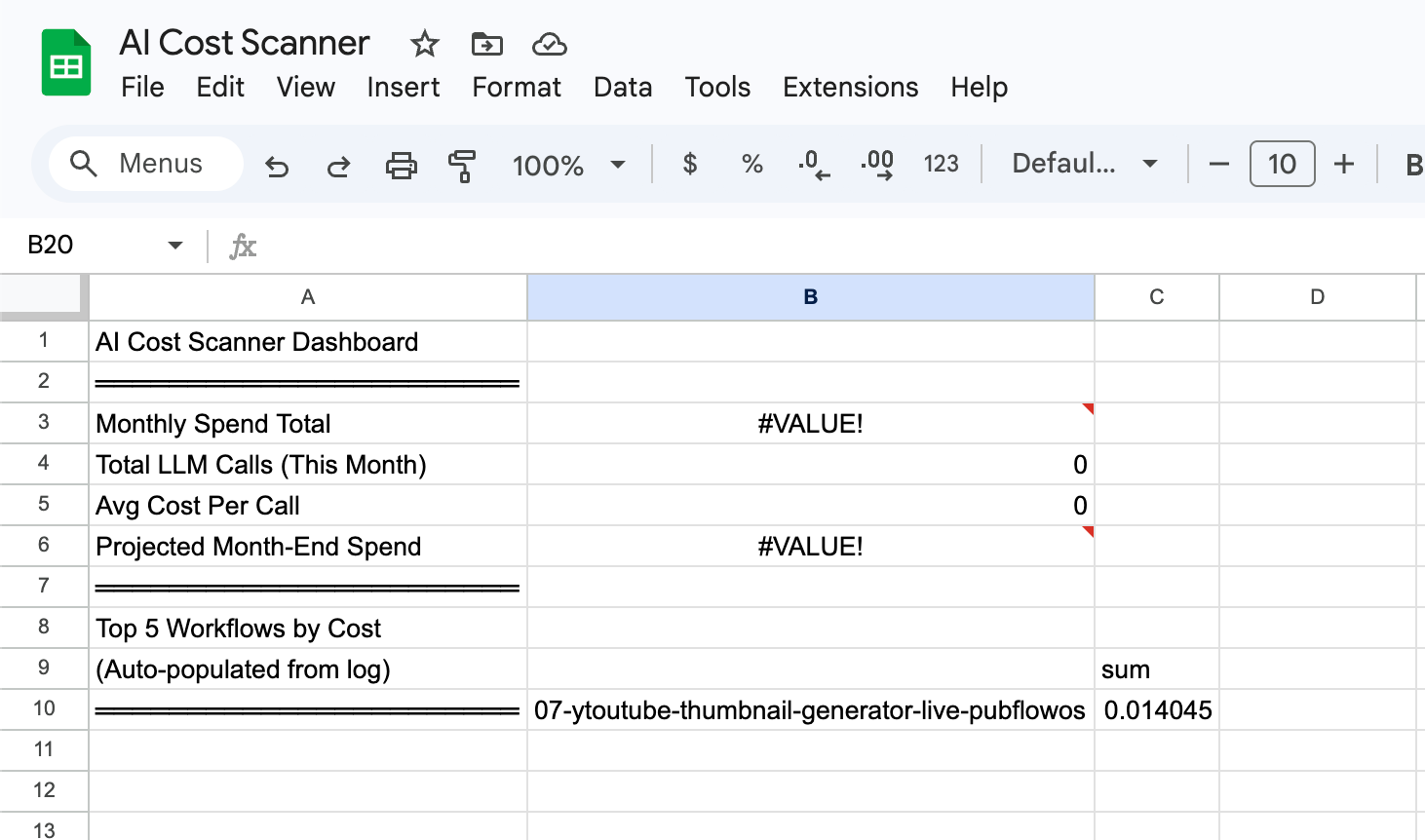
Auto-calculated summaries using Google Sheets formulas.
The Dashboard tab includes:
Monthly spend total (SUMPRODUCT formula on Execution Log)
Top 5 workflows by cost (QUERY formula)
Top 5 models by cost (QUERY formula)
Daily spend trend (for charting)
Projected month-end spend (daily average × days in month)
These formulas update automatically as the scanner adds rows to the Execution Log. No manual refresh needed.
Tab 4: Settings
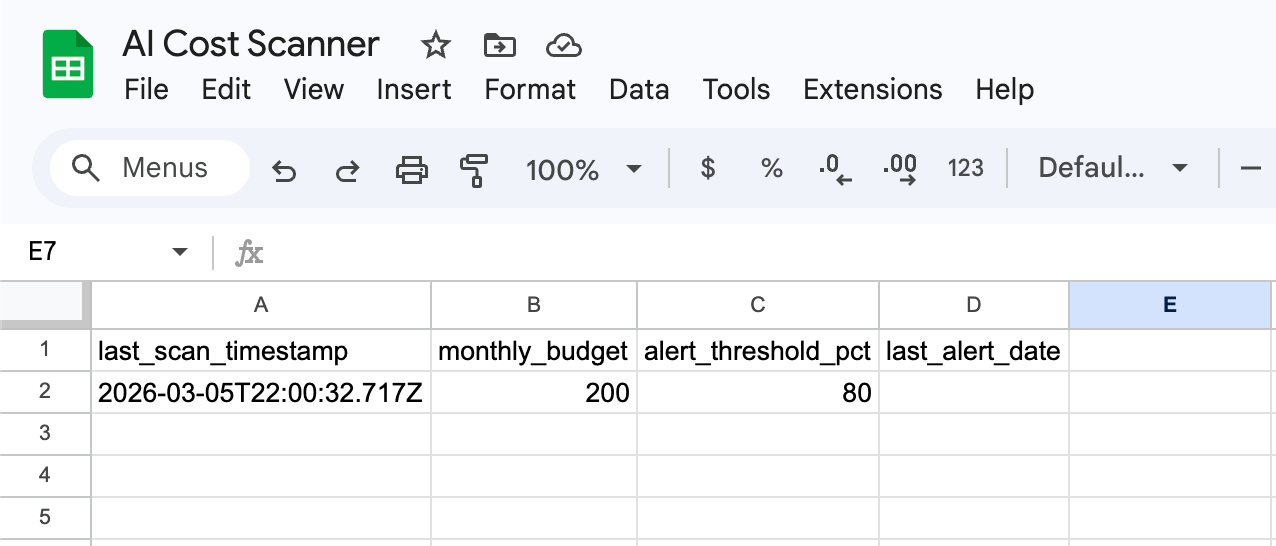
Scanner configuration. Two values you set once:
last_scan_timestamp
Default: (empty)
What It Does: Scanner fills this automatically after each run
monthly_budget
Default: 200
What It Does: Your monthly spend limit in USD
alert_threshold_pct
Default: 80
What It Does: Alert when you hit this percentage of budget
last_alert_date
Default: (empty)
What It Does: Prevents duplicate alerts (one per day max)
Action: Set monthly_budget to your actual monthly AI budget. Leave everything else as-is.
Step 2: Create Your n8n API Key (5 minutes)
The scanner needs to read execution data from your n8n instance via the n8n REST API. This requires an API key.
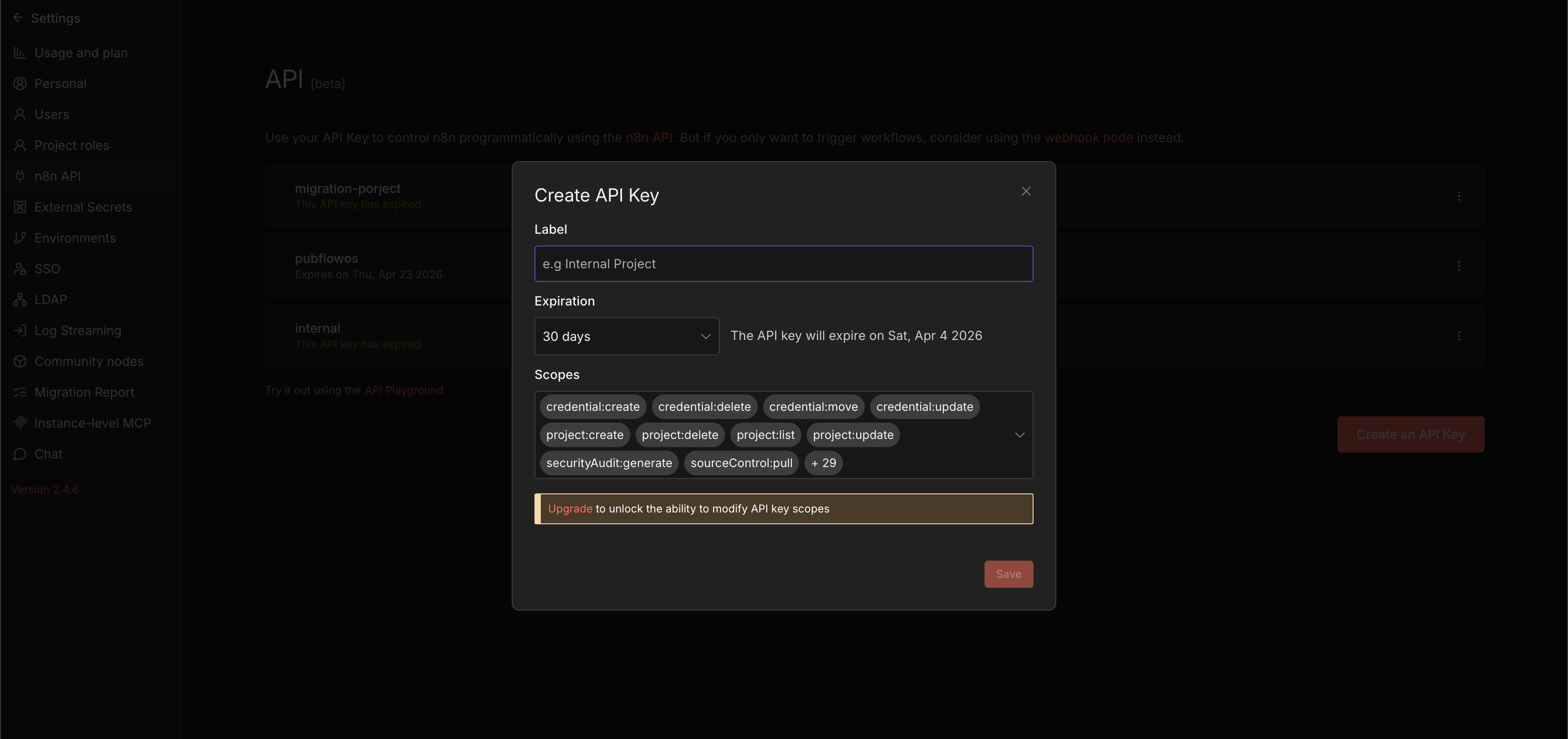
In n8n → Settings (gear icon) → API → Create API Key
Required scope: execution:read
That’s the only permission needed. The scanner doesn’t modify workflows. It only reads execution metadata. But you may not be able to chose just one, so you can pick all permissions too.
Create the n8n API credential in your workflow
In n8n, go to Credentials → Add Credential → “n8n API”
Set “API Key” to the key you just created
Set “Base URL” to your n8n instance URL (e.g.,
https://your-instance.app.n8n.cloud/api/v1)
Also connect Google Sheets: If you haven’t already, add a Google Sheets OAuth2 credential (Credentials → Add Credential → Google Sheets OAuth2).
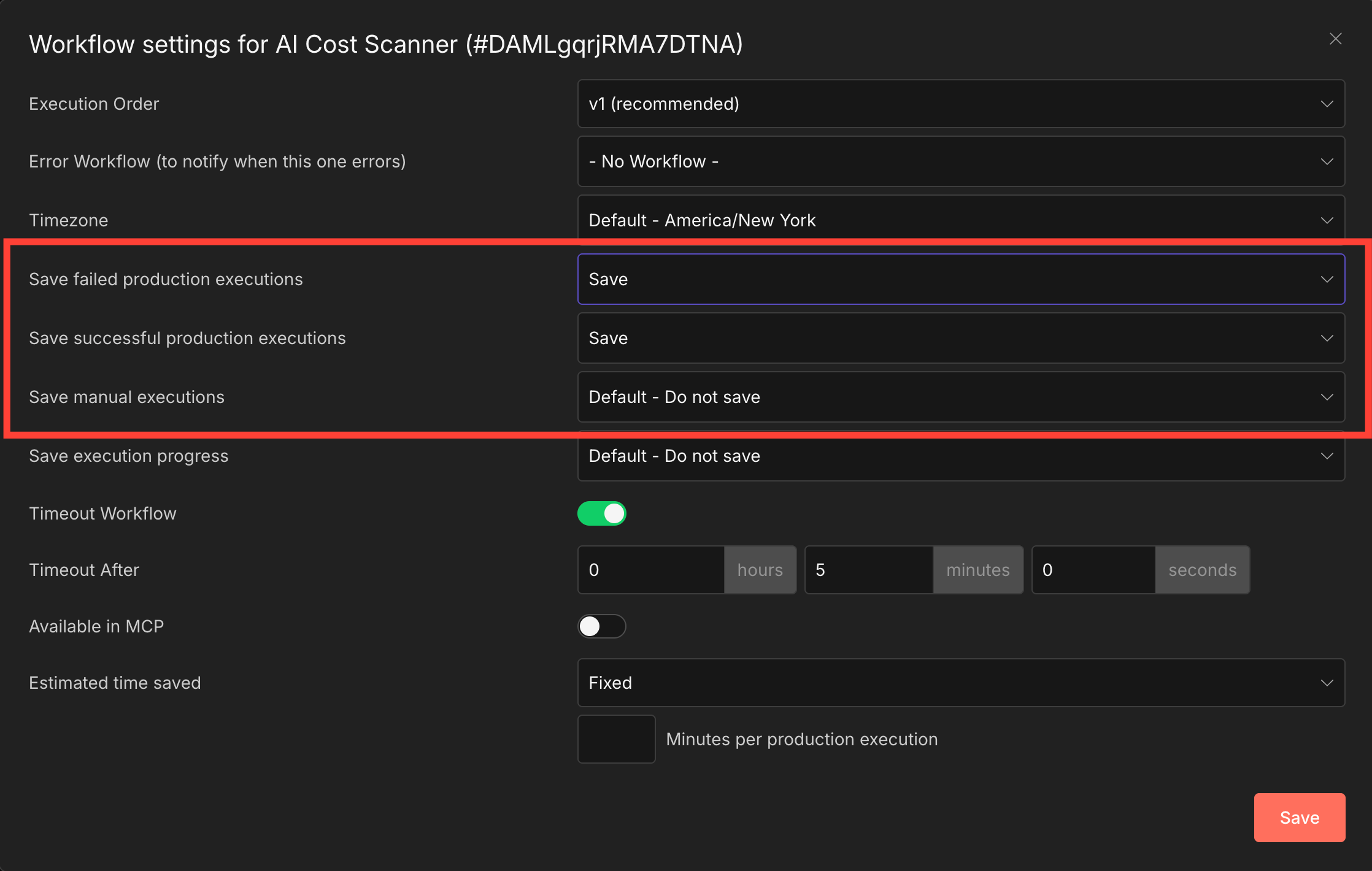
Critical prerequisite: Enable execution saving
By default, many n8n instances don’t save data for successful executions, only failures. If your instance is configured this way, the scanner will find ZERO executions to scan because the execution metadata gets discarded after each run.
Per-workflow override: You can also set this per workflow. Open any workflow → Settings (gear icon) → “Save Successful Production Executions” → “Yes.” This is the safer option: it only saves data for workflows you want to track, avoiding unnecessary storage on high-frequency workflows.
Your Cost Scanner workflow itself needs this enabled too: open the scanner workflow → Settings → “Save Successful Production Executions” → “Yes.” Without this, you can’t debug scanner issues because its own execution data disappears.
PluggedIn members: skip Steps 3-6 entirely. Your \05-n8n-ai-cost-scanner-workflow.json has all 18 nodes pre-built. Import, connect your Google Sheets credentials, and jump to Step 7 (optional) or the 15-Minute Challenge.
Step 3: Build the Execution Scanner (15 minutes)
This is the core of the system. Four nodes that fetch, filter, and extract execution data.
In n8n → Create new workflow → Name it “AI Cost Scanner”
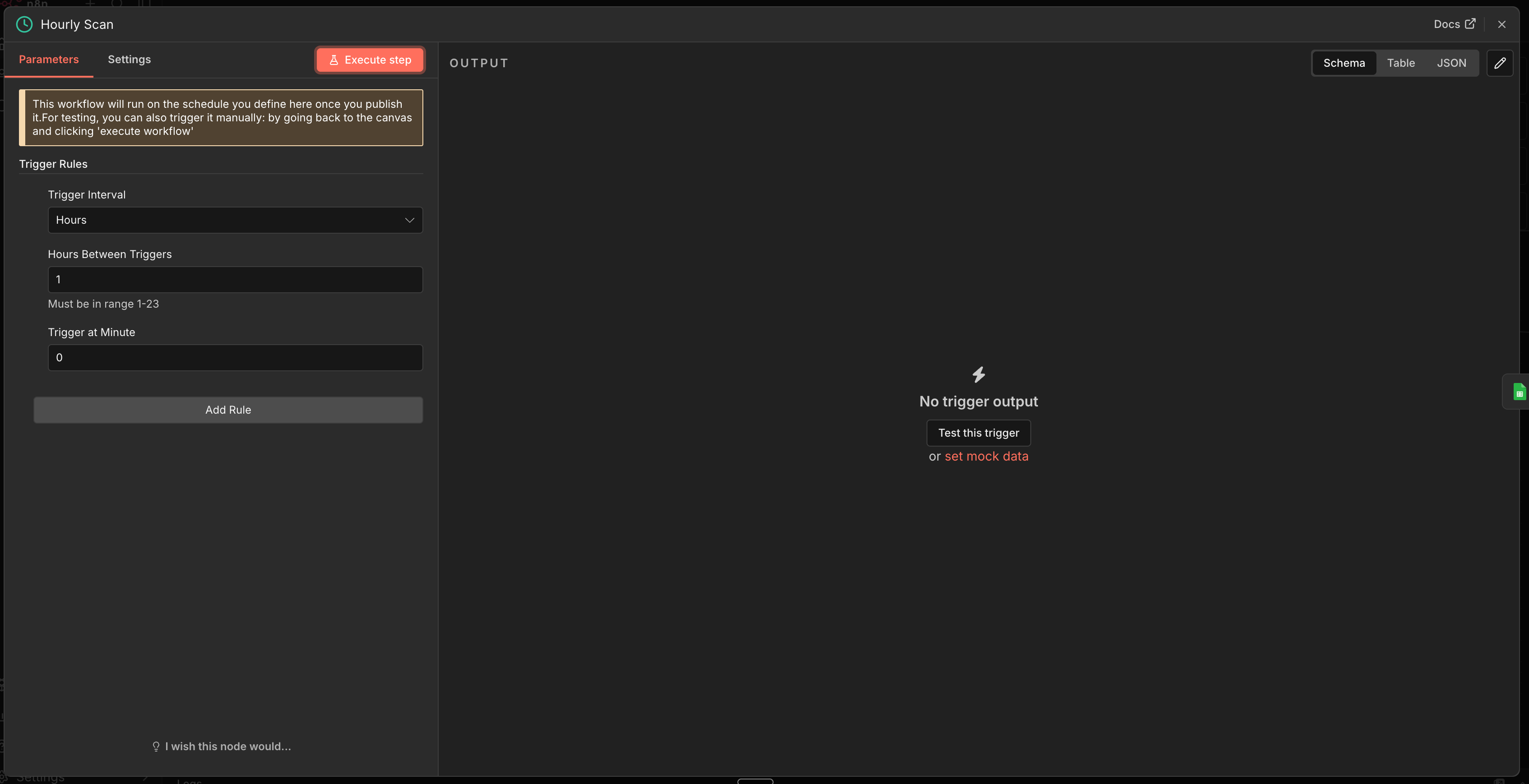
Node 1: Schedule Trigger
Click + → Schedule Trigger
Trigger interval: Every 1 hour
What this does: Runs the scanner every hour. This catches costs within 60 minutes of occurring. Adjust to every 15 minutes if you want near-real-time tracking, or every 6 hours if your volume is low.
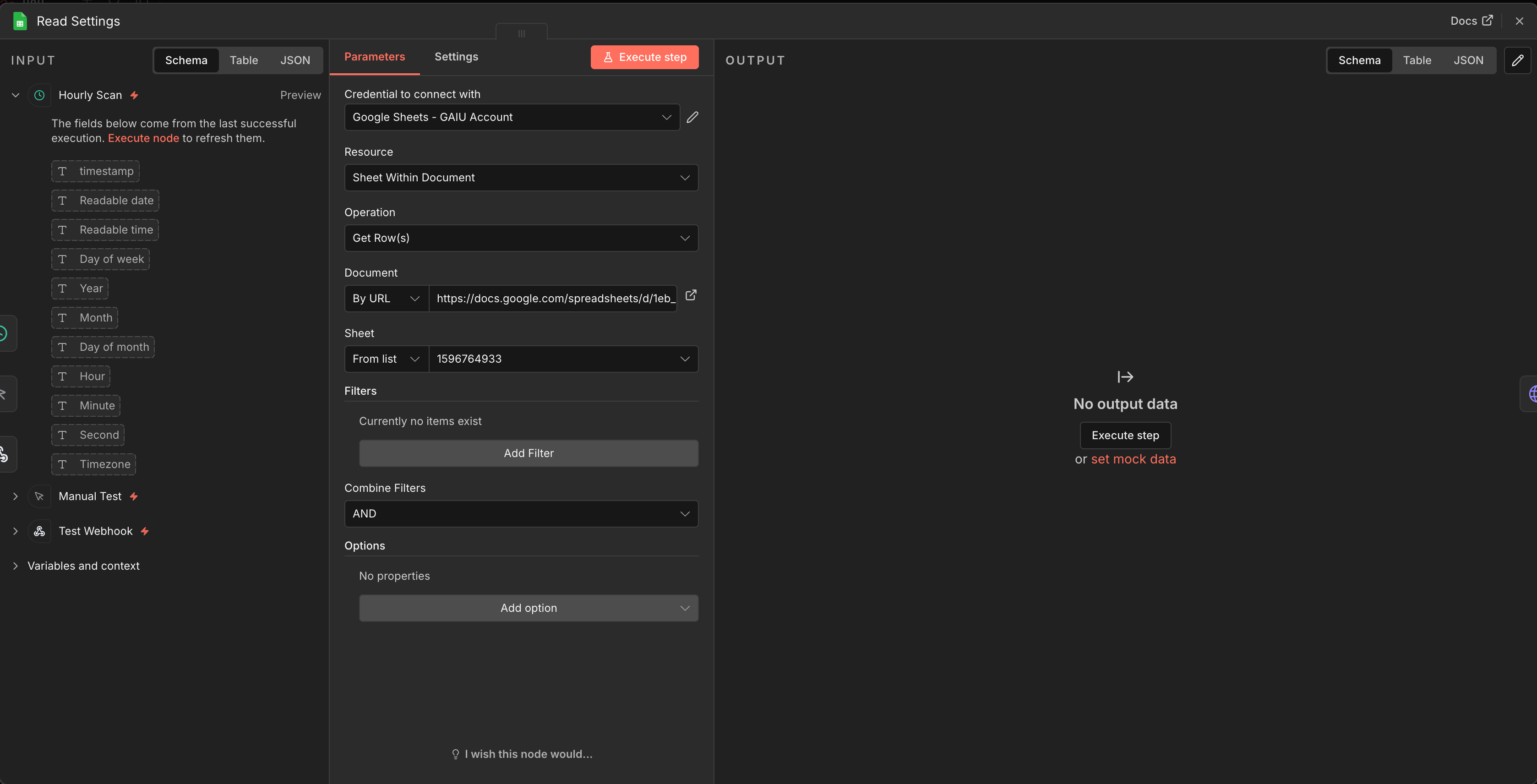
Node 2: Google Sheets - Read Settings
Connect to Schedule Trigger
Document: Your copied template
Sheet: “Settings” (use the numeric GID from the sheet URL, not the tab name, as some n8n versions require this)
Operation: Read rows
What this does: Loads last_scan_timestamp and monthly_budget so the scanner knows which executions to skip (already processed) and when to alert.
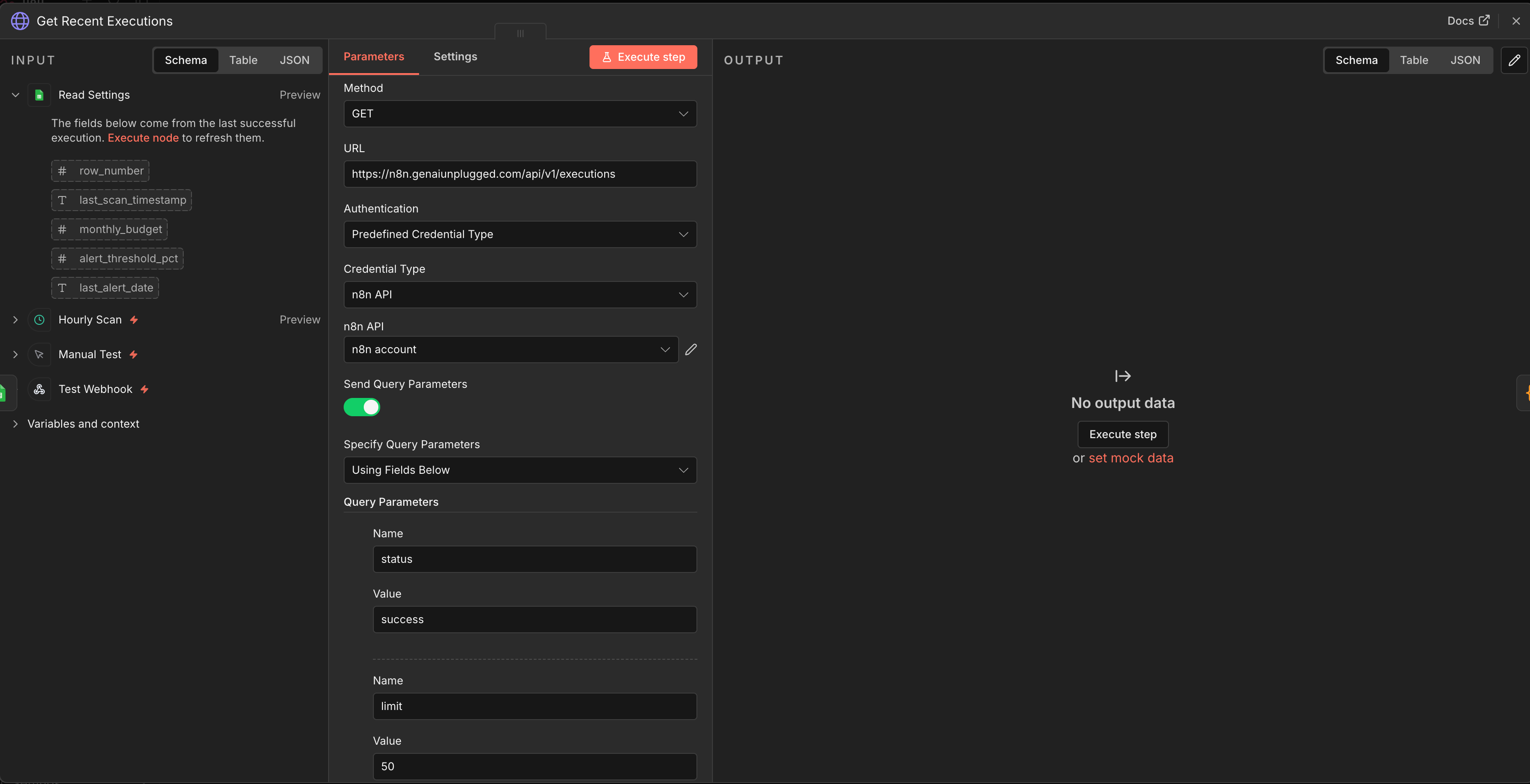
Node 3: HTTP Request - Get Recent Executions
Connect to Read Settings
Method: GET
URL:
https://YOUR-N8N-INSTANCE/api/v1/executionsAuthentication: Predefined Credential Type → “n8n API”
Query Parameters:
status=successlimit=50
Why HTTP Request instead of the n8n Node?
The built-in n8n node’s “Get Many” operation with “Include Execution Details” downloads ALL execution data in one massive response, including binary data from file-processing workflows.
In production, this can return 100MB+ and crash with an Invalid string length error. The HTTP Request approach lets us fetch the lightweight execution list first (just IDs and timestamps), filter it, then fetch detailed data only for the executions we need.
Important: Do NOT add includeData=true to this node. We intentionally fetch the lightweight list here. Detailed data comes later, one execution at a time.
What this does: Fetches the last 50 successful execution summaries: just IDs, timestamps, workflow IDs, and status. Fast and small, even if your instance has thousands of executions.
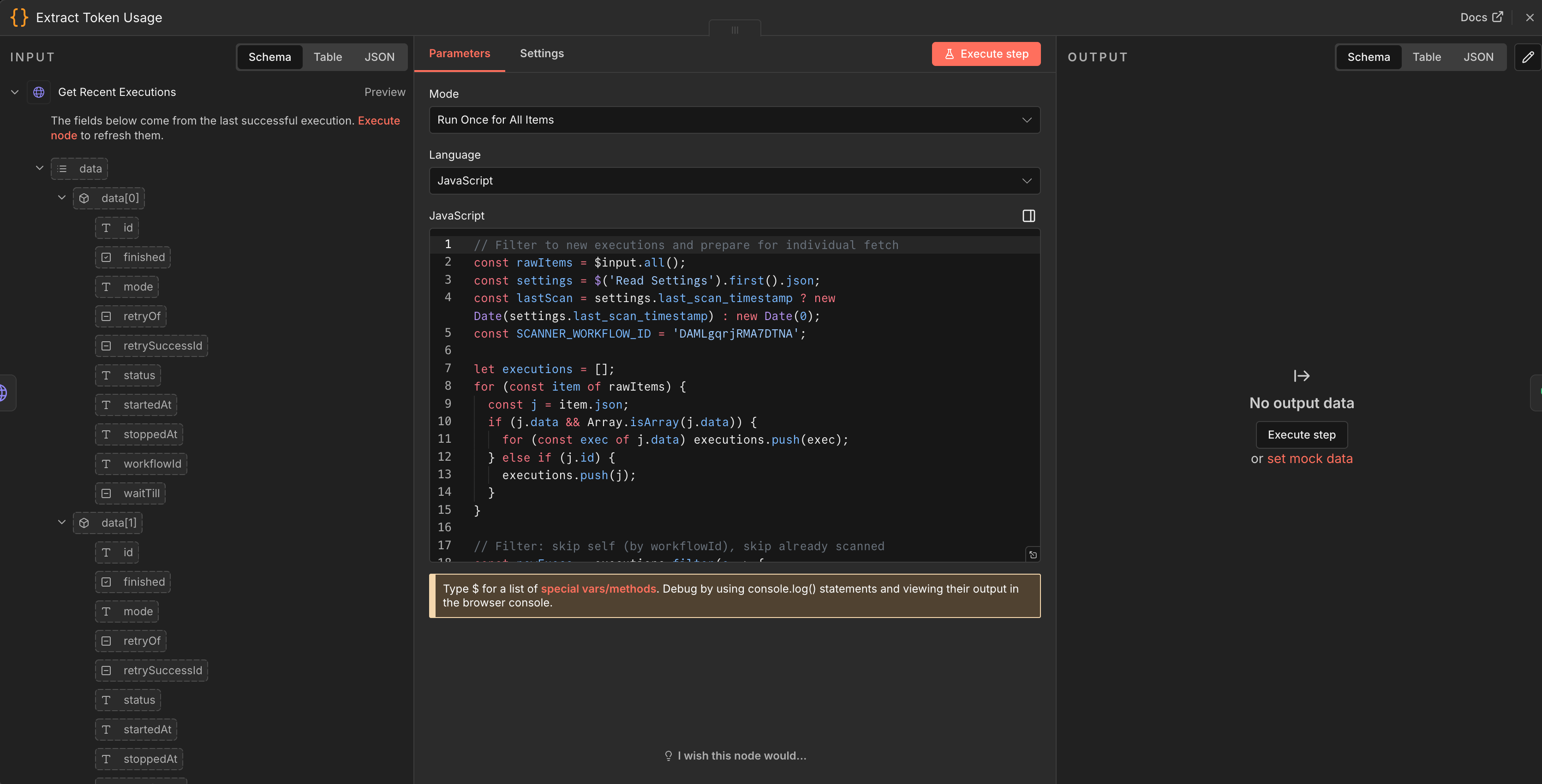
Node 4: Code Node - Filter & Prepare Executions
Connect to Get Recent Executions
Mode: Run Once for All Items
// Filter to new executions and prepare for individual fetch
const rawItems = $input.all();
const settings = $('Read Settings').first().json;
const lastScan = settings.last_scan_timestamp
  ? new Date(settings.last_scan_timestamp) : new Date(0);

// IMPORTANT: Replace with YOUR scanner's workflow ID to prevent self-tracking
const SCANNER_WORKFLOW_ID = 'YOUR_SCANNER_WORKFLOW_ID';

let executions = [];
for (const item of rawItems) {
  const j = item.json;
  if (j.data && Array.isArray(j.data)) {
    for (const exec of j.data) executions.push(exec);
  } else if (j.id) {
    executions.push(j);
  }
}

const newExecs = executions.filter(e => {
  // Skip our own executions (prevent recursive self-tracking)
  if (e.workflowId === SCANNER_WORKFLOW_ID) return false;
  // Skip executions already processed
  const stopped = new Date(e.stoppedAt || e.startedAt);
  return stopped > lastScan;
});

if (newExecs.length === 0) {
  return [{ json: { _no_ai_executions: true } }];
}

return newExecs.map(e => ({
  json: {
    exec_id: String(e.id),
    workflow_id: e.workflowId || 'unknown',
    stoppedAt: e.stoppedAt
  }
}));
What this code does:
Unwraps the API response: The n8n API wraps results in a
dataarraySelf-exclusion: Filters out the scanner’s own executions by workflow ID (not name, since the lightweight list doesn’t include workflow names)
Deduplication: Skips executions older than
last_scan_timestampOutputs exec_ids: Each item contains just the execution ID, ready for individual detail fetching
Finding your scanner’s workflow ID: After you save the workflow, look at the URL in your browser: https://your-instance/workflow/ABC123. The ABC123 part is your workflow ID. Replace YOUR_SCANNER_WORKFLOW_ID in the code above.
Add a Manual Trigger too: Add a Manual Trigger node and connect it to the same Read Settings node. This lets you test the scanner without waiting an hour.
Step 4: Extract Tokens and Calculate Costs (15 minutes)
Now the interesting part. We fetch detailed execution data, extract AI token usage, and turn it into dollar amounts.
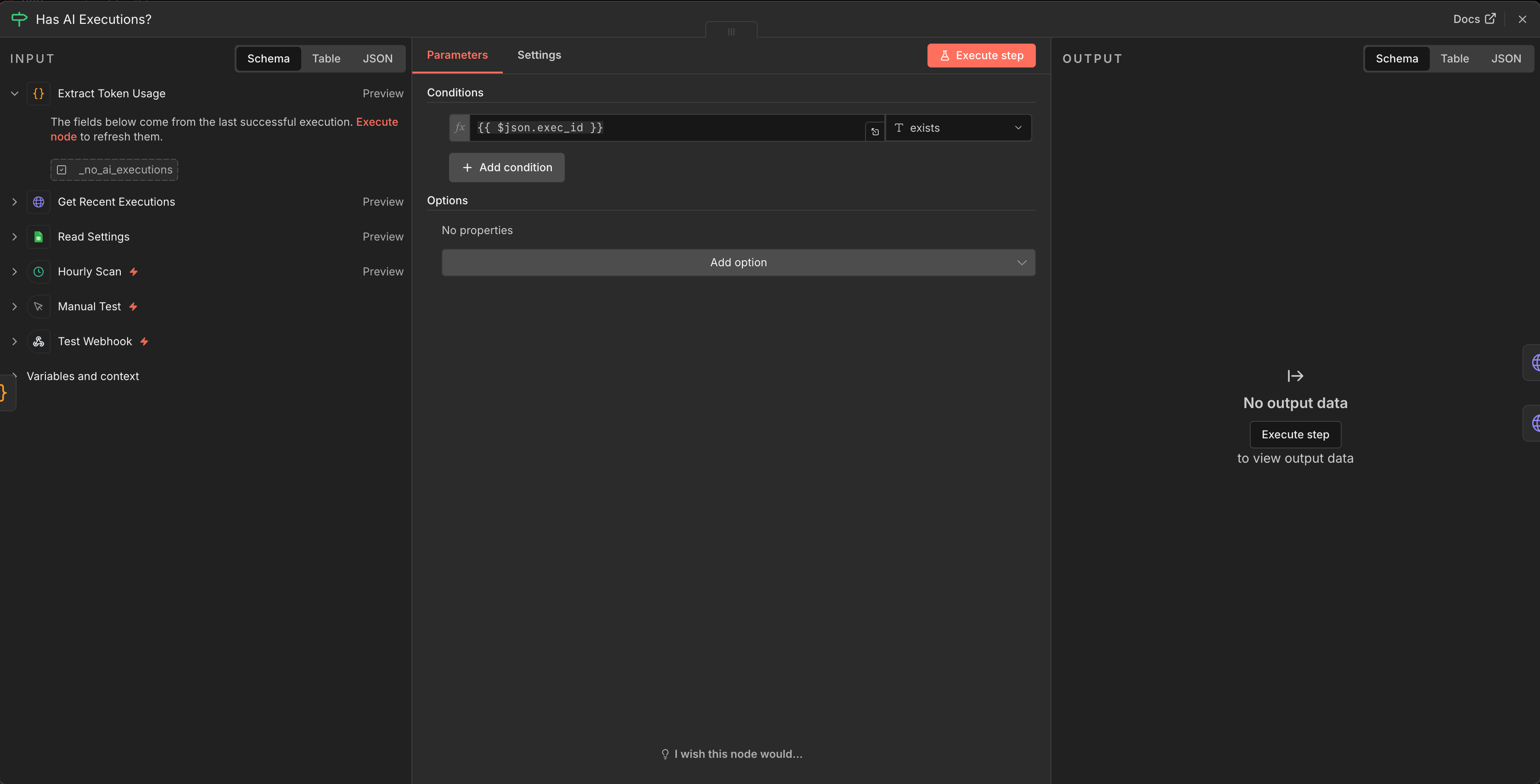
Node 5: IF - Has AI Executions?
Connect to Filter & Prepare Executions
Condition:
{{ $json.exec_id }}→ String → existsImportant: Set Type Validation to “Loose” (under Options). Strict validation causes
undefinedvalues to fail even simple existence checks.TRUE output → continue to fetch details
FALSE output → skip to Update Scan Timestamp
What this does: When there are no new AI executions, the filter code returns { _no_ai_executions: true } with no exec_id field. This IF node routes that to the “skip” path so the scanner doesn’t waste time fetching empty data.
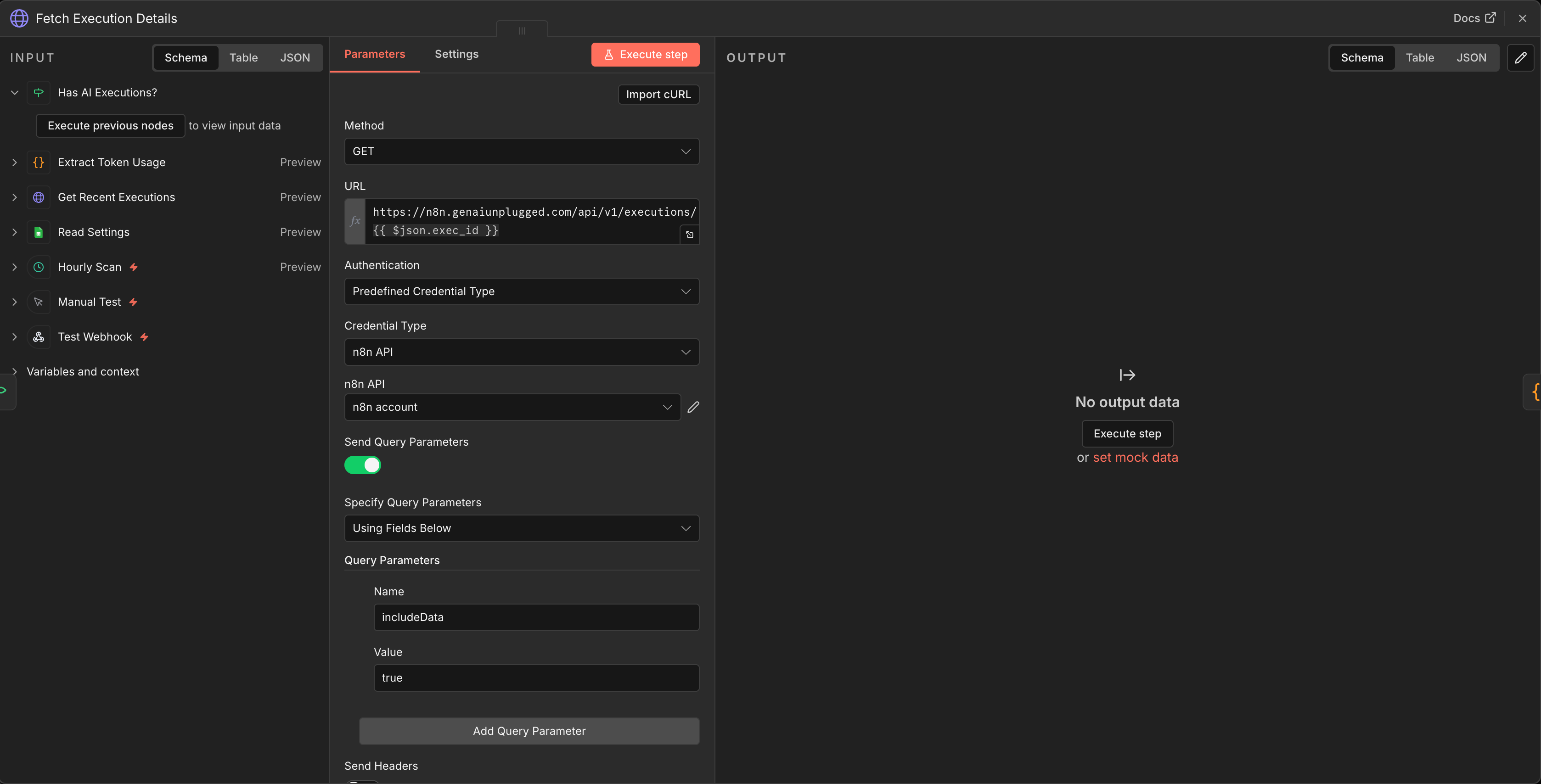
Node 6: HTTP Request - Fetch Execution Details
Connect to IF (TRUE branch)
Method: GET
URL:
https://YOUR-N8N-INSTANCE/api/v1/executions/{{ $json.exec_id }}Authentication: Predefined Credential Type → “n8n API”
Query Parameters:
includeData=true
Why fetch one at a time?
This is the key architectural decision. The includeData=true parameter returns the FULL execution data including all node outputs. If a workflow processes images or files, that binary data is included too.
A single execution can be 10MB+. Fetching 100 at once caused our test instance to crash with a 350MB response. Fetching individually means each request is manageable, and you only fetch executions that passed the filter.
What this does: For each execution ID from the filter step, fetches the complete execution data including resultData.runData where token usage lives.
Node 7: Code Node - Process AI Data
Connect to Fetch Execution Details
Mode: Run Once for All Items
// Extract AI token usage from individual execution data
const items = $input.all();
const aiExecutions = [];

for (const item of items) {
  const e = item.json;
  const runData = e.data && e.data.resultData
    && e.data.resultData.runData;
  if (!runData) continue;

  const workflowName = (e.workflowData && e.workflowData.name)
    || 'Unknown Workflow';
  const wfNodes = (e.workflowData && e.workflowData.nodes) || [];

  // Check every node in the execution
  for (const nodeName of Object.keys(runData)) {
    const nodeRuns = runData[nodeName];

    for (const run of nodeRuns) {
      const aiData = run.data && run.data.ai_languageModel;
      if (!aiData) continue;

      // Extract token usage from each LLM call
      for (let i = 0; i < aiData.length; i++) {
        for (let j = 0; j < aiData[i].length; j++) {
          const llmOutput = aiData[i][j];
          if (!llmOutput || !llmOutput.json) continue;

          const tokenUsage = llmOutput.json.tokenUsage
            || llmOutput.json.tokenUsageEstimate;
          if (!tokenUsage) continue;

          const isEstimate = !llmOutput.json.tokenUsage;

          // Model name detection (4 methods, most reliable first)
          let modelName = 'unknown';

          // Method 1: Response generations metadata
          try {
            const gen = llmOutput.json.response
              .generations[0][0].generationInfo;
            if (gen && gen.model_name) modelName = gen.model_name;
          } catch (err) {}

          // Method 2: Direct model field on response
          if (modelName === 'unknown') {
            try {
              if (llmOutput.json.model)
                modelName = llmOutput.json.model;
              else if (llmOutput.json.response
                && llmOutput.json.response.model)
                modelName = llmOutput.json.response.model;
            } catch (err) {}
          }

          // Method 3: Workflow node configuration
          if (modelName === 'unknown') {
            try {
              const mn = wfNodes.find(n => n.name === nodeName);
              if (mn) modelName = mn.parameters.modelId
                || mn.parameters.model
                || mn.parameters.modelName || 'unknown';
            } catch (err) {}
          }

          // Method 4: Infer from node type
          if (modelName === 'unknown') {
            try {
              const mn = wfNodes.find(n => n.name === nodeName);
              if (mn) {
                const nt = mn.type || '';
                if (nt.includes('gemini')) modelName = 'gemini-pro';
                else if (nt.includes('openai')
                  || nt.includes('openAi')) modelName = 'gpt-4';
                else if (nt.includes('anthropic'))
                  modelName = 'claude-3';
              }
            } catch (err) {}
          }

          // Strip "models/" prefix (Google Gemini returns this)
          modelName = modelName.replace(/^models\//, '');

          aiExecutions.push({
            json: {
              execution_id: String(e.id),
              timestamp: e.stoppedAt || e.startedAt,
              workflow_name: workflowName,
              node_name: nodeName,
              model: modelName,
              prompt_tokens: tokenUsage.promptTokens || 0,
              completion_tokens: tokenUsage.completionTokens || 0,
              total_tokens: tokenUsage.totalTokens || 0,
              is_estimate: isEstimate
            }
          });
        }
      }
    }
  }
}

if (aiExecutions.length === 0) {
  return [{ json: { _no_ai_executions: true } }];
}
return aiExecutions;
What this code does:
Run data extraction: Walks through every node in each execution looking for
ai_languageModeldataToken extraction: Reads
tokenUsage(actual) withtokenUsageEstimateas fallbackModel detection (4 methods): Tries response metadata → direct model field → workflow node config → node type inference. Different LLM providers store the model name in different locations.
Prefix stripping: Google Gemini returns model names like
models/gemini-2.5-flash. Thereplace(/^models\//, '')strips this prefix so it matches your Pricing tab entrygemini-2.5-flash.
Where does ai_languageModel come from?
Every n8n AI node (OpenAI, Anthropic, Google Gemini, Ollama) writes its token usage to a special ai_languageModel namespace in the execution metadata. This is NOT something you configure. n8n does it automatically. That’s why this approach is zero-touch.
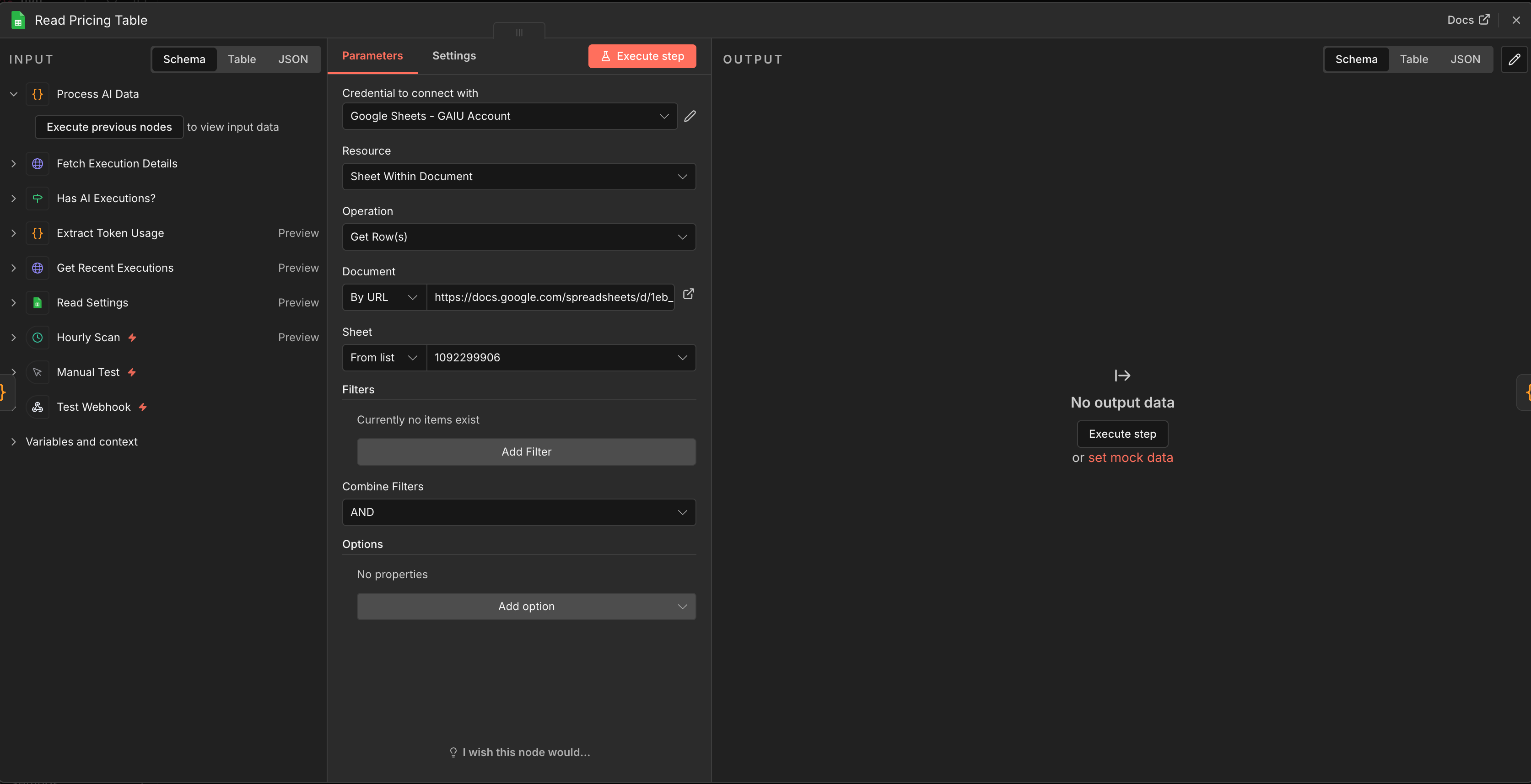
Node 8: Google Sheets - Read Pricing Table
Connect to Process AI Data
Document: Your template
Sheet: “Pricing”
Node 9: Code Node - Calculate Costs
Connect to Read Pricing Table
Mode: Run Once for All Items
// Join token data with pricing table and calculate costs
const tokenItems = $('Process AI Data').all();
const pricingRows = $('Read Pricing Table').all();

// Build pricing lookup
const pricing = {};
for (const row of pricingRows) {
  const model = (row.json.Model || '').toLowerCase().trim();
  if (model) {
    pricing[model] = {
      input_per_1m: parseFloat(row.json['Input Cost per 1M Tokens']) || 0,
      output_per_1m: parseFloat(row.json['Output Cost per 1M Tokens']) || 0
    };
  }
}

const results = [];
for (const item of tokenItems) {
  const d = item.json;
  let modelKey = (d.model || '').toLowerCase().trim();

  // Strip "models/" prefix (some providers include it)
  modelKey = modelKey.replace(/^models\//, '');

  // Find pricing: exact match first
  let price = pricing[modelKey];

  // Then try partial match (e.g., "gpt-4o-mini-2024-07-18" matches "gpt-4o-mini")
  if (!price) {
    for (const [key, val] of Object.entries(pricing)) {
      if (modelKey.includes(key) || key.includes(modelKey)) {
        price = val;
        break;
      }
    }
  }

  // Default pricing if model not found ($1/$3 per 1M tokens)
  if (!price) {
    price = { input_per_1m: 1.0, output_per_1m: 3.0 };
  }

  const inputCost = (d.prompt_tokens / 1000000) * price.input_per_1m;
  const outputCost = (d.completion_tokens / 1000000) * price.output_per_1m;
  const totalCost = inputCost + outputCost;

  results.push({ json: {
    Timestamp: d.timestamp,
    'Execution ID': d.execution_id,
    'Workflow Name': d.workflow_name,
    'Node Name': d.node_name,
    Model: modelKey,
    'Prompt Tokens': d.prompt_tokens,
    'Completion Tokens': d.completion_tokens,
    'Total Tokens': d.total_tokens,
    'Input Cost USD': Math.round(inputCost * 1000000) / 1000000,
    'Output Cost USD': Math.round(outputCost * 1000000) / 1000000,
    'Total Cost USD': Math.round(totalCost * 1000000) / 1000000,
    'Is Estimate': d.is_estimate ? 'Yes' : 'No'
  }});
}
return results;
What this does: Looks up each model in your Pricing tab, multiplies tokens by the per-million rate, and calculates input cost + output cost separately. Three layers of matching:
Exact match:
gpt-4o-mini→gpt-4o-miniPartial match:
gpt-4o-mini-2024-07-18(what n8n reports) →gpt-4o-mini(what you put in the Pricing tab)Default fallback: If the model isn’t in your Pricing tab at all, uses $1/$3 per million tokens (roughly mid-range pricing) so costs are never $0. Check the Execution Log for unrecognized model names and add them to the Pricing tab.
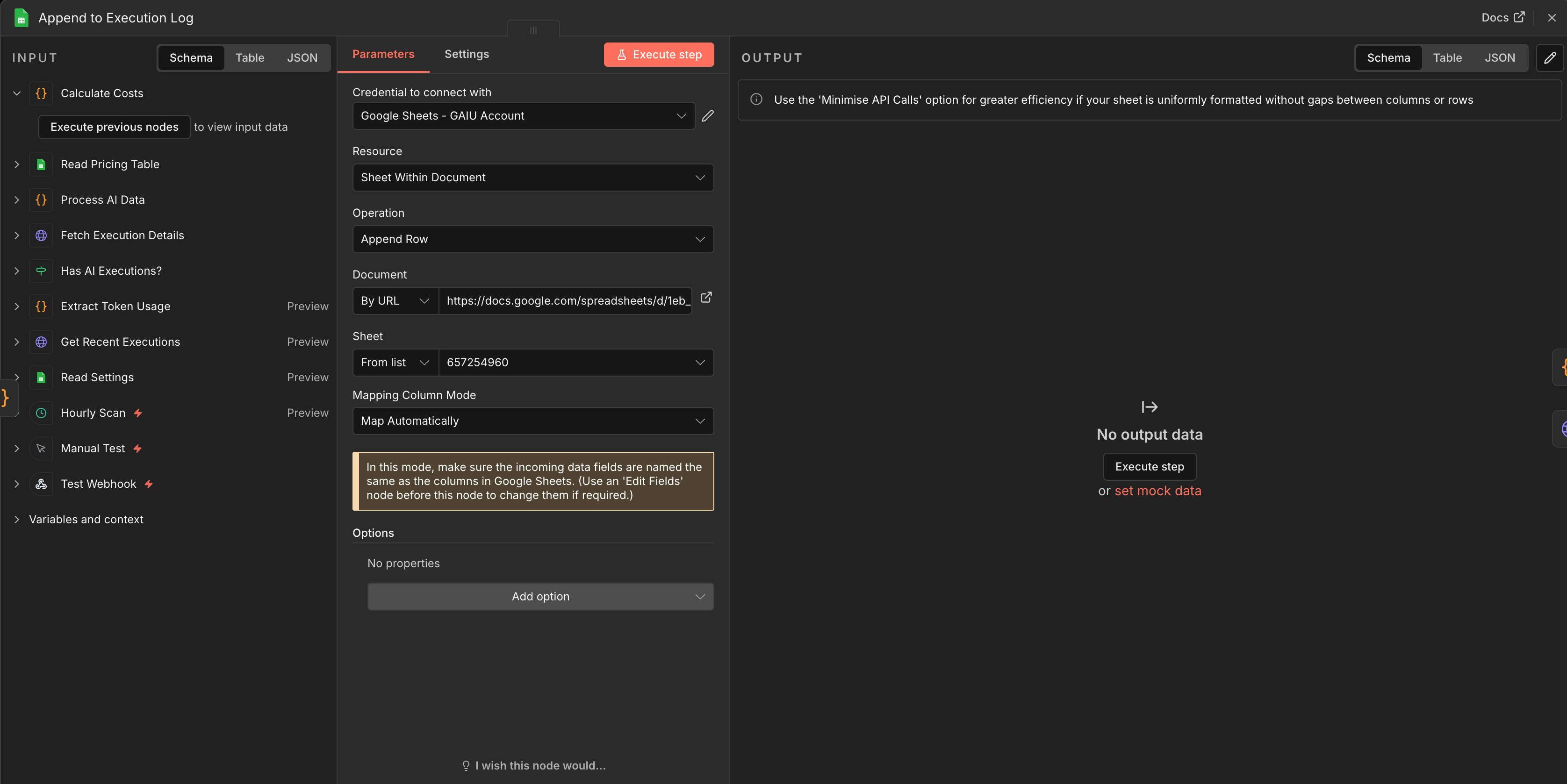
Node 10: Google Sheets - Append to Execution Log
Connect to Calculate Costs
Document: Your template
Sheet: “Execution Log”
Mapping: Auto-map input data (column names match exactly)
Step 5: Add Smart Budget Alerts (5 minutes)
The old approach sent an alert for EVERY execution once you hit the threshold. You’d get 50 emails in a day. This system sends ONE alert per day, max.
Node 11: Code Node - Check Budget Threshold
Connect to Append to Execution Log
Mode: Run Once for All Items
javascript
const items = $input.all();
const settings = $('Read Settings').first().json;
const budget = parseFloat(settings.monthly_budget) || 200;
const threshold = parseFloat(settings.alert_threshold_pct) || 80;
const lastAlertDate = settings.last_alert_date || '';

let batchCost = 0;
for (const item of items) {
  batchCost += parseFloat(item.json['Total Cost USD']) || 0;
}

const today = new Date().toISOString().split('T')[0];
const alreadyAlertedToday = lastAlertDate === today;

return [{
  json: {
    batch_cost: Math.round(batchCost * 100) / 100,
    monthly_budget: budget,
    threshold_amount: budget * (threshold / 100),
    already_alerted_today: alreadyAlertedToday,
    today: today,
    items_processed: items.length
  }
}];
What this does: Calculates the cost from the current scan batch and checks whether you’ve already received an alert today. The last_alert_date in the Settings tab prevents duplicate emails.
Node 12: IF - Should Send Budget Alert?
Connect to Check Budget Threshold
Condition:
{{ $json.already_alerted_today === false && $json.items_processed > 0 }}Type Validation: Loose
TRUE output → Send budget alert email
FALSE output → skip to Update Scan Timestamp
What this does: Two checks before firing an alert: today’s alert hasn’t been sent yet (prevents inbox flood), and this scan actually found new executions (prevents empty alerts).
For a more precise trigger - checking whether you’ve crossed 80% of your monthly budget - you’d read the monthly total from your Dashboard tab and compare it against threshold_amount.
Node 13: Gmail - Send Budget Alert
Connect to IF (TRUE branch)
Credential: Gmail OAuth2
To: Your email
Subject:
AI Cost Alert: ${{ $('Check Budget Threshold').first().json.batch_cost }} new costs loggedMessage:
New AI workflow costs detected.\n\nBatch cost: ${{ $('Check Budget Threshold').first().json.batch_cost }}\nMonthly budget: ${{ $('Check Budget Threshold').first().json.monthly_budget }}\n\nOpen your Google Sheets Dashboard to see your current monthly total vs. budget.
Important: After this node fires, you need to update last_alert_date in Settings to prevent duplicate alerts today. Add a Google Sheets Update node after Gmail that writes today’s date to the Settings tab’s last_alert_date row.
Why Gmail over “Send Email”? Same reason as the weekly report: OAuth2 is simpler to configure than SMTP. Reuse the same Gmail OAuth2 credential you set up for the weekly report.
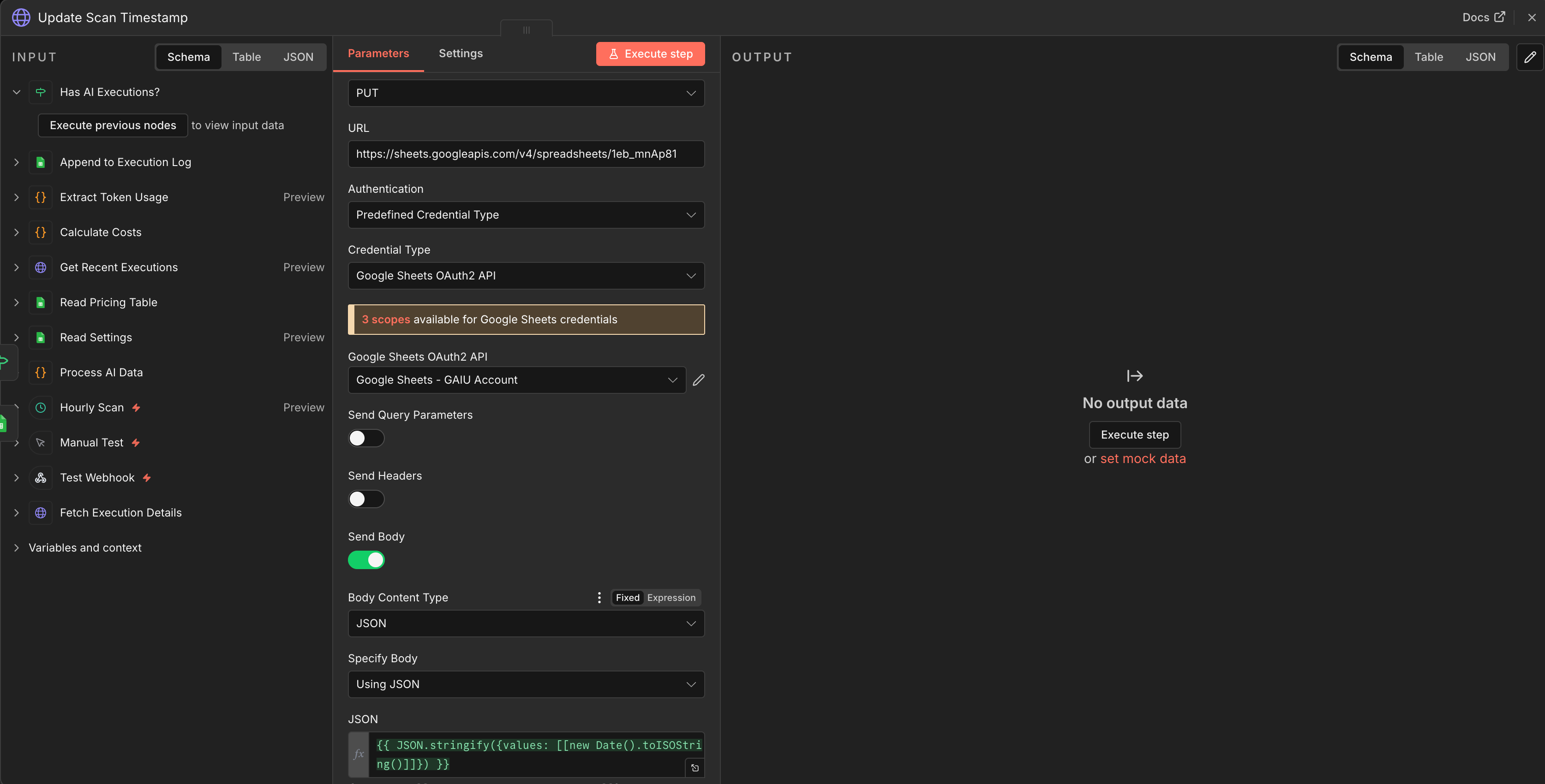
Node 14: HTTP Request - Update Scan Timestamp
Connect to BOTH the IF node’s FALSE branch AND the Gmail node (TRUE branch completes)
Method: PUT
URL:
https://sheets.googleapis.com/v4/spreadsheets/YOUR_SHEET_ID/values/Settings!A2?valueInputOption=USER_ENTEREDAuthentication: Predefined Credential Type → “Google Sheets OAuth2”
Body (JSON):
{"values": [["{{new Date().toISOString()}}"]]}
Why HTTP Request instead of Google Sheets node? The Google Sheets “Update” operation requires a columnToMatchOn parameter - it expects to search for a row, not update a specific cell. For a simple timestamp write to a known cell (A2), a direct Sheets API call is cleaner and more reliable.
This runs after every scan, whether or not AI executions were found. It moves the watermark forward so the next scan doesn’t re-process the same executions.
Step 6: Build the Weekly Report (10 minutes)
A separate branch that runs every Monday at 9 AM.
Node 15: Schedule Trigger (Weekly)
Cron expression:
0 9 * * 1(Monday 9 AM)This trigger is INDEPENDENT of the hourly scanner
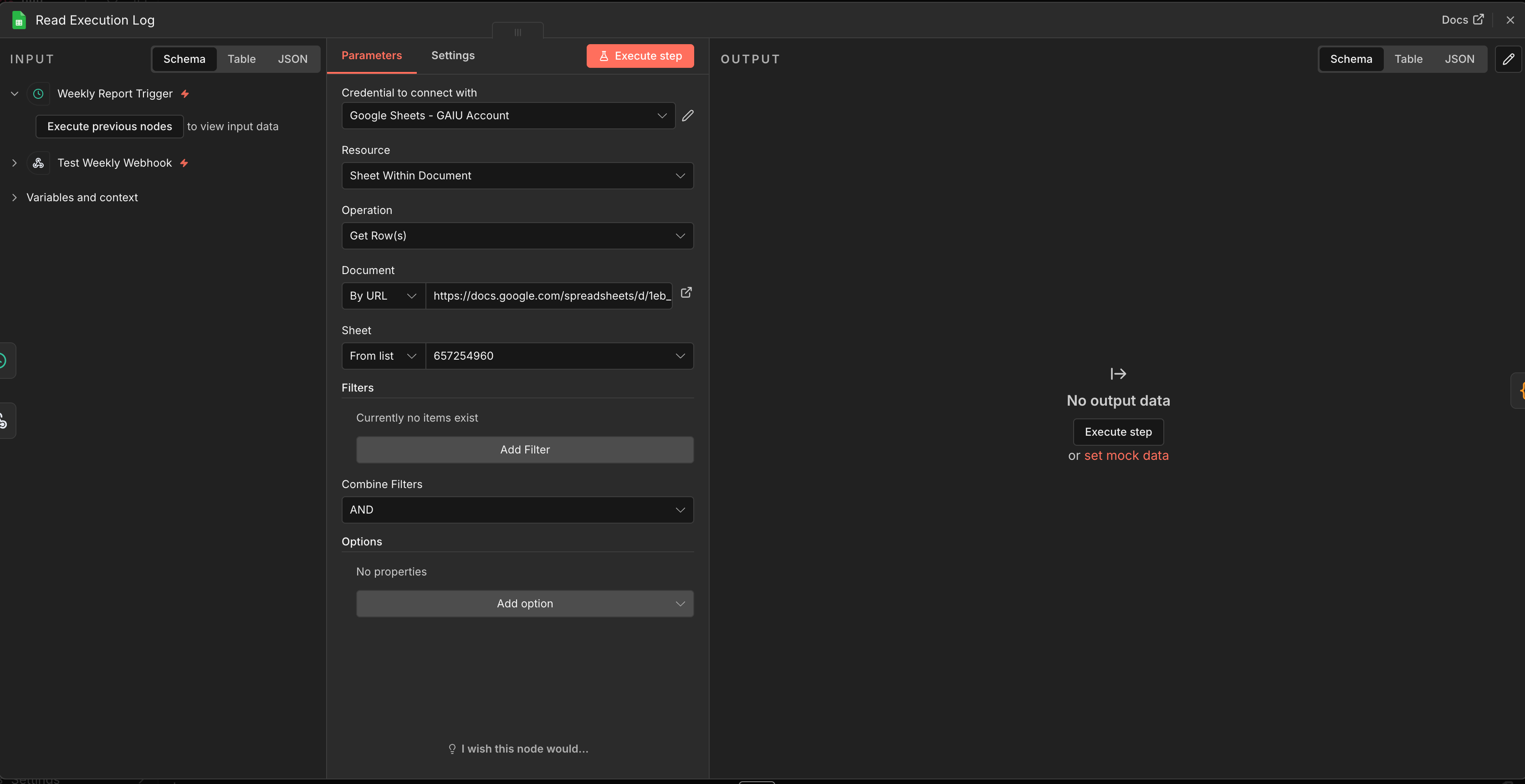
Node 16: Google Sheets - Read Execution Log
Connect to Weekly Trigger
Document: Your template
Sheet: “Execution Log”
Node 17: Code Node - Aggregate Weekly Data
Connect to Read Execution Log
Mode: Run Once for All Items
const allRows = $input.all();
const now = new Date();
const sevenDaysAgo = new Date(now.getTime() - 7 * 24 * 60 * 60 * 1000);

const lastWeek = allRows.filter(item => {
  return new Date(item.json.Timestamp) >= sevenDaysAgo;
});

if (lastWeek.length === 0) {
  return [{ json: {
    email_subject: 'Weekly AI Cost Report: $0.00',
    email_body: 'No AI executions recorded this week.'
  }}];
}

let totalCost = 0;
let totalTokens = 0;
const byWorkflow = {};
const byModel = {};

for (const item of lastWeek) {
  const d = item.json;
  const cost = parseFloat(d['Total Cost USD']) || 0;
  const tokens = parseInt(d['Total Tokens']) || 0;
  totalCost += cost;
  totalTokens += tokens;

  const wf = d['Workflow Name'] || 'Unknown';
  if (!byWorkflow[wf]) byWorkflow[wf] = { cost: 0, calls: 0 };
  byWorkflow[wf].cost += cost;
  byWorkflow[wf].calls += 1;

  const model = d.Model || 'Unknown';
  if (!byModel[model]) byModel[model] = { cost: 0, calls: 0 };
  byModel[model].cost += cost;
  byModel[model].calls += 1;
}

const topWf = Object.entries(byWorkflow)
  .sort((a, b) => b[1].cost - a[1].cost)
  .slice(0, 5)
  .map(([n, d]) => `  - ${n}: $${d.cost.toFixed(2)} (${d.calls} calls)`)
  .join('\n');

const topModels = Object.entries(byModel)
  .sort((a, b) => b[1].cost - a[1].cost)
  .slice(0, 5)
  .map(([n, d]) => `  - ${n}: $${d.cost.toFixed(2)} (${d.calls} calls)`)
  .join('\n');

return [{ json: {
  email_subject: `Weekly AI Cost Report: $${totalCost.toFixed(2)}`,
  email_body:
    `Total spend this week: $${totalCost.toFixed(2)}\n` +
    `Total LLM calls: ${lastWeek.length}\n` +
    `Total tokens: ${totalTokens.toLocaleString()}\n\n` +
    `Top Workflows:\n${topWf}\n\n` +
    `Top Models:\n${topModels}`
}}];
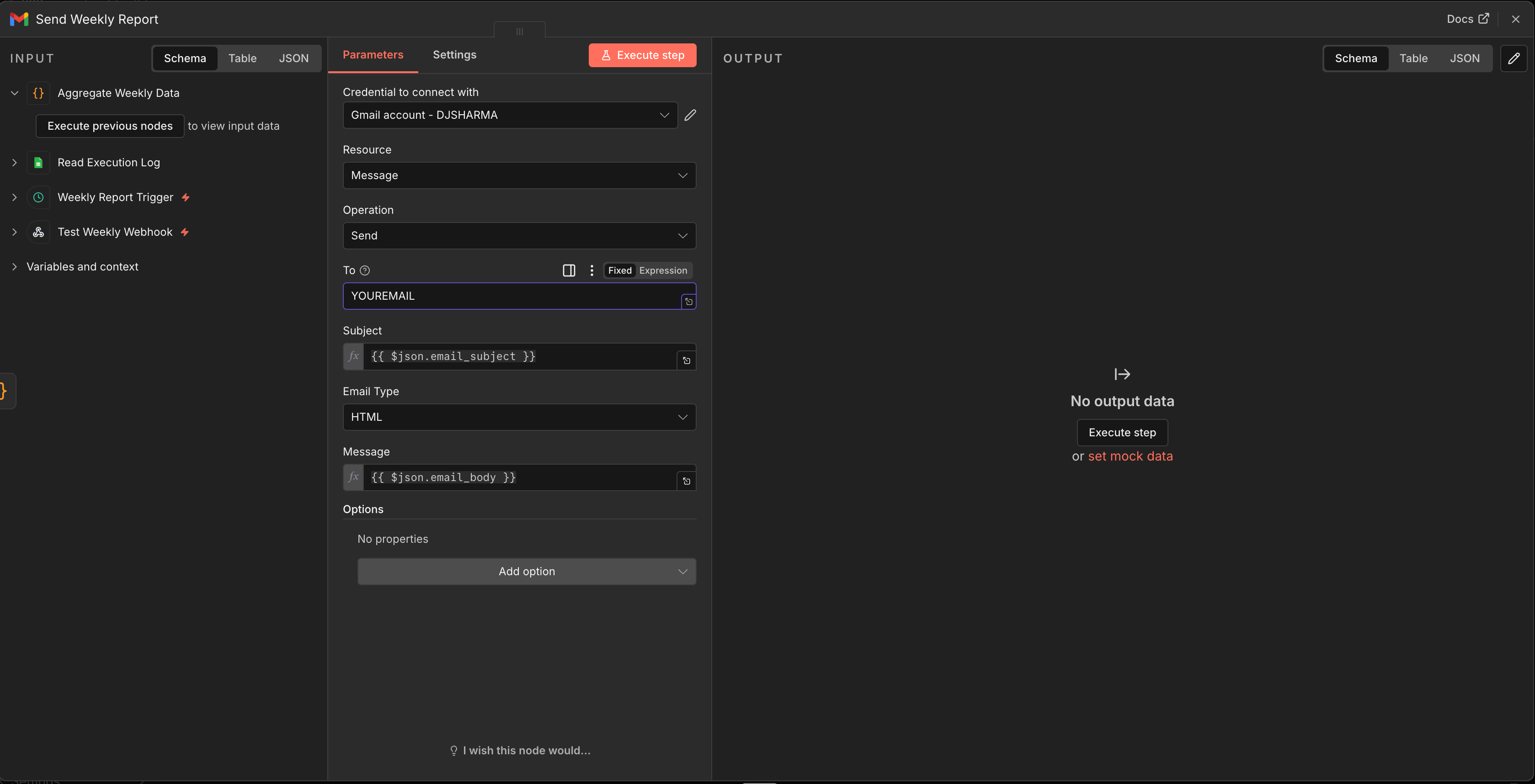
Node 18: Gmail - Send Weekly Report
Connect to Aggregate Weekly Data
Credential: Gmail OAuth2 (not SMTP “Send Email,” as Gmail OAuth2 is easier to set up and doesn’t require app passwords)
To: Your email
Subject:
{{ $json.email_subject }}Message:
{{ $json.email_body }}
Why Gmail instead of “Send Email”? The generic “Send Email” node uses SMTP, which requires configuring an SMTP server, port, and often an app-specific password. The Gmail node uses OAuth2 - you just authorize your Google account and it works. If you don’t use Gmail, the “Send Email” SMTP node works too, but requires more configuration.
Step 7: Track Non-AI Costs (Optional)
The scanner catches every LLM call automatically. But what about non-AI services like Perplexity searches, Firecrawl scrapes, or external API calls that don’t appear in ai_languageModel metadata?
For these, add ONE HTTP Request node at the end of the specific workflow that uses the non-AI service. This is the ONLY manual instrumentation needed, and it only applies to the 3-4 services that don’t use n8n’s built-in AI nodes.
In the workflow that uses the non-AI service, add at the end:
HTTP Request Node
Method: POST
URL: A separate webhook trigger in your Cost Scanner (add a Webhook node)
Body:
json
{
  "workflow_name": "Competitor Analysis",
  "node_name": "Firecrawl Scrape",
  "model": "firecrawl",
  "prompt_tokens": {{ $json.pages_scraped || 0 }},
  "completion_tokens": 0,
  "total_tokens": {{ $json.pages_scraped || 0 }}
}
Then add a row to your Pricing tab: firecrawl | Firecrawl | [rate] | 0 where [rate] is your plan’s cost per 1M pages (e.g., 200 for Growth tier at $0.20/1,000 pages, or 1000 for Standard at $1.00/1,000 pages - check firecrawl.dev/pricing for your tier).
Key difference from the old approach: This is optional, applies to 3-4 services at most, and uses the same Pricing tab lookup. The core system (80% of costs) requires zero manual work.
Building more n8n automations? The n8n Mastery Bundle has 15 production-ready workflow templates you can import directly into n8n, a 100-page eBook covering all 42 course lessons, and 9 checklists and mini-guides.
Expected Output & Examples
After 24 hours of running the scanner, here’s what you’ll see:
Google Sheets Execution Log (real data from our system):
2026-02-12 10:23:45
Execution ID: 4a8f2
Workflow Name: Content Generator
Node Name: AI Agent
Model: claude-sonnet-4-5-20250929
Prompt Tokens: 1,523
Completion Tokens: 847
Total Tokens: 2,370
Input Cost USD: 0.004569
Output Cost USD: 0.012705
Total Cost USD: 0.017274
Is Estimate: No
2026-02-12 10:23:45
Execution ID: 4a8f2
Workflow Name: Content Generator
Node Name: Summarize
Model: gpt-4o-mini
Prompt Tokens: 892
Completion Tokens: 234
Total Tokens: 1,126
Input Cost USD: 0.000134
Output Cost USD: 0.000140
Total Cost USD: 0.000274
Is Estimate: No
2026-02-12 11:15:22
Execution ID: 5b9e3
Workflow Name: Lead Research Agent
Node Name: Research
Model: gpt-4o
Prompt Tokens: 3,456
Completion Tokens: 1,200
Total Tokens: 4,656
Input Cost USD: 0.008640
Output Cost USD: 0.012000
Total Cost USD: 0.020640
Is Estimate: No
2026-02-12 14:42:18
Execution ID: 6c0f4
Workflow Name: Email Responder
Node Name: Draft Reply
Model: claude-haiku-3-5-20241022
Prompt Tokens: 2,156
Completion Tokens: 543
Total Tokens: 2,699
Input Cost USD: 0.001725
Output Cost USD: 0.002172
Total Cost USD: 0.003897
Is Estimate: No
Notice the granularity: the Content Generator workflow made TWO LLM calls (AI Agent + Summarize node), and each shows up as a separate row with its own model and cost. This is per-node tracking, not just per-workflow.
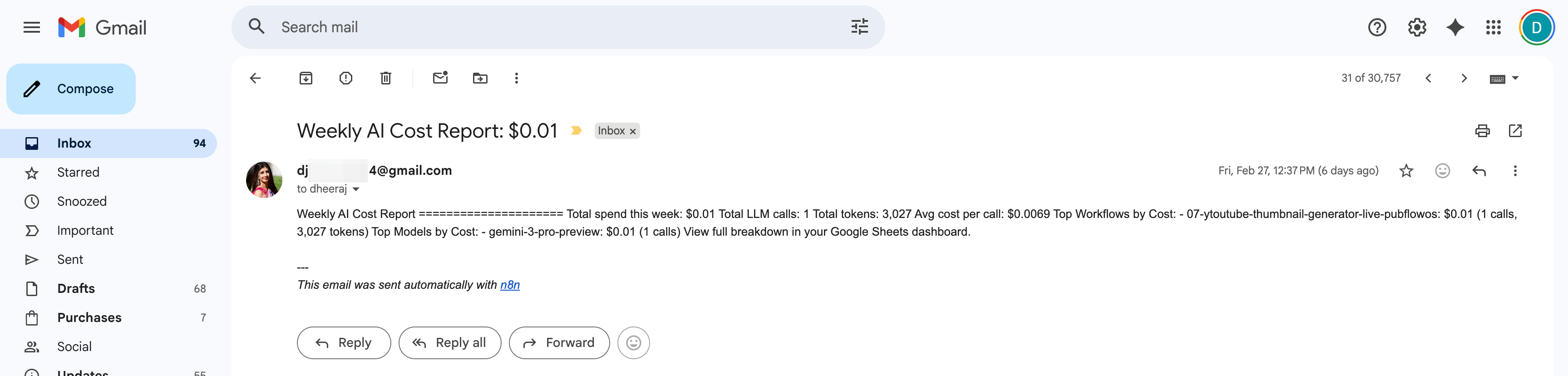
Weekly Email Report (real example):
Subject: Weekly AI Cost Report: $47.23

Total spend this week: $47.23
Total LLM calls: 312
Total tokens: 1,847,230

Top Workflows:
  - Content Generator: $23.45 (156 calls)
  - Lead Research Agent: $15.30 (89 calls)
  - Email Responder: $8.48 (67 calls)

Top Models:
  - claude-sonnet-4-5-20250929: $31.20 (98 calls)
  - gpt-4o: $12.45 (134 calls)
  - gpt-4o-mini: $3.58 (80 calls)
Budget Alert (triggered at 80% of your $200 budget):
Subject: Budget Alert: 80% of Monthly Limit Reached

You've spent $162.45 of your $200 monthly budget.
12 days remaining in billing cycle.
Before this system: You discover on Feb 1 that January cost $387. Too late to fix.
After this system: You get an alert on Jan 18 that you’re at $160 with 12 days left. You check the Dashboard tab, see that “Lead Research Agent” is your top spender at $87/month, switch it from GPT-4o to GPT-4o-mini, and finish the month at $195.
Troubleshooting
Issue 1: Scanner Returns Zero AI Executions
Symptom: You run the scanner but the Execution Log stays empty, even though your AI workflows have been running.
Check these in order:
Execution saving is disabled (most common cause): Your n8n instance may not save data for successful executions. Go to n8n → Settings → look for “Save Successful Execution Data.” If it says “Do not save,” change it to “Save.” Without this, execution metadata is discarded after each run, leaving nothing for the scanner to read. See the note in Step 2.
API key scope: Your n8n API key needs the
execution:readscope. Go to n8n Settings → API and verify.Scan timestamp in the future: Check the Settings tab in your Google Sheet. If
last_scan_timestampis set to a future date (timezone issue), the scanner thinks it already processed everything. Clear the cell to reset.Scanner is filtering itself out: The Filter & Prepare code skips executions from the scanner’s own workflow ID. If you changed
SCANNER_WORKFLOW_IDto the wrong value, it might be skipping everything. Double-check the ID matches your scanner workflow’s URL.
Issue 2: Token Counts Show But Costs Are $0.00
Symptom: Rows appear in the Execution Log with token counts, but Input Cost, Output Cost, and Total Cost are all zero.
Check: The model name in the Execution Log doesn’t match any row in your Pricing tab. Open the Pricing tab and compare.
Common mismatches:
n8n reports
models/gemini-2.5-flash(with prefix) → Pricing tab hasgemini-2.5-flash(without). The code stripsmodels/automatically, but check for other prefixes.n8n reports
claude-sonnet-4-5-20250929(with date suffix) → Pricing tab hasclaude-sonnet-4.5. Partial matching handles this, but verify.Model name is
unknown→ The code couldn’t detect the model name. Check which LLM node produced it and add the model manually to the Pricing tab.
Fix: Copy the exact model name from the Execution Log’s Model column and add it to the Pricing tab. The code now includes default pricing ($1/$3 per million tokens) for unmatched models, so costs should never be exactly $0 unless the model column is empty.
Issue 3: Some Workflows Don’t Appear
Symptom: You know a workflow ran, but the scanner didn’t pick it up.
Check three things:
Did the workflow succeed? The scanner filters to
status: success. Failed executions are excluded.Does the workflow use n8n’s built-in AI nodes (OpenAI, Anthropic, Google Gemini)? Custom HTTP Request calls to LLM APIs don’t create
ai_languageModelmetadata. Only n8n’s native AI nodes do.Did the execution finish AFTER
last_scan_timestamp? Check the Settings tab. If the timestamp is in the future (timezone issue), reset it.
Issue 4: Weekly Report Shows Wrong Totals
Symptom: The weekly email total doesn’t match what you see in Google Sheets.
Check: Timezone mismatch. The Schedule Trigger runs in your n8n instance’s timezone. The Execution Log timestamps come from the execution metadata (typically UTC). The Aggregate Weekly Data code filters by UTC dates. If your instance is in PST, executions from Sunday 11 PM PST show as Monday UTC.
Fix: Adjust the sevenDaysAgo calculation in the code to add your timezone offset, or standardize everything to UTC.
Issue 5: Scanner Tracks Itself
Symptom: The Execution Log shows rows for “AI Cost Scanner” (the scanner is tracking its own runs).
Check: The self-exclusion in the Filter & Prepare code compares e.workflowId against SCANNER_WORKFLOW_ID. If you recreated the workflow (new ID), update the constant in the code. Find your workflow ID in the browser URL bar when the workflow is open: https://your-instance/workflow/ABC123 → the ID is ABC123.
Issue 6: Google Sheets Node Doesn’t Find the Sheet Tab
Symptom: The Read Settings or Read Pricing node returns an error like “Sheet not found” even though the tab exists.
Check: Some n8n versions require the numeric GID instead of the tab name. Look at your Google Sheets URL when you click on the tab: ...gid=1596764933. Use that number in the Sheet field instead of the name “Settings.” The GID is unique per tab and doesn’t change when you rename tabs.
Issue 7: Large Execution Data Causes Crashes
Symptom: The scanner was working but starts crashing with Invalid string length or timeout errors after you run workflows that process images or files.
Cause: Workflows that handle binary data (images, PDFs, file attachments) store that data in execution metadata. A single image-processing execution can be 10-50MB.
This is why we use the 4-node architecture (list → filter → fetch individual → extract) instead of fetching all execution data at once. If you’re still seeing crashes, reduce the limit in the Get Recent Executions node from 50 to 25.
Frequently Asked Questions
Do I need to modify my existing workflows?
No. That’s the entire point. The scanner reads execution metadata through n8n’s API. Your existing AI workflows continue running exactly as they are. The only exception is non-AI services (Perplexity, Firecrawl) which require an optional HTTP Request node if you want to track them too (Step 7).
What’s the difference between tokenUsage and tokenUsageEstimate?
tokenUsage contains the actual token counts in n8n returned by the LLM provider (OpenAI, Anthropic, Google). tokenUsageEstimate is n8n’s estimate when the provider doesn’t return exact counts. The scanner checks tokenUsage first, falls back to tokenUsageEstimate, and marks rows “Is Estimate: Yes” so you know which numbers are approximate.
How much does the scanner itself cost to run?
Almost nothing. The scanner runs 24 executions per day (hourly) + 1 weekly report = ~748 executions per month. Each execution takes under 10 seconds and makes no LLM calls. It only reads execution metadata and writes to Google Sheets.
On n8n Cloud Starter (2,500 executions for $24/month), the scanner uses about 30% of your execution quota. On self-hosted n8n, the cost is effectively zero. Note: each hourly scan makes 1 API call to list executions plus 1 API call per new AI execution found, so the HTTP Request overhead scales with your AI usage, not with time.
What happens when model pricing changes?
Update one cell in the Pricing tab. The scanner reads the Pricing tab on every run, so the new rate takes effect on the next hourly scan. No code changes, no workflow modifications.
Does this work with custom AI nodes or HTTP Request calls to LLM APIs?
Only n8n’s built-in AI nodes (OpenAI, Anthropic, Google Gemini, Ollama, etc.) create ai_languageModel metadata. If you call an LLM via a raw HTTP Request node, the token data won’t appear in execution metadata. Solution: switch to the native AI node, or use the manual tracking from Step 7.
How do I track costs per client?
Add a client identifier to your workflow names using a consistent pattern, for example “Lead Research - ClientA” or “Content Generator - Acme Corp.” The scanner captures workflow names as-is, so your Execution Log will have separate rows per client-specific workflow. In the Dashboard tab, the QUERY formula already groups by workflow name, which naturally breaks down costs by client.
For a more automated approach, use n8n’s multi-instance setup: each client gets their own n8n instance with its own scanner pointing to a dedicated “Client” column in your Google Sheet. This works well for agencies running more than 5-10 clients where per-workflow naming becomes hard to manage.
Can I track costs across multiple n8n instances?
Yes. Create one scanner per instance, and point them all to the same Google Sheet. Add a “Source Instance” column to your Execution Log to distinguish them. Each scanner needs its own n8n API key for its respective instance.
Key Takeaways
Demo tools are free, production infrastructure costs $150-500 per month, but saves 10-20 hours per week if budgeted correctly
Hidden costs come in 5 categories: API tokens, execution limits, data processing, storage, and maintenance hours
n8n already records token usage for every LLM call in execution metadata. You just need to read it.
The Zero-Touch AI Cost Scanner monitors ALL AI workflows automatically with zero modifications to existing workflows
Per-node, per-model granularity shows you exactly where money goes (not just “which workflow” but “which node in which workflow using which model”)
Pricing lives in a Google Sheet you can update in 30 seconds when rates change, with no code modifications
The scanner catches ~80% of costs automatically. For non-AI services, add one optional HTTP node per integration
The system pays for itself in Week 1 by showing you where to switch from expensive models to cheaper ones
Your 15-Minute Challenge
Import the AI Cost Scanner workflow into n8n. Connect Google Sheets. Click the Manual Trigger. Check your Execution Log. You should see rows for every AI workflow that has run recently, with per-node token counts and dollar costs.
Success criteria: You can open your Google Sheets Dashboard tab and answer “How much did my AI automations cost this week?” without guessing.
PluggedIn members: use
\05-n8n-ai-cost-scanner-workflow.jsonfrom your library - credentials are the only thing to configure.
What’s Next
You’re tracking costs. Now the harder question: is the cost WORTH it?
Next article: When NOT to Automate: The Break-Even Framework.
Once you know what your workflows cost, you need a way to decide which ones earn their keep and which ones you should shut down. We’ll walk through a simple calculation that tells you exactly when automation pays off and when it doesn’t.
The cost data you collected today is your starting point for that decision.
Credit where it’s due: The animated cover on this post exists because Pinkie from AI Meets Girlboss shared the trick of using GIF covers on Substack articles. Her data showed posts with video-style covers getting roughly 2x views. I took that idea and embedded into my ContentOS pipeline using Google Nano Banana Pro. Sometimes the best systems start with someone else’s great insight. Thank you Pinkie!
This is Part 1 of the “From Demo to Dependable” series.
Your PluggedIn assets for this post
What’s inside:
05-n8n-ai-cost-scanner-workflow.json - AI Cost Scanner Workflow (n8n JSON, ready to import)
06-pricing-table-starter.csv - Pricing Table Starter (Claude, Perplexity, Firecrawl, Apify)
ai-cost-scanner-template.xlsx - AI Cost Scanner Google Sheets Template
04-example-execution-log-snapshot.pdf - Example Execution Log Snapshot
01-n8n-token-budget-tracker-setup-prompt.pdf - Token Extraction Code Node Prompt
02-weekly-cost-report-code-prompt.pdf - Weekly Cost Report Code Node Prompt
03-token-budget-tracker-setup-checklist.pdf - AI Cost Scanner Setup Checklist

This is exactly what I push every operator I coach to do. Measure everything. Know your costs per call, per model, per workflow. Most teams skip this and then wonder why their AI budget exploded in month three.
What I love about your n8n implementation that you're using proper software architecture fundamentals. I've been building my own automation stack for tracking this and I might steal your approach for my n8n workflows.
The teams that win at AI aren't the ones with the biggest models. They're the ones who know exactly what every inference costs and build accordingly.
Wow, Dheeraj! Thanks for this super comprehensive piece on AI costs in executions, scaling, inference. n8n tracking executions over API calls seems to highlight the crux. The AI Cost scanner and cost tracking framework is very useful and something that I will try myself!