

Claude Projects 101: Build Your First Business-Aware AI Assistant
Learn how to build a custom AI assistant using Claude Projects that remembers your business context and voice.

Every time you open Claude, it’s the same routine. Copy your service descriptions from that Google Doc. Paste your target audience notes. Re-explain your business model. By the time you’ve set the context, you’ve forgotten why you opened Claude in the first place.
You’re not doing it wrong. The tool just isn’t set up for persistent work.
How do you build a custom AI assistant with Claude Projects that remembers your business context?
You create a persistent workspace, upload your key documents once, and write custom instructions that apply to every conversation. In 15 minutes, you’ll have a Claude Projects AI assistant that knows your business, speaks in your voice, and never needs re-explaining.
That’s what you’re building today.
Regular Claude.ai starts every conversation with zero memory. It’s like hiring a new temp employee every single day who knows nothing about your business, your voice, or your goals.
Claude Projects changes this with persistent AI context that carries across unlimited conversations.
Claude Projects gives your AI assistant a permanent desk, a filing cabinet with your business documents, and a job description that never changes. Upload your context once. Write your instructions once. Every conversation after that starts with full knowledge of your business.
By the end of this article, you’ll have a working Claude Project that knows your business context and responds consistently. So, no more re-explaining yourself every conversation.
This is Lesson 1 of the Claude Systems Masterclass. We’re starting with the foundation: a custom AI assistant that actually remembers who you are.
Why Claude Projects Instead of Regular Claude?
Claude Projects is included in your Claude Pro subscription ($20/month). It’s a persistent workspace where context lives permanently and that’s what I call persistent AI context for your business. You can create one Claude Project in Free plan as well.
Here’s what makes it different:
Regular Claude.ai Chats:
Blank slate every conversation
You paste context manually each time
No memory between chats
Generic responses
Claude Projects:
Uploads stay loaded forever
Custom instructions apply automatically
Context carries across all conversations
Responses tailored to your business
Think of it like this:
Regular Claude is a temp worker who shows up knowing nothing.
Claude Project is a permanent assistant with a desk full of your business files and a clear job description.
The alternative tools (n8n, Claude Code) make sense when you need automation that runs without you, like, responding to form submissions or processing files on a schedule. But for interactive work where you’re at the keyboard?
Claude Projects beats everything for speed and simplicity.
👋 Julley, I’m Dheeraj and I’m an AI systems builder.
I build production-grade AI systems at work by day and ship my own products by night (9+). This newsletter is the bridge between those two worlds. Every system, every build, documented step by step.
Join 1,100+ builders getting the exact AI setups, prompts, and production configs that actually work in your business.
What You’re Building Today
You’ll create your first Claude Project in 15 minutes. Here’s what you’ll have by the end:
A named Project workspace for a specific use case.
2-3 uploaded documents with your business context
A custom system prompt that defines how Claude helps you
A test conversation proving it works
Measurable outcome: Your first custom AI assistant that remembers your brand voice, service offerings, and business context across unlimited conversations. No more copy-pasting context.
Time investment: 15 minutes to build. Saves 5 minutes every time you use Claude (if you use it 10x per week, that’s 3.3 hours per month).
Let’s build it.
What is MCP - Model Context Protocol? [Lesson 1]
![What is MCP - Model Context Protocol? [Lesson 1]](https://substackcdn.com/image/fetch/$s_!Olp5!,w_280,h_280,c_fill,f_webp,q_auto:good,fl_progressive:steep,g_auto/https%3A%2F%2Fsubstack-post-media.s3.amazonaws.com%2Fpublic%2Fimages%2F199e2f2f-21e0-4613-afff-b7b5a73b61d4_1376x768.jpeg)
Every few months, a new AI application claims it can ‘connect to everything.’ But how do these AI models actually talk to other apps, databases, or websites?
Step 1: Create Your Project Workspace
Log into Claude.ai or Claude Desktop (you need Claude Pro for Projects. It’s included, not an add-on).
Look at the left sidebar. See “Projects” under the Claude logo? Click it.
Click the “+ New Project” button in the top right.
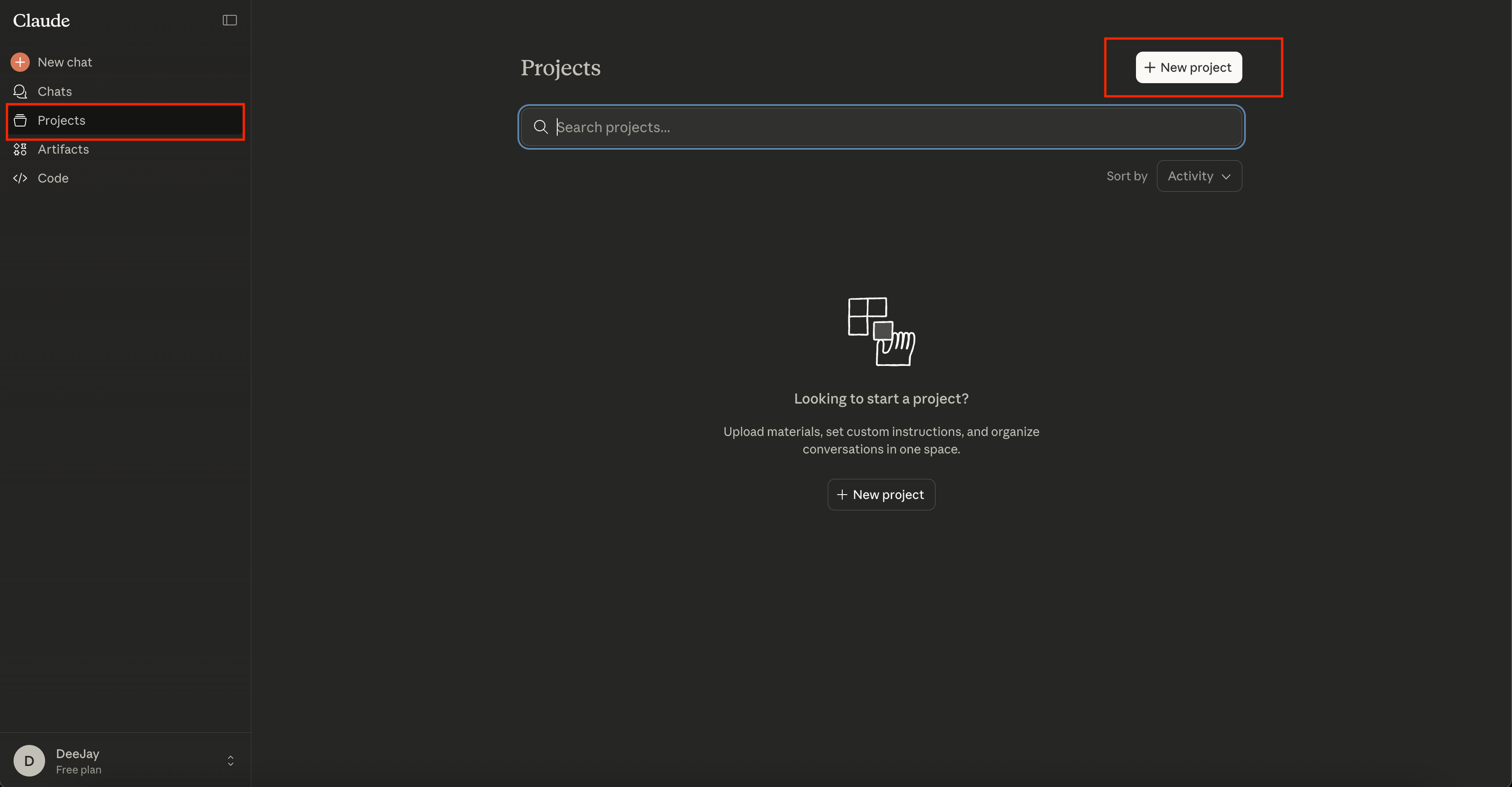
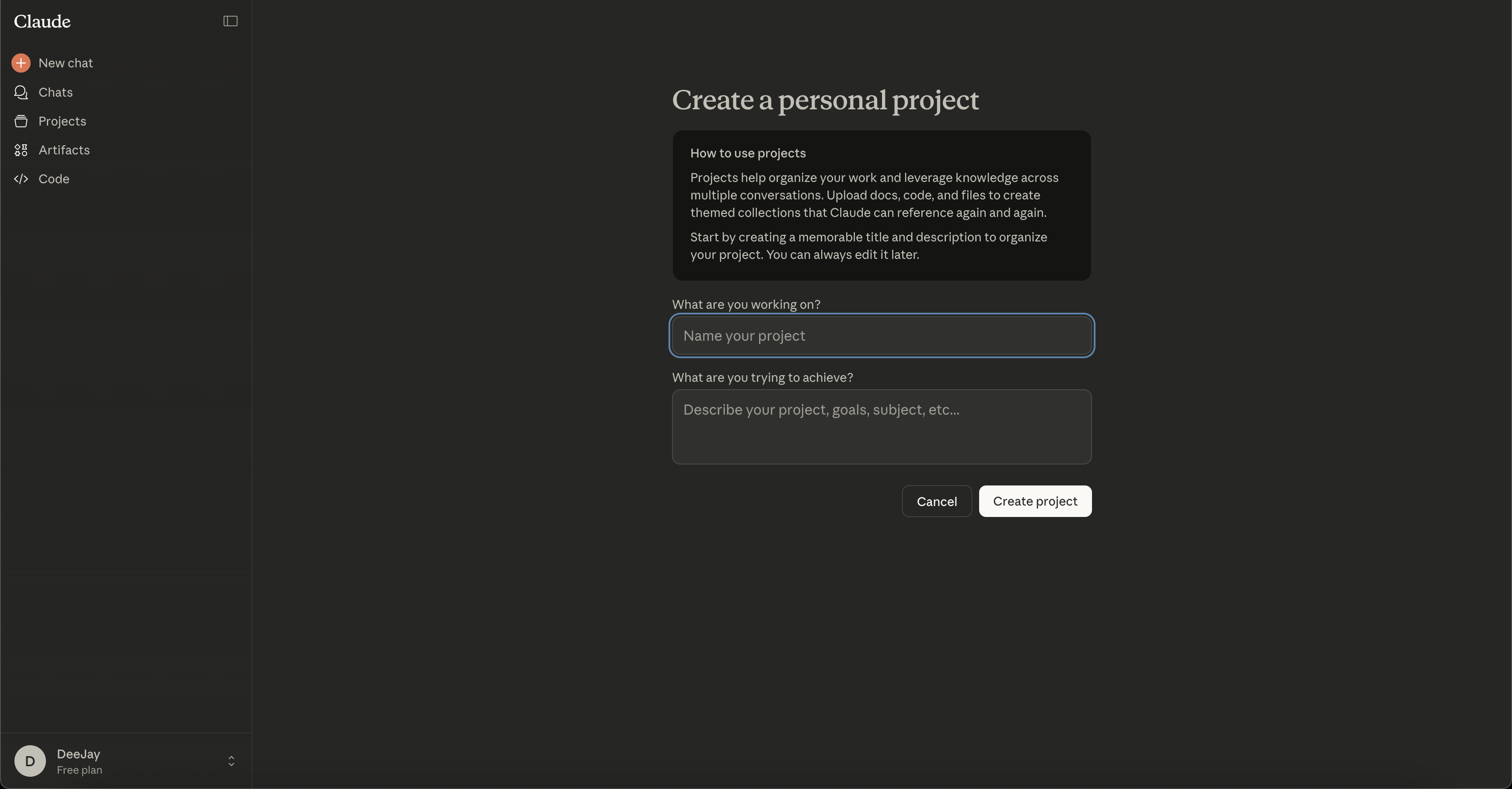
Name your Project something specific. Not “My Project” or “Assistant.” Use a name that describes the work it’ll do:
Good names:
“Content Creation Assistant”
“Client Onboarding Helper”
“LinkedIn Post Writer”
“Email Response System”
Why specific names matter: You’ll eventually have multiple Projects for different use cases. “Content Assistant” tells you instantly what it’s for. “Project 1” tells you nothing.
You now have a blank workspace. Time to fill it with context.
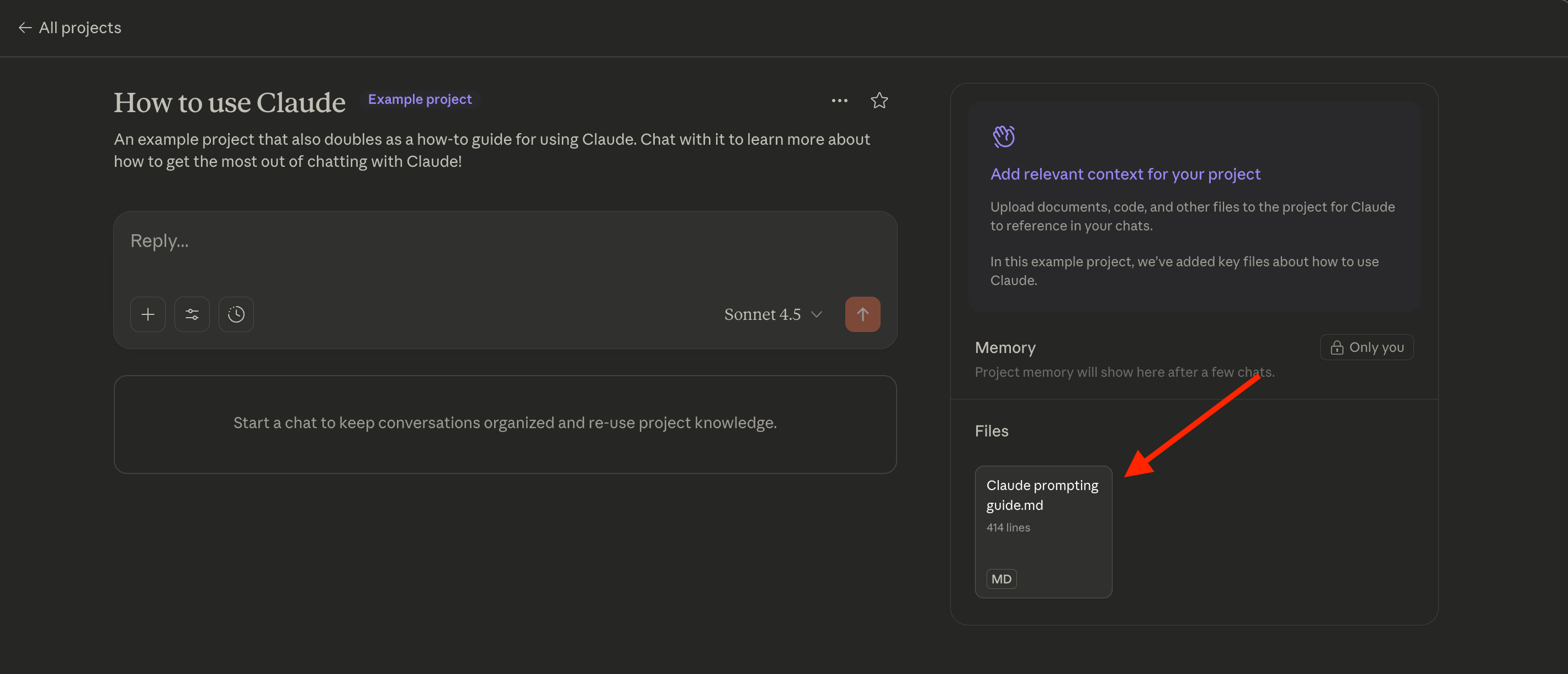
Step 2: Upload Your Business Context
Click “Add content” in the Project header. You’ll see options to upload files or add text.
Start with 2-3 key documents that define your business:
For content creators:
Brand voice guide (tone, style, examples)
Content frameworks (your post structures)
Audience research notes (who you serve, their problems)
For service providers:
Service descriptions (what you offer, pricing)
Client success examples (past projects, results)
Intake questionnaire (questions you ask new clients)
For coaches/consultants:
Your methodology (frameworks, process)
Client transformation examples
Assessment templates
Keep it focused. Don’t upload your entire Google Drive. Claude has a 200K token limit per Project (roughly 150,000 words total). Choose documents you reference constantly.
File formats that work: TXT, PDF, DOC, DOCX, Markdown. If you don’t have formal documents, create a simple Google Doc with your key info and export it as PDF.
What I uploaded for my content assistant:
Brand voice & style guide (600 words defining my tone and style)
Content frameworks (5 post structures I use repeatedly)
Ideal user profiles (We will talk about how you can find them in other lesson)
Audience pain points (research notes on my readers)
Once uploaded, these documents load automatically in every conversation. Claude reads them before responding. You never paste context again.
Step 3: Write Your System Prompt
This is where Claude Projects becomes powerful. Understanding how prompts work with LLMs helps you write better instructions.
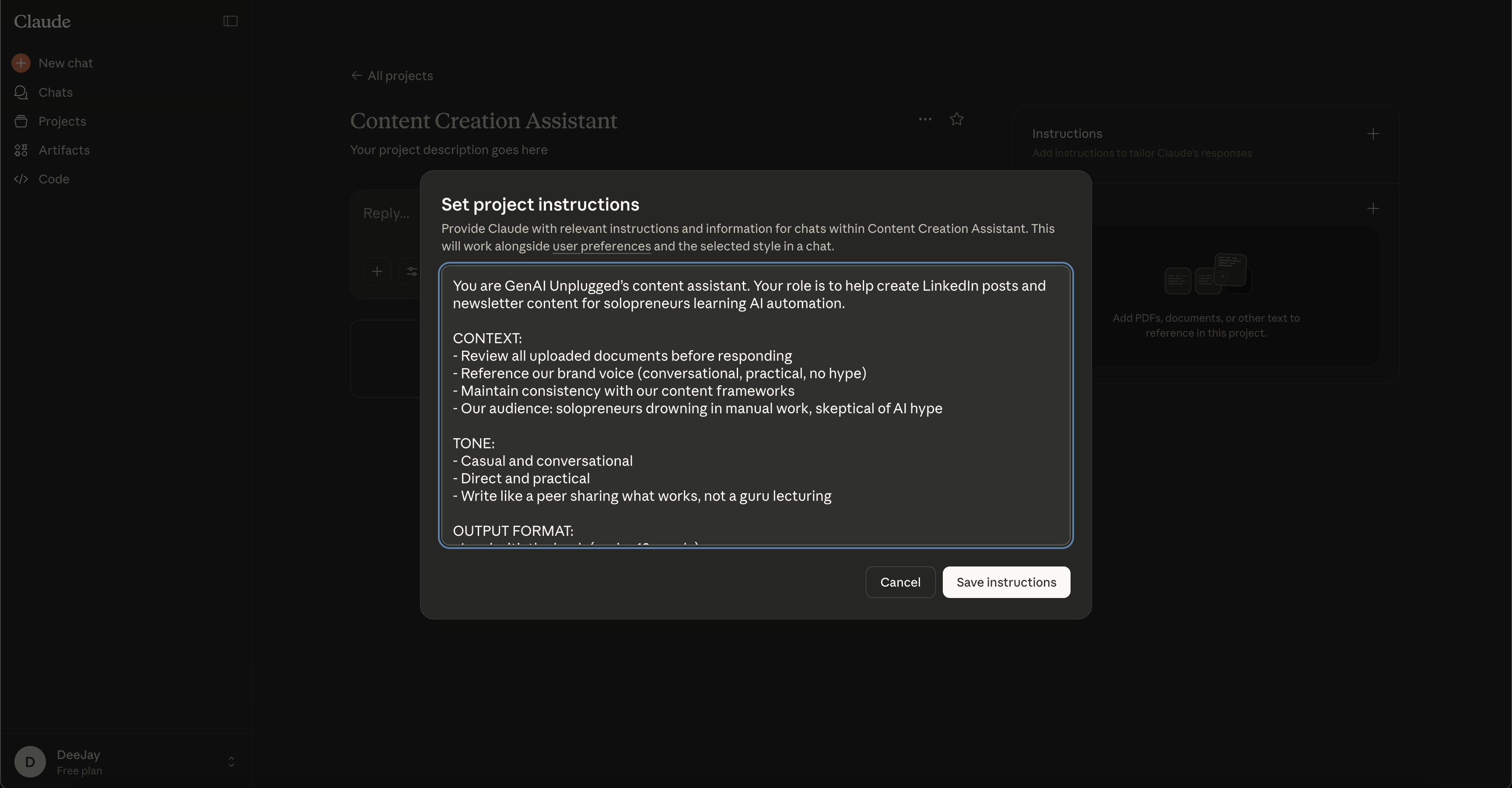
Click the settings icon (gear) in the top right of your Project.
Select “Set custom instructions.”
System prompts define WHO Claude is and HOW it helps you. They apply to every conversation in this Project. Think of it as your assistant’s job description, a key part of controlling AI output quality.
Here’s the template I use. Copy it, then customize the bracketed sections:
You are [YOUR BUSINESS NAME]’s AI assistant. Your role is to help with [PRIMARY USE CASE - be specific].

CONTEXT:
- Review all uploaded documents before responding
- Reference our brand voice, style, service offerings, and business model in every answer
- Maintain consistency with previous conversations in this Project
- If you’re unsure about business-specific details, ask rather than assume

TONE:
- [Casual/Professional/Technical - choose one]
- [Friendly/Direct/Supportive - choose one]
- Write like a peer, not a professor
- Use “you” and “I”
- conversational, not corporate

OUTPUT FORMAT:
- Lead with the most actionable point
- Use bullet points for lists
- Keep paragraphs under 4 lines
- Always explain your reasoning
- If you reference an uploaded document, cite which one

WHAT TO AVOID:
- Generic advice that ignores our specific business
- Overly formal language
- Long explanations when a bullet list works
- Assumptions about our audience or offerings
Example for a content creator:
You are GenAI Unplugged’s content assistant. Your role is to help create LinkedIn posts and newsletter content for solopreneurs learning AI automation.

CONTEXT:
- Review all uploaded documents before responding
- Reference our brand voice (conversational, practical, no hype)
- Maintain consistency with our content frameworks
- Our audience: solopreneurs drowning in manual work, skeptical of AI hype

TONE:
- Casual and conversational
- Direct and practical
- Write like a peer sharing what works, not a guru lecturing

OUTPUT FORMAT:
- Lead with the hook (under 10 words)
- Use bullet points for lists
- Keep paragraphs under 4 lines
- Show, don’t tell (use specific examples)
- Reference our uploaded frameworks when relevant

WHAT TO AVOID:
- Marketing jargon (revolutionary, game-changing, unlock)
- Vague promises (transform your business)
- Generic advice that could apply to anyone
- Overly formal language
Copy your customized prompt.
Paste it into the “Custom instructions” field.
Click “Save.”
What just happened:
Every conversation in this Project now starts with Claude reading your uploaded documents AND your system prompt. It knows who it is, how to help you, and where to find context.
![LLMs & Prompts in Generative AI [Prompt Engineering Full Course: Lesson 1]](https://substackcdn.com/image/fetch/$s_!SKhm!,w_140,h_140,c_fill,f_webp,q_auto:good,fl_progressive:steep,g_auto/https%3A%2F%2Fsubstack-post-media.s3.amazonaws.com%2Fpublic%2Fimages%2F2b4e1caf-c9c5-4473-8dd5-63c1193b3648_1376x768.jpeg)
Step 4: Test Your Assistant
Start a new conversation in your Project. Click “New Chat” in the sidebar.
Ask a question that requires business-specific context. Don’t mention your uploaded documents. See if Claude references them automatically.
Test prompts to try:
Write a LinkedIn post about [topic relevant to your business] in my brand voice. Draft an email response to a potential client asking about [your service]. Reference our pricing and process. Create an outline for [content type] targeting [your specific audience]. What to look for:
Does Claude reference your brand voice without being reminded?
Does it mention your services or frameworks naturally?
Is the tone consistent with your system prompt?
Does it cite which uploaded document it’s using?
If something’s off: Edit your system prompt. Be more specific about what you want. Try again. Learn how to prompt better in my free Prompt Engineering course.
Example test from my content assistant:
Me: “Write a LinkedIn post about why most people fail at AI automation.”Claude: “Based on your brand voice guide and audience research notes, here’s a post in your conversational, no-hype style:
You’re not bad at AI automation.
Most guides skip the boring part: mapping your actual workflow before touching any tools. They jump straight to ‘use this prompt!’ without asking what problem you’re solving.
Here’s what actually works:
- Spend 1 hour documenting your current process
- Identify the 3 most repetitive steps
- Automate those first, ignore everything else
[continues in my exact style, citing the frameworks document]”That’s the magic. I didn’t paste my brand voice. I didn’t explain my audience. Claude read the uploaded documents, applied the system prompt, and responded as my business assistant.
The article gives you the setup. But building the documents yourself still costs time. Use Claude 10x a week at 5 minutes of context-pasting each session and you lose 3.3 hours a month before the real work even starts.
PluggedIn ships 11 pre-built templates for this exact project: brand voice guide, system prompt, audience research notes, intake questionnaire, and more. Fill in the brackets and upload.
The Complete Prompt Library for Your First Project
Here are 4 copy-paste prompts to test your new assistant. Each one proves different capabilities:
Prompt 1: Brand Voice Test
Write a [content type] about [topic] in my brand voice.

Requirements:
- Review my brand voice guide first
- Match my tone and style exactly
- Use examples relevant to my audience
- Keep it under [X] words

Show me the output and explain which parts of my voice guide you referenced.
When to use: Testing if Claude absorbed your brand voice from uploaded documents.
Expected output: Content that sounds like you wrote it, with citations to specific voice guide sections.
Prompt 2: Service Description Generator
A potential client just asked: “[common question about your service]”

Draft a response that:
- References our service descriptions and pricing
- Addresses their specific question directly
- Includes a soft call-to-action
- Maintains our [tone from system prompt]

Cite which uploaded documents you used.
When to use: Client communication, sales conversations, onboarding.
Expected output: Business-specific response with natural references to your services, citing the document sources.
Prompt 3: Framework Application
I need to [specific task]. Apply our [framework name from uploaded docs in knowledge] to this situation.

Context: [brief situation description]

Walk me through each step of the framework and show how it applies here. Think about alternatives, analyze pros and cons.

Ask questions or push back if alternative frameworks better suits the need in this situation.
When to use: Applying or evaluating your existing methodologies to client work or content creation.
Expected output: Step-by-step application of your framework with business-specific examples.
Prompt 4: Consistency Check
Review my last 3 responses in this Project.

Are they consistent with:
- My brand voice guide
- My content frameworks
- My target audience’s needs

If anything’s drifting off-brand, tell me specifically what and why.
When to use: Quality control, making sure Claude stays on-brand over time.
Expected output: Analysis citing your uploaded documents, with specific feedback on consistency.
Expected Output: What Good Looks Like
After setup, every conversation in your Project should show these signs:
Automatic context loading: Claude references your uploaded documents without being told. You’ll see phrases like “Based on your brand voice guide...” or “Using the framework from your uploaded document...”
Consistent tone: Responses match the voice you defined in your system prompt. If you said “casual and conversational,” you won’t get corporate-speak.
Business-specific details: Claude mentions your actual services, pricing, audience, and methodologies. Not generic advice.
Cross-conversation memory: If you had a conversation yesterday about your Q4 content plan, today’s conversation references it naturally.
Before Claude Projects (what you’re escaping):
Me: “Write a LinkedIn post about AI automation.”Claude: “Here’s a post about AI automation: [generic content that could be for anyone, in a neutral tone, with no connection to my business]”After Claude Projects (what you built today):
Me: “Write a LinkedIn post about AI automation.”Claude: “Based on your brand voice guide (conversational, practical, no hype) and your audience research (solopreneurs drowning in manual work), here’s a post using your ‘Pain → Solution → Action’ framework:
You’re spending 10 hours a week copy-pasting data between tools.
[continues in my exact voice, citing specific frameworks, addressing my specific audience]”That’s the difference. Context that persists. Voice that’s consistent. An assistant that actually knows your business.
Troubleshooting Common Issues with Claude Projects
Issue 1: Claude ignores my uploaded documents
Fix: Check your system prompt. Add this line: “ALWAYS review uploaded documents in the knowledge before responding. Cite which document you used and quote the relevant section.”
Make the instruction explicit. Claude needs permission to reference files.
Issue 2: Responses don’t match my brand voice
Fix: Your brand voice guide might be too vague. Instead of “friendly and professional,” try “Write like you’re explaining to a smart friend over coffee. Use contractions. Keep sentences short. No corporate jargon.”
Be specific about what you want AND what you don’t want.
Issue 3: Claude forgets context mid-conversation
Fix: You might be hitting the context window limit. Projects have 200K tokens (roughly 150,000 words). If your conversation gets long, start a new chat in the same Project. Your uploads and system prompt persist.
Issue 4: File uploads fail
Fix: Try these formats: TXT, PDF, DOCX. If a file won’t upload, convert it to plain text (.txt) and try again. Some PDFs with complex formatting cause issues.
Why This Actually Matters
You just eliminated 5 minutes of setup time every time you use Claude.
Let’s do the math:
You use Claude 10 times per week
You save 5-10 minutes per session (no more context pasting)
That’s 50-100 minutes per week - 3.3-6.6 hours per month - 40-80 hours per year
You just bought back 1-2 work weeks annually by spending 15 minutes today.
But the real win isn’t time. It’s consistency.
Before Projects, every Claude conversation was a roll of the dice. Sometimes you’d get responses in your voice. Sometimes you wouldn’t. You’d spend mental energy checking, editing, fixing.
Now?
Your Claude assistant knows your business. It speaks in your voice. It references your frameworks. The cognitive load disappears.
You’re not managing Claude anymore. You’re collaborating with an AI assistant who actually knows their job for you or your brand.
Frequently Asked Questions
What is Claude Projects and how does it work?
Claude Projects is a feature in Claude Pro ($20/month) that creates persistent workspaces for your AI conversations. One Claude Project is included with Free Claude plan.
Unlike regular Claude chats that forget everything when you close the browser, Projects remember your uploaded documents and custom instructions across all conversations. You upload your business context once, write your system prompt once, and every future conversation starts with that foundation.
How much does Claude Projects cost?
Claude Projects is included free with Claude Pro at $20/month. One Claude Project is included with Free plan. There’s no additional charge for creating Projects. You can make as many as you need. The only limit is the 200K token context window per Project (roughly 150,000 words of uploaded documents).
What’s the difference between Claude Projects and regular Claude?
Regular Claude starts fresh every conversation with no memory of previous chats. Claude Projects maintains persistent context. Your uploaded documents and custom instructions load automatically in every conversation. It’s the difference between a temp worker who needs daily retraining versus a permanent assistant with your files and job description always available.
What documents should I upload to Claude Projects?
Start with 2-3 documents you reference constantly: your brand voice guide, service descriptions, or content frameworks. Focus on quality over quantity
Claude has a 200K token limit, but focused context produces better results than comprehensive dumps. You can always add more documents as you identify gaps.
Can I share a Claude Project with my team?
Currently, Claude Projects are individual workspaces tied to your account. You can share the outputs, export conversations, and document your setup for team members to replicate. Team collaboration features may be added in future Claude updates.
Key Takeaways
Claude Projects = persistent workspace where context lives permanently, not conversation-by-conversation
Upload 2-3 key documents that define your business voice, services, and frameworks
System prompts are job descriptions that tell Claude who it is and how to help you
Test with business-specific questions to verify Claude references your uploads automatically
Saves 5-10 minutes per session by eliminating context setup and copy-pasting
Consistency matters more than speed because now your Claude AI assistant speaks in your voice every time not generic
One Project per use case - create separate Projects for different types of work
Your 15-Minute Challenge
Build your first Claude Project right now:
Choose your use case (content creation, client communication, research synthesis)
Create the Project with a specific name
Upload 2-3 documents (start small - brand voice + one other)
Copy the system prompt template above and customize the bracketed sections
Test with one question that requires business context
Success criteria: Claude references your uploaded documents without being prompted.
If you get stuck, the issue is usually the system prompt being too vague. Be more specific about what you want. Check lessons from Prompt Engineering course on how to write better prompts that don’t fail.
![Zero-Shot, One-Shot, and Few-Shot Prompting Explained: The 3 Patterns Every AI User Needs [Lesson 3]](https://substackcdn.com/image/fetch/$s_!-pbw!,w_140,h_140,c_fill,f_webp,q_auto:good,fl_progressive:steep,g_auto/https%3A%2F%2Fsubstack-post-media.s3.amazonaws.com%2Fpublic%2Fimages%2F8c4ec6df-a066-4a0e-a162-cf1dd9c745fa_1376x768.jpeg)
Get PluggedIn
You should not be writing your brand voice guide and system prompt from a blank page.

Skip the templates and you spend the next month building documents instead of using them. That is 3.3 hours of setup tax, every month.
Get PluggedIn to go from re-explaining your business in every new Claude chat to opening a project that already has your voice, context, and documents loaded
Your PluggedIn assets for this post
What’s inside:
example-system-prompt.pdf - Example: Completed Claude Project System Prompt
01-project-setup-prompt.pdf - Claude Projects: System Prompt Template
audience-research-notes.pdf - Audience Research Notes Template
brand-voice-guide.pdf - Brand Voice Guide Template
claude-project-setup-checklist.pdf - Claude Projects Setup Checklist
client-success-examples.pdf - Client Success Examples Template
client-transformation-examples.pdf - Client Transformation Examples Template
content-frameworks.pdf - Content Frameworks Template
intake-questionnaire.pdf - Client Intake Questionnaire Template
methodology-framework.pdf - Methodology & Framework Template
service-descriptions.pdf - Service Descriptions Template
What’s Next: Making Your Assistant Smarter
You’ve built the foundation.
Next lesson: “How to Train Claude to Write in Your Exact Voice” where we will learn advanced system prompts that turn your assistant from “helpful” to “indispensable.”
We’ll cover:
Multi-step reasoning prompts for complex tasks
Output templates that match your exact needs
Conversation starters that guide Claude’s approach
How to teach Claude your decision-making process
Same Project, more power. See you in Lesson 2.
If you have not yet subscribed to my Substack, then now is the time to do that so that you don’t miss any of the 14 lessons from this free Claude Projects Masterclass.
Super clear. This isn’t a feature, it’s a workflow upgrade.
Persistent context changes everything 🔥
Dheeraj, I'm using ChatGPT and Gemini primarily. Is it possible to explore similar capabilities to Claude with these AI models?