
AI Assistants Can Now Run Your n8n Workflows
Learn how to connect AI assistants to your n8n workflows using the instance-level MCP server for seamless automation and flow. Get the complete system.

You’re mid-conversation with Claude, refining a client strategy. You need to trigger your email digest n8n workflow. So you switch tabs, find n8n, locate the workflow, click execute, wait, switch back, and... what were you saying again?
This is the context-switch tax we pay every day.
Our AI assistants are brilliant conversationalists trapped in chat windows. They can think with us, but they can’t act for us on their own. Every insight requires a manual handoff to another tool.
Until now.
n8n’s new instance-level MCP server lets AI assistants act beyond chat windows.
Claude can now discover your workflows, trigger them directly, and pull back results, all while you stay in the conversation. No tab switching. No momentum loss. No manual execution.
By the end of this guide, you’ll have your AI assistant connected to your n8n instance, ready to execute workflows on command while you maintain creative flow.
Why This Matters
It’s not just about saving 30 seconds of tab switching. It’s about protecting your flow state.
When you’re deep in strategy work or mid-draft on a piece of content, every context switch kills momentum. You lose the thread of your thinking. You forget the nuance you were exploring.
The spell breaks.
With MCP integration, your AI assistant becomes a true collaborator, not just a consultant. You stay in strategic mode of asking questions, refining ideas, reviewing outputs while Claude handles the operational mode of actually executing those ideas through your systems.
For solo content creators and consultants, this means keeping pace with your ideas. You’re no longer bottlenecked by your own execution capacity. You think it, Claude triggers it, and you’re already three steps ahead planning what comes next.
That’s the difference between managing a content operation and being trapped inside one.
Prefer to watch? Here’s the full video walkthrough:
Watch the complete tutorial or continue reading below. Jump to:
What Is the MCP Server?
MCP (Model Context Protocol) is a communication standard that lets AI tools talk to external services like n8n. The MCP server acts as a secure gateway between your AI assistant and your workflows, letting you control exactly which automations Claude can discover and trigger.
Think of it as a common language that Claude and n8n both speak.
Your n8n instance is a workshop full of tools and machines. The MCP server is the secure door you control deciding which AI assistants get keys and which workflows they can access.
Here’s what makes this powerful:
You stay in control.
MCP clients can’t create or edit workflows.
They can only discover and execute the ones you explicitly expose.
Authoring still happens in your n8n workspace.
The AI assistant just becomes your remote control.
How Does the n8n MCP Server Work?
The MCP server connects your n8n instance to AI clients through a five-step setup:
enable MCP access in n8n settings,
configure your workflows for MCP exposure,
connect your AI client,
configure the JSON file if needed, and
test the connection.
The setup involves four main pieces working together:
your n8n instance,
the MCP server configuration,
your AI client (like Claude Desktop), and
the workflows you want to expose.
Here’s the complete process:
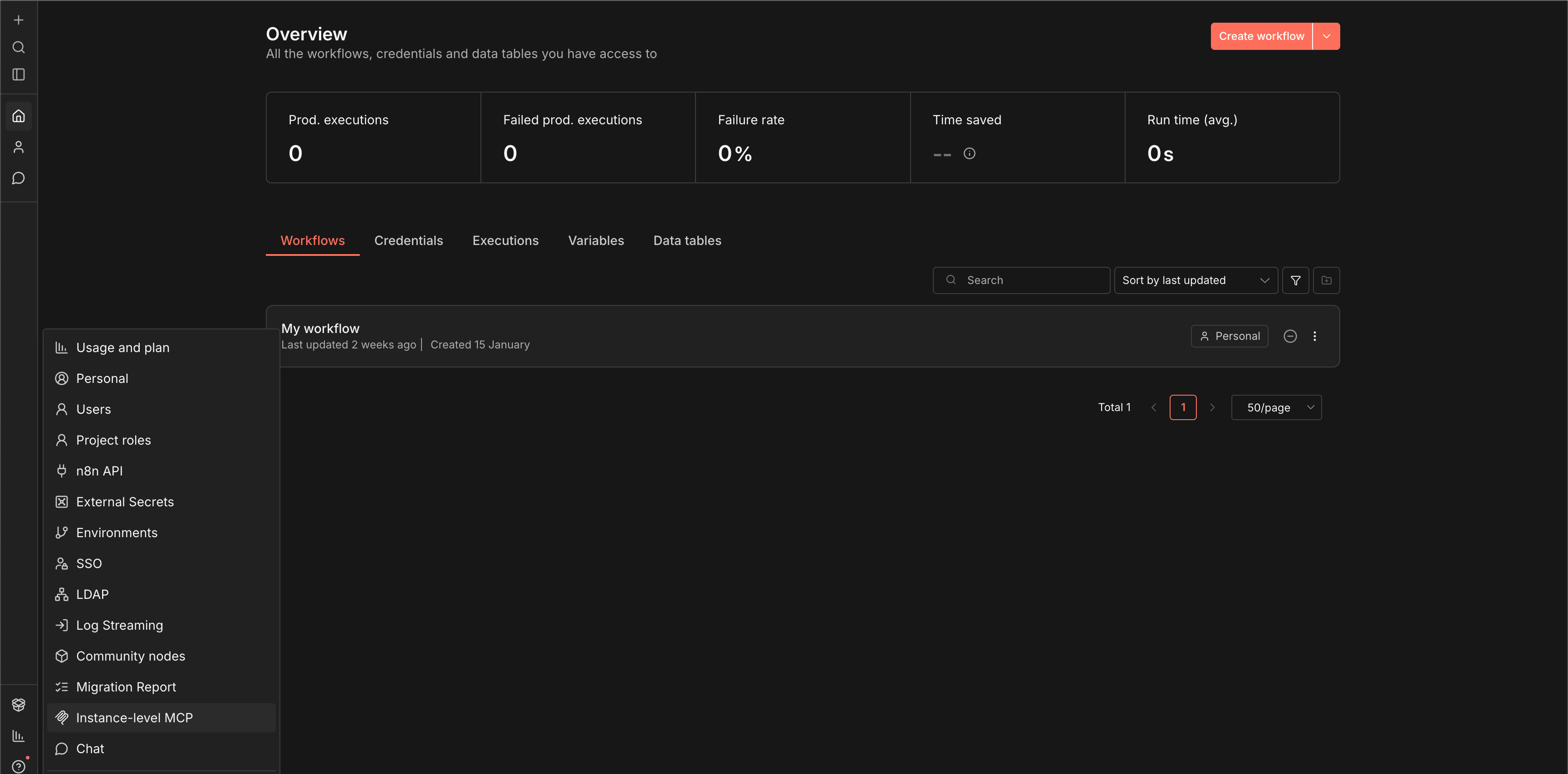
Step 1: Enable MCP Access in n8n
Log into your n8n instance and navigate to Settings. Look for the MCP Access toggle under the instance configuration section.
Flip the toggle to enabled. This activates the MCP server at your instance level, meaning any properly authenticated client can now request access to your workflows.
You’ll see two authentication options: OAuth and access token.
OAuth is more secure for production use (it creates time-limited access), while access tokens are simpler for testing. Choose OAuth unless you have a specific reason to use tokens.
Copy your MCP instance URL. You’ll need this in a moment. It looks something like:
https://your-instance.n8n.cloud/api/v1/mcp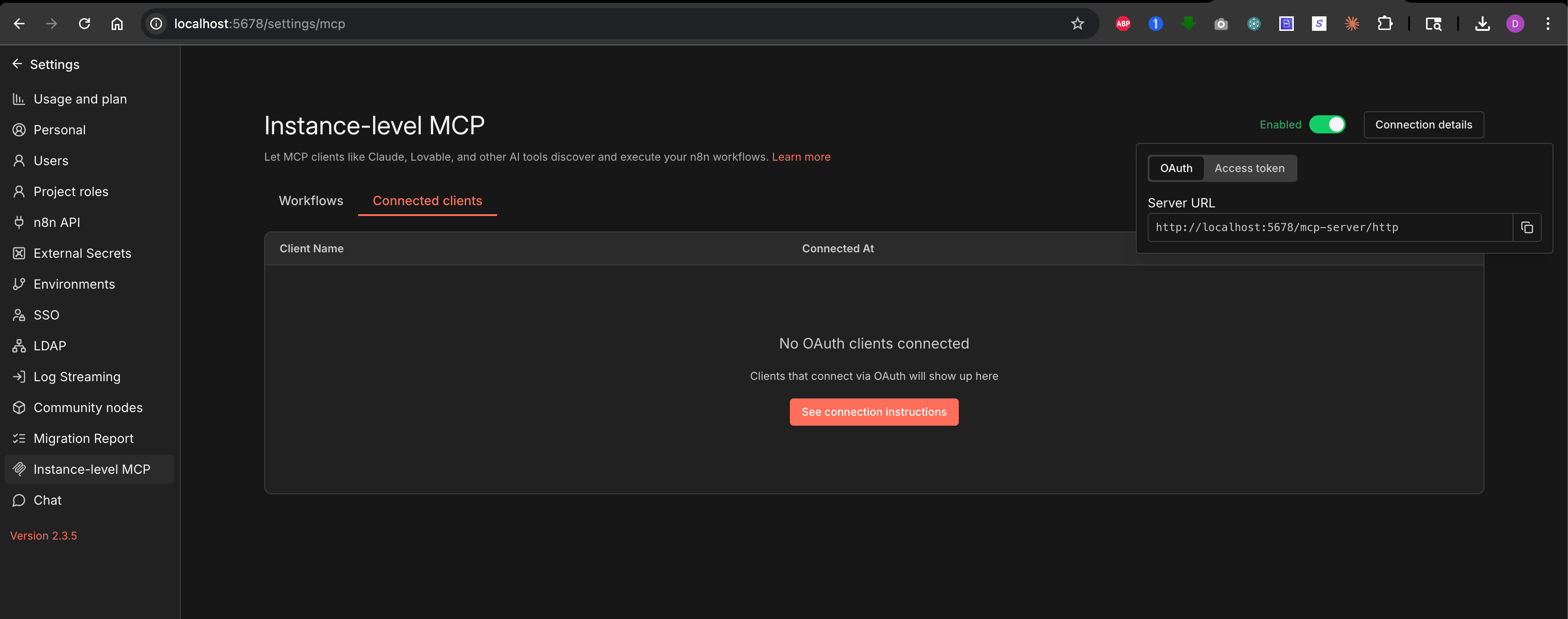
Step 2: Configure Your Workflows for MCP
Not every workflow should be accessible to AI assistants. You choose which ones to expose.
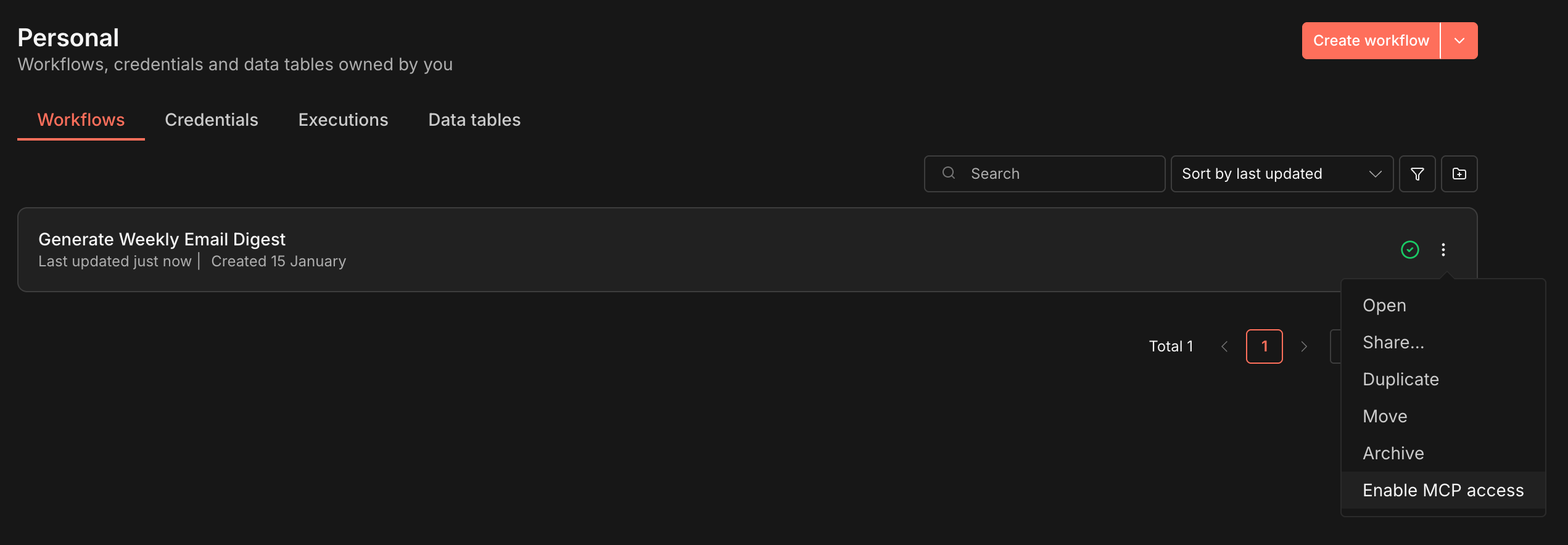
Open a workflow you want Claude to trigger. In the workflow settings, you’ll see a new toggle: “Enable MCP Access.”
Activate this toggle. The workflow now becomes discoverable by connected MCP clients.
Here’s the critical part:
Add a clear name and description. Your AI assistant uses these to understand what the workflow does. Vague names like “Workflow 1” won’t help Claude know when to use it.
Good example:
Name: Generate Weekly Email Digest
Description: Analyzes my email inbox from the past week, summarizes key threads, and sends a digest to my Telegram
Bad example:
Name: Email Thing
Description: Processes emails
The AI assistant reads these descriptions to decide which workflow to trigger based on your request. Make them specific.
Important: Only use webhook, schedule, n8n form triggers for MCP-accessible n8n workflows. Manual triggers won’t work because the AI assistant needs a programmatic entry point. If your workflow currently uses a manual trigger, add a webhook or schedule trigger node at the start.
Step 3: Connect Your AI Client
Download and install Claude Desktop if you don’t have it. The MCP integration only works with the desktop app, not the web version.
Open Claude Desktop and navigate to Settings → Developer → MCP Servers.
Click “Add Custom MCP Server” and paste your n8n MCP instance URL from Step
Claude will prompt you to authorize access. This opens your browser for OAuth authentication. Log into your n8n instance and approve the connection.
You’ll see permission options:
read access (lets Claude see workflow names and descriptions) and
execute access (lets Claude trigger workflows).
Grant both.
Restart Claude Desktop and open. You should now see your n8n instance listed under connected MCP servers. The status indicator shows green when connected.
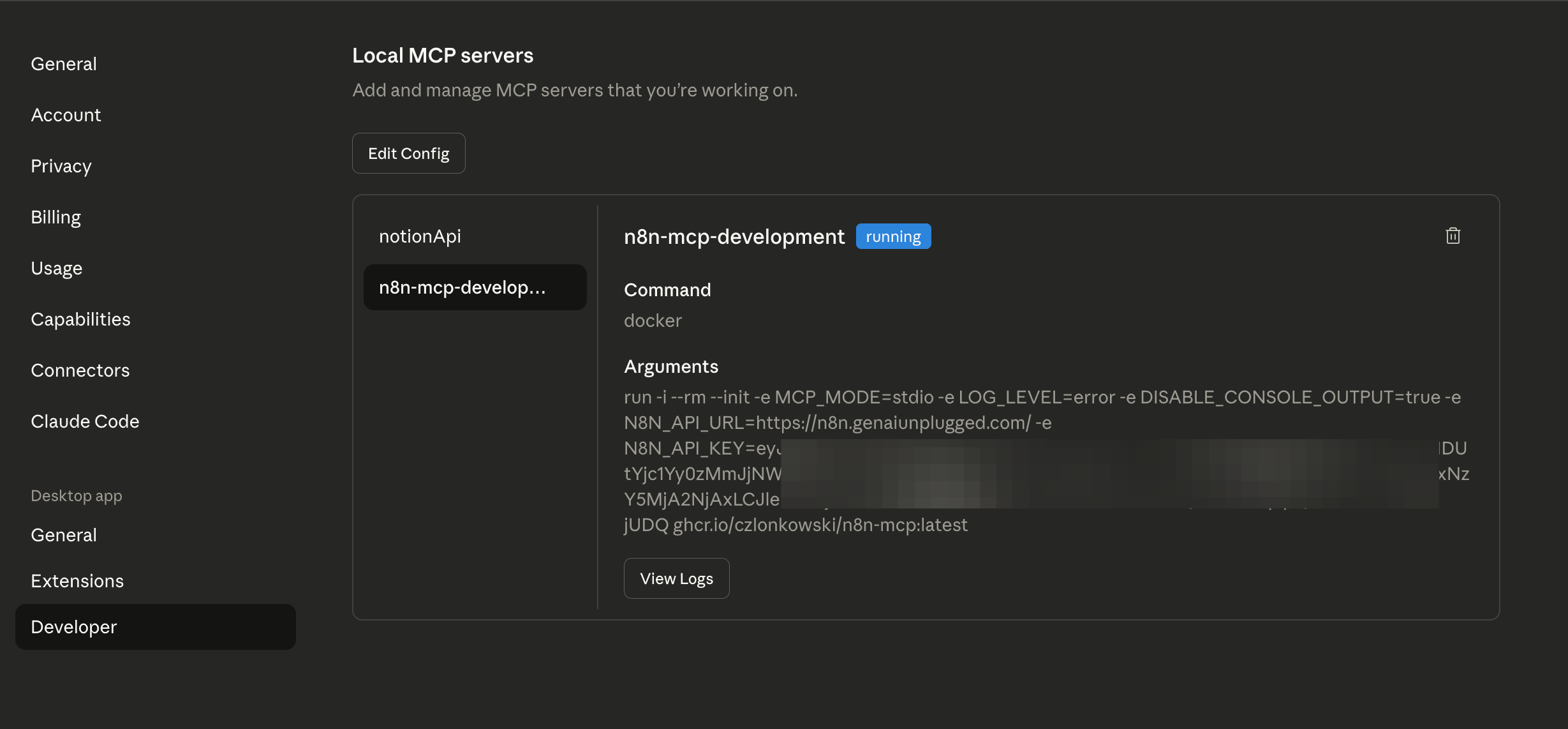
Step 4: Configure the MCP JSON File (Optional Advanced Setup)
For more control, you can manually edit Claude’s MCP configuration file. This is optional but useful if you’re connecting multiple MCP servers or need specific settings.
The config file location varies by operating system:
Mac:
~/Library/Application Support/Claude/claude_desktop_config.jsonWindows:
%APPDATA%\Claude\claude_desktop_config.jsonLinux:
~/.config/Claude/claude_desktop_config.json
Open this file in a text editor. You’ll see a JSON structure listing your MCP servers:
{
  "mcpServers": {
    "n8n-instance": {
      "url": "https://your-instance.n8n.cloud/api/v1/mcp",
      "auth": {
        "type": "oauth"
      }
    }
  }
}
You can add multiple n8n instances here if you manage several. Each needs a unique name in the config.
Save the file and restart Claude Desktop for changes to take effect. This is a common troubleshooting step. If Claude can’t see your workflows after setup, restart the app first.
Step 5: Test the Connection
Open a new chat in Claude Desktop. Type:
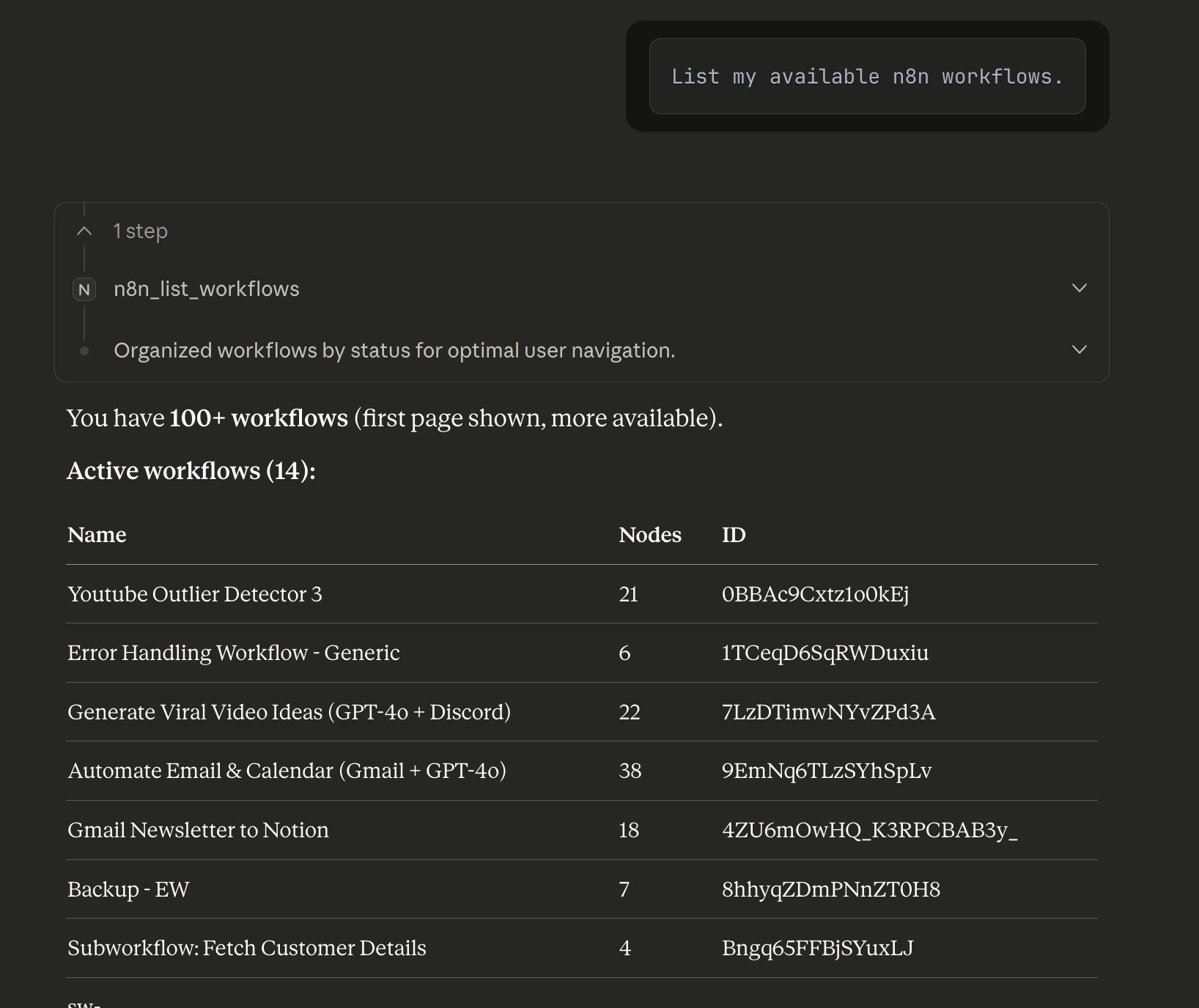
List my available n8n workflows.Claude should respond with the names and descriptions of every workflow you’ve enabled for MCP access. If you see your workflows listed, the connection is working.
Now trigger one. Try:
Run my weekly email digest workflow.Claude will confirm the workflow name, ask for any required inputs (if your workflow has webhook parameters), and execute it. You’ll see real-time updates as the workflow runs.
When the workflow completes, Claude displays the results directly in the chat. No switching to n8n. No checking execution logs. The output comes to you.
What This Looks Like in Practice
Let me show you two real examples from my setup.
Example 1: Content Research Workflow
I’m drafting a LinkedIn post about AI automation. Mid-conversation with Claude, I realize I need recent examples from my saved articles.
Instead of switching to my read-later app, finding the articles, copying them back, I just say:
Run my content research workflow for AI automation topics.Claude triggers the n8n workflow. It searches my Notion database, pulls relevant articles from the past month, summarizes key points, and returns them in the chat. I’m still in writing mode. The research came to me.
Example 2: Client Reporting
Friday afternoon. I’m reviewing the week with Claude, planning next week’s priorities. I mention I need to send my client their weekly metrics.
I say:
Generate this week’s client report for GenAI Unplugged.Claude triggers my client reporting n8n workflow. It pulls data from my project management tool (I use Notion for that too), calculates key metrics, generates a formatted PDF, and uploads it to the shared folder. Claude confirms it’s done and shows me the summary stats.
I didn’t open five different tools. I didn’t copy data between them. I stayed in strategic conversation while the operational work happened in the background.
This is what effective AI assistance looks like in practice.
What Are the Current Limitations n8n MCP integration?
The official n8n MCP integration has constraints:
Workflow execution timeout: MCP requests timeout after 5 minutes. If your workflow takes longer, Claude won’t see the results. Design workflows to complete quickly or use async patterns.
No workflow editing: Claude can’t create or modify workflows. Authoring happens in n8n. The AI assistant is execution-only.
All-or-nothing access: When you connect an MCP client with your n8n instance, it can see and trigger ALL workflows you’ve enabled for MCP. There’s no per-client access control yet. Don’t expose sensitive workflows if you’re testing.
Binary data limitations: Workflows that return large binary files (images, videos, PDFs) might not display properly in chat. Text-based outputs work best.
Single trigger requirement: Workflows with multiple triggers or human-in-the-loop steps don’t work well with MCP.
Keep it simple: webhook trigger → automated steps → result.
These limitations will likely improve as the feature matures. For now, design your MCP-accessible n8n workflows around these constraints.
Why This Matters for Solo Creators
n8n MCP integration collapses tool-switching friction into natural language commands, letting your AI assistant like Lovable, Claude AI or Claude Code handle operational execution while you stay in creative mode.
You probably manage 10-15 different tools in your content operation. Research tools, writing tools, scheduling tools, analytics tools. Each one requires logging in, navigating menus, copying data between them.
Every tool switch is a micro-interruption. You lose 2-3 minutes per switch. If you’re switching 20 times per day, that’s 40-60 minutes of pure friction.
But the time isn’t even the biggest cost. It’s the mental load. Remembering which tool has what data. Knowing which workflow to run for which task. Keeping track of what you’ve already done and what’s next.
n8n MCP integration collapses all of that into natural language. You don’t remember workflow names. You just describe what you need. Claude figures out which workflow to trigger and handles the execution.
Your AI assistant becomes your operations manager. You stay in creative mode. The systems run themselves.
For a solo creator, this is the difference between managing a content business and drowning in one.
Key Takeaways
MCP servers transform AI assistants from chat-only advisors into action-taking collaborators that can directly interact with your business systems. n8n Instance level MCP access is one such power for you.
The n8n instance-level MCP server connects to your entire n8n instance, giving Claude access to trigger any webhook-based workflow you’ve built.
You need 4 key pieces: an n8n API key, your instance URL, Claude Desktop app or any MCP compliant client, and a properly configured
claude_desktop_config.jsonfile.Always use supported triggers (not manual triggers) for workflows you want Claude to execute. This is the access point MCP uses into your n8n workflows.
Start with 2-3 frequently-used workflows rather than connecting everything at once. This helps you learn the interaction patterns without overwhelming your setup.
The real power isn’t speed (though that’s nice) rather it’s maintaining creative flow by eliminating context switching between thinking and doing.
Common mistake: Forgetting to restart Claude Desktop after config changes. If Claude can’t see your workflows, restart the app first before troubleshooting deeper.
Your 15-Minute Challenge:
Map Your Context-Switch Tax:
Grab a piece of paper and draw a timeline of your last content creation session from initial research to final publish.
Mark every moment you switched tools or tabs with an X.
Now circle the switches where you had to manually copy information from one place to another.
→ Copying a transcript from a tool into a doc.
→ Copying a draft from Claude into your CMS.
→ Copying research notes into your outline.
Count your circles. That’s your context-switch tax for a single piece of content.
Multiply by how many pieces you create per week.
Each of those circled moments is a candidate for this kind of MCP automation where Claude could trigger the next step instead of you manually bridging the gap.
This exercise isn’t about feeling bad about your current process. It’s about seeing the invisible friction that’s costing you flow state.
Pick your top two friction points. Those are the first workflows to expose via MCP.
What’s Next
This is just the foundation. Once you have Claude Code or Claude Desktop connected to your n8n workflows, the next step is building a complete content pipeline, from idea to published post without opening your CMS.
Would you like me to share that with you in upcoming posts? If yes, drop a comment below.
But first, get this MCP connection working. Watch the full video walkthrough to see every click and configuration in action. Then connect your first workflow.
Your AI assistant is ready to do more than chat. Give it the keys.
Get PluggedIn
The prompts I actually used, the configs I tweaked three times before they worked, the checklists I run before every deployment. Real files from real builds - one download pack with every article.

Yes I love it!! Been using it for a bit now and it works well.