
My AI Research Assistant That Saves 5 Hours Per Client
Use an AI research assistant with Claude Projects to cut client research from 5 hours to 30 minutes without losing quality. Learn the proven automation system.

Client research is eating your capacity.
You land a new strategy client on Monday. Before delivering a recommendation, you must analyze 5 competitors, read 3 industry reports, and map their market position. That’s 5 hours of reading, synthesizing, and tab-switching before you’ve created any value.
How do I use AI to speed up client research without sacrificing quality?
Upload all your research materials to a Claude Project once, then ask questions across all documents simultaneously. The AI maintains context across multiple sessions, eliminating the need to re-read sources or explain background repeatedly.
At $2,000 per client, that 5-hour bottleneck caps you at 8 clients per month. That’s $16,000. Cut research to 30 minutes, and you can handle 20 clients at the same quality level. That’s $40,000. Same expertise, same rates—just faster research.
By the end of this article, you’ll:
have a Claude Project that analyzes multiple competitor sites, client briefs, and industry reports simultaneously.
get comprehensive research insights in 30 minutes instead of 5 hours, with copy-paste prompts and a reusable template for every client.
Why Claude Projects for Research?
Research is interactive and exploratory, not batch processing.
You don’t run identical research for every client. You upload competitor sites, ask clarifying questions, refine your analysis, and dig deeper into specific areas.
This requires a tool that maintains context across multiple conversations and lets you upload diverse file types.
Claude Projects is perfect for this because it acts like a research assistant with perfect memory. You upload everything once, the PDFs, websites saved as documents, industry reports, etc. and the Claude Project remembers it all. You can return days later and ask follow-up questions without re-explaining context.
Can I use Claude Code or n8n?
IMO, Claude Code would work if you needed to batch-process identical research for 50 clients. But most solo consultants need flexible, conversational analysis.
n8n could automate competitor monitoring or integrate research into your CRM.
However, that’s overkill when you’re starting. Projects gives you 90% of the value with zero setup as well as maintenance overhead.
What You’re Building
You’re creating a Multi-Document Research Assistant using Claude Projects.
The system has four components:
Project Setup: Custom instructions that format all research outputs consistently
Document Organization: A method for uploading and naming research materials
Research Prompt Library: Three copy-paste prompts for different research types
Synthesis Dashboard: Using Artifacts to create visual research summaries
Expected outcomes:
Competitor positioning matrix with strengths and weaknesses
Market trends summary with specific opportunities
Research dashboard for client presentations
Key insights with supporting evidence from uploaded sources
Time to implement:
15 minutes for initial setup, 30 minutes per client research project.
Step 1: Create Your Research Project
Go to claude.ai and log in. Click “Projects” in the left sidebar, then “New Project.”
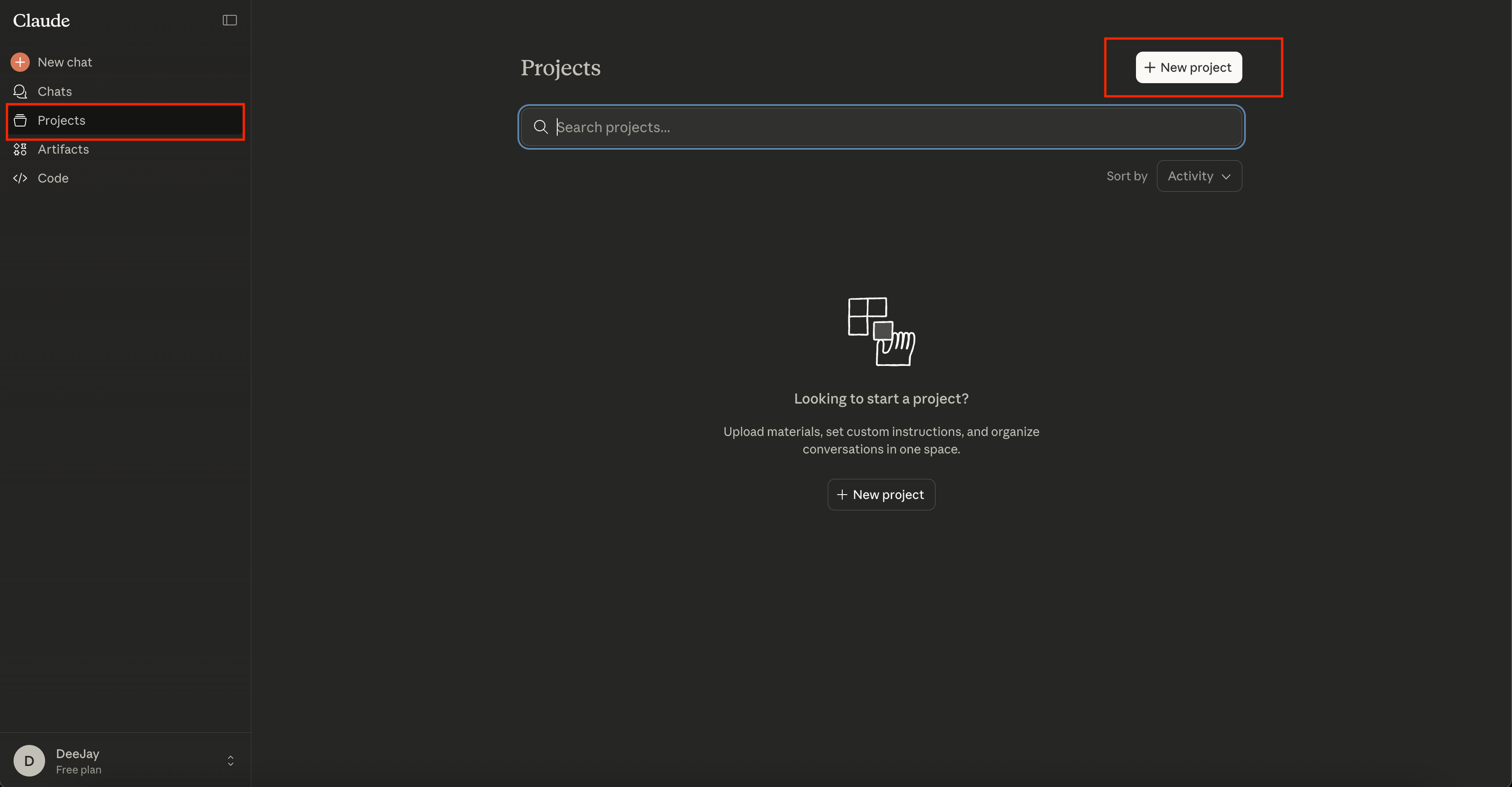
Name your project: “Client Research Assistant”
In the description field, write: “Multi-document research workspace for client onboarding, competitor analysis, and market research.”
This description helps you remember the project’s purpose when you have multiple projects running. It doesn’t affect how Claude responds.
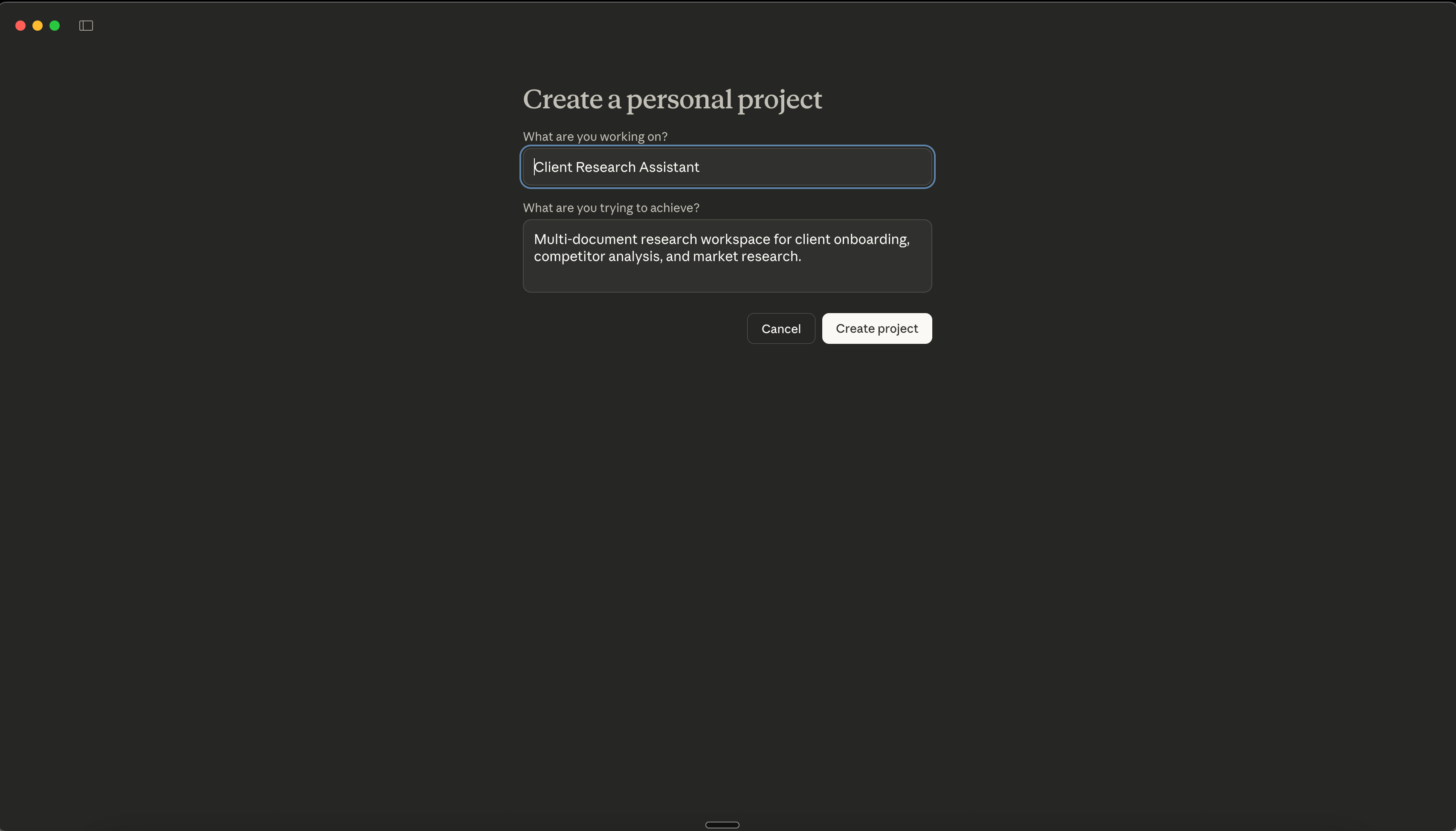
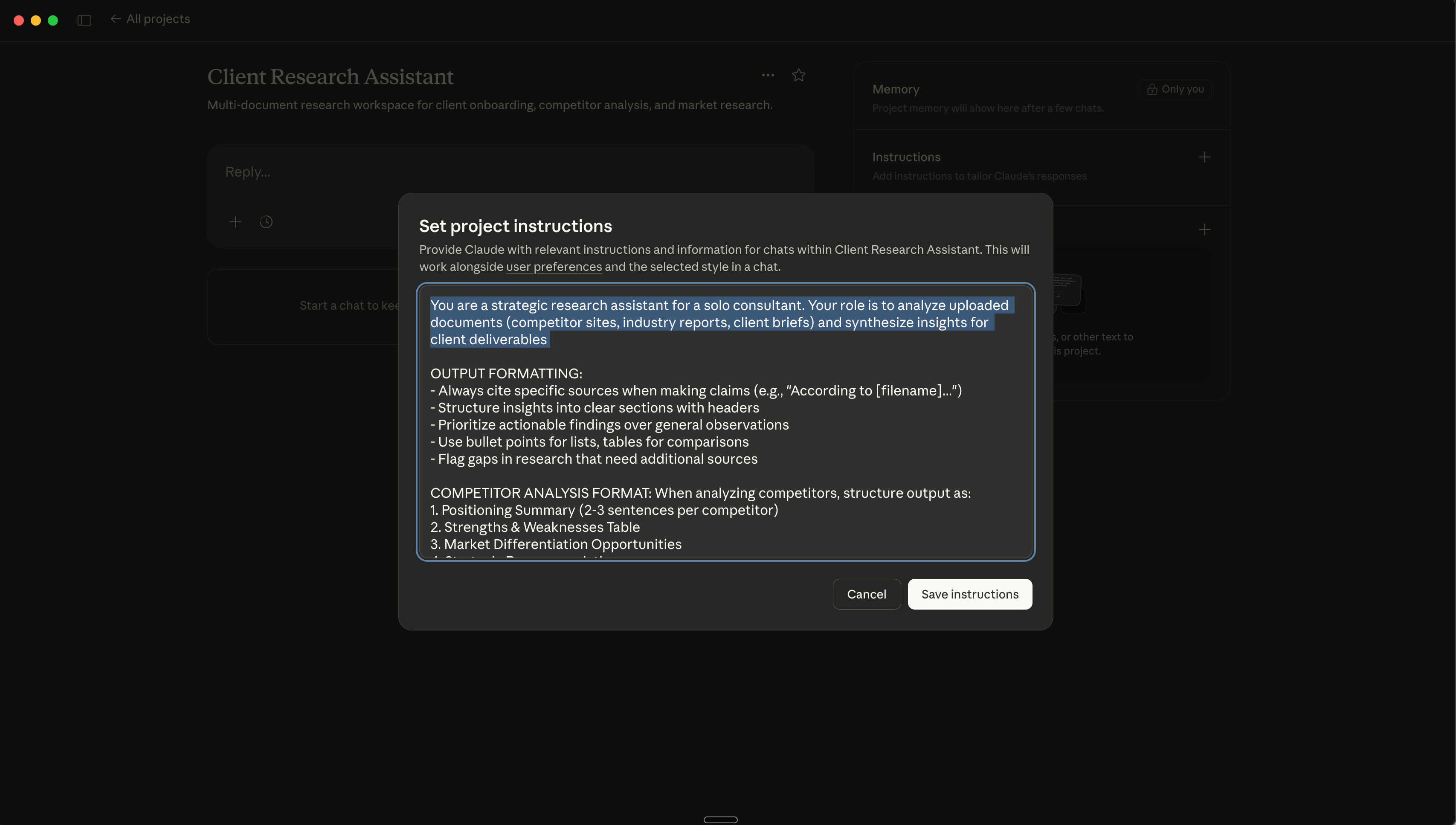
Now on the right hand panel click on “Instructions (+)” and paste this custom instruction:
ASSISTANT INSTRUCTIONS

You are a strategic research assistant for a solo consultant. Your role is to analyze uploaded documents (competitor sites, industry reports, client briefs) and synthesize insights for client deliverables

OUTPUT FORMATTING:
- Always cite specific sources when making claims (e.g., "According to [filename]...")
- Structure insights into clear sections with headers
- Prioritize actionable findings over general observations
- Use bullet points for lists, tables for comparisons
- Flag gaps in research that need additional sources

COMPETITOR ANALYSIS FORMAT: When analyzing competitors, structure output as:
1. Positioning Summary (2-3 sentences per competitor)
2. Strengths & Weaknesses Table
3. Market Differentiation Opportunities
4. Strategic Recommendations

MARKET RESEARCH FORMAT: When synthesizing industry trends, structure output as:
1. Key Trends (3-5 trends with supporting data)
2. Opportunities for Client
3. Potential Risks or Challenges
4. Recommended Actions

Always maintain professional tone suitable for client-facing deliverables.
Click “Save Instructions” at the bottom.
You should see your project appear in the Projects list with the name “Client Research Assistant.”
Step 2: Upload Research Materials
Claude Projects accepts these file types: PDF, TXT, CSV, DOCX, and more. You can upload up to 200K token size limitation for files per project. The size must be less than 30 MB or 8000x8000 pixels for images.
The challenge: most competitor research lives on websites, not in files.
Here’s are few ways you can get web content into your Project:
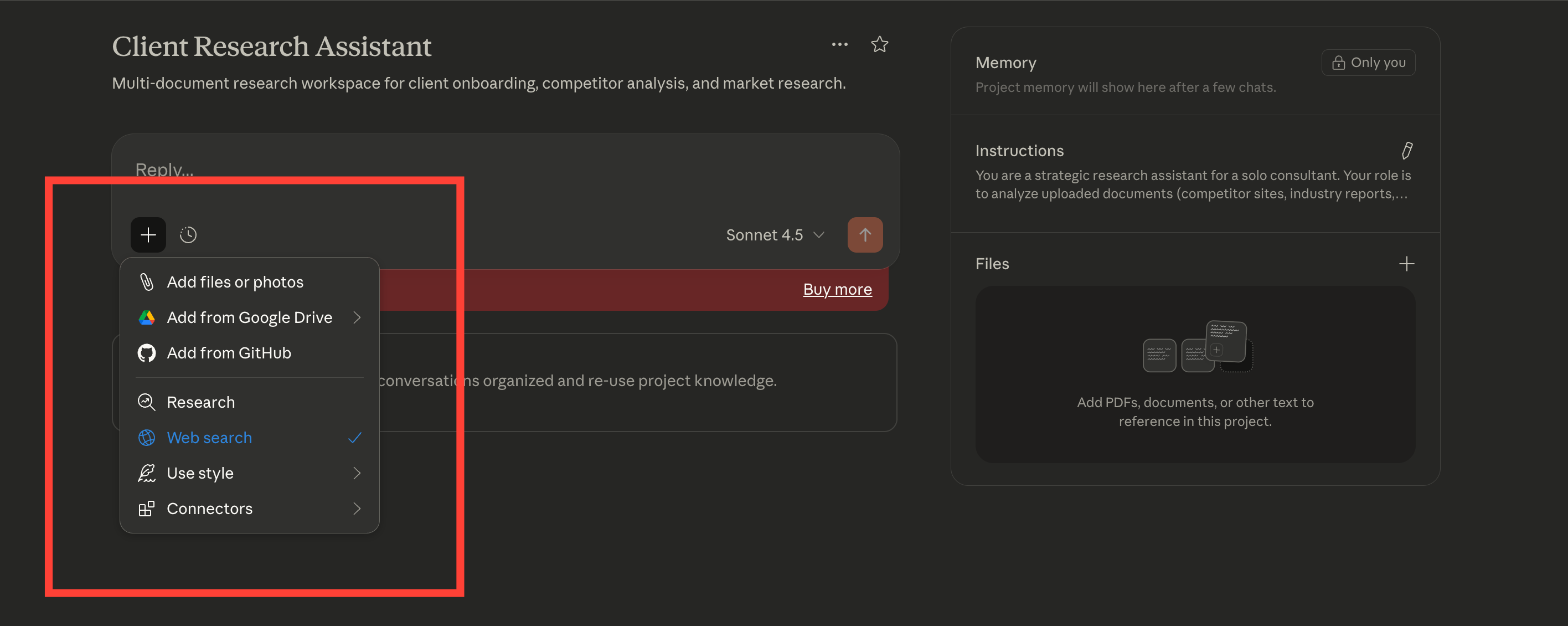
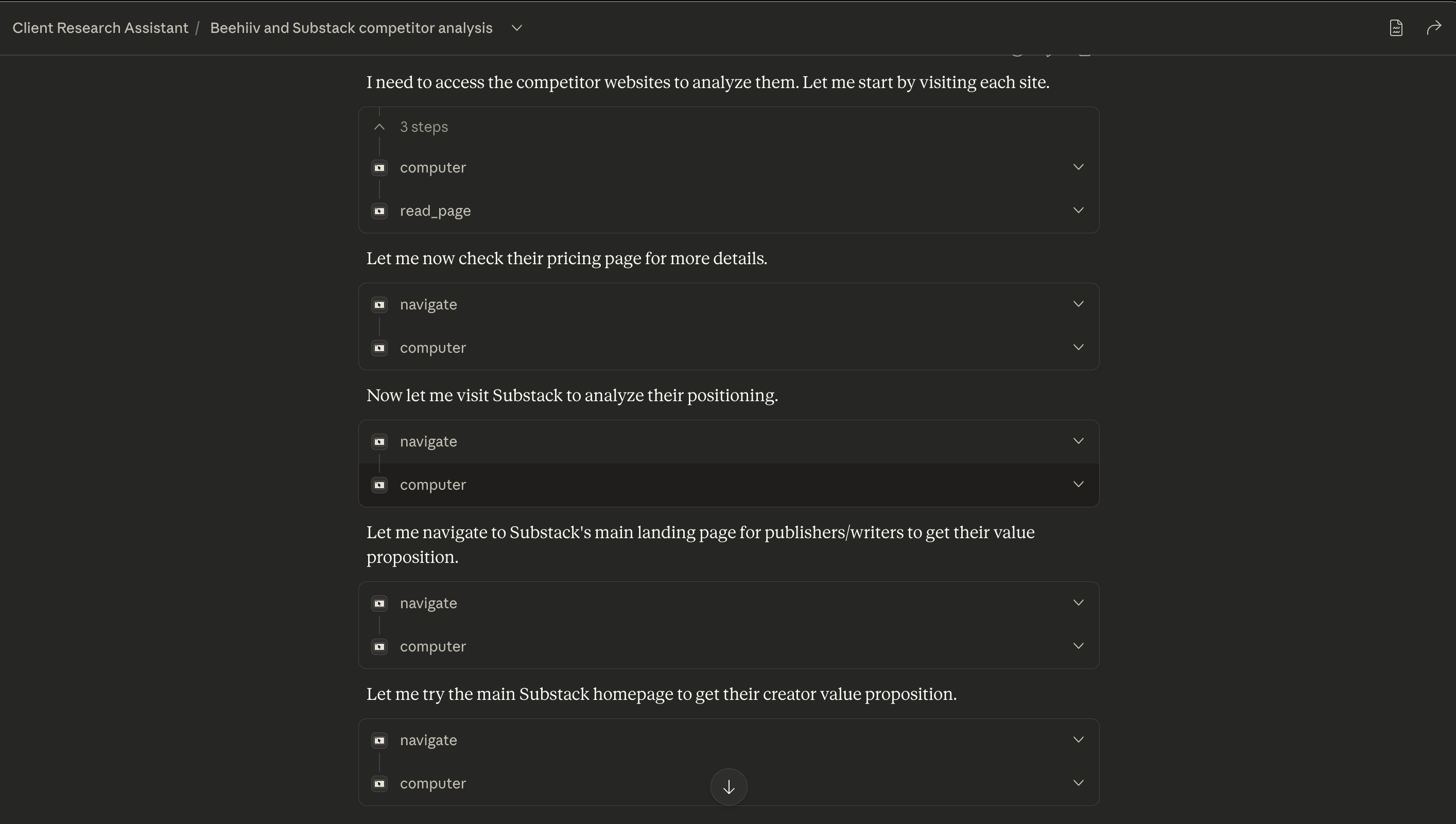
Enable the Web Search Tool in a new chat of the project.
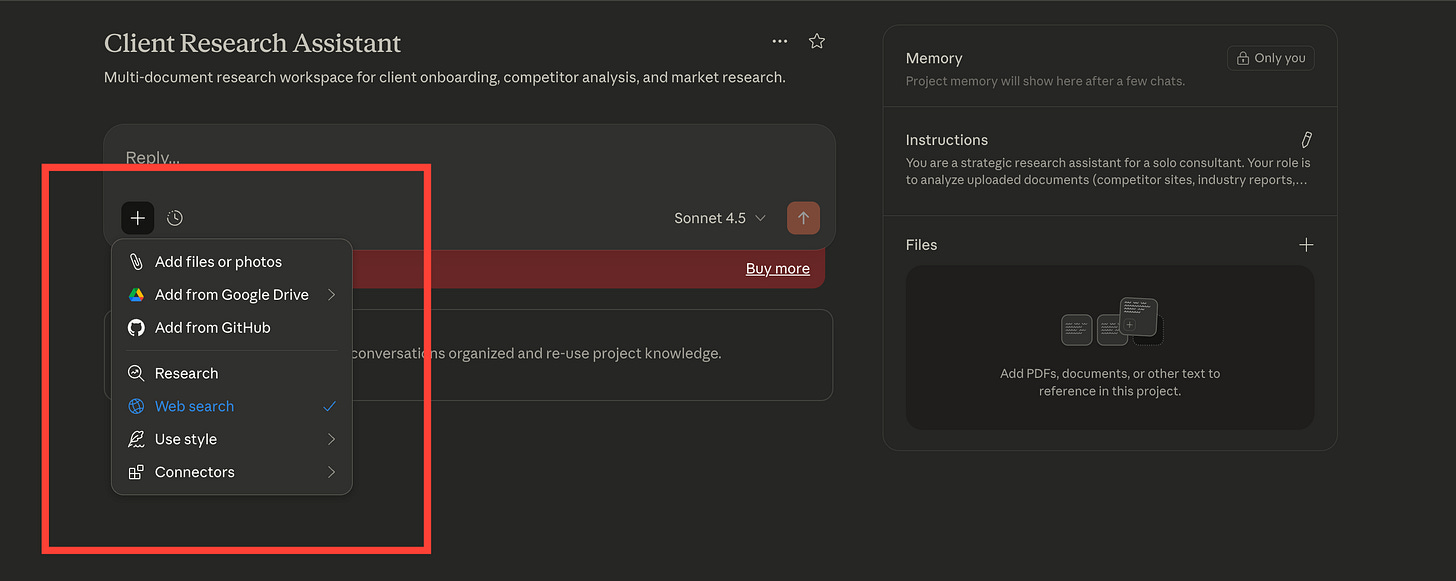
Upload a list of competitor websites under the project directly
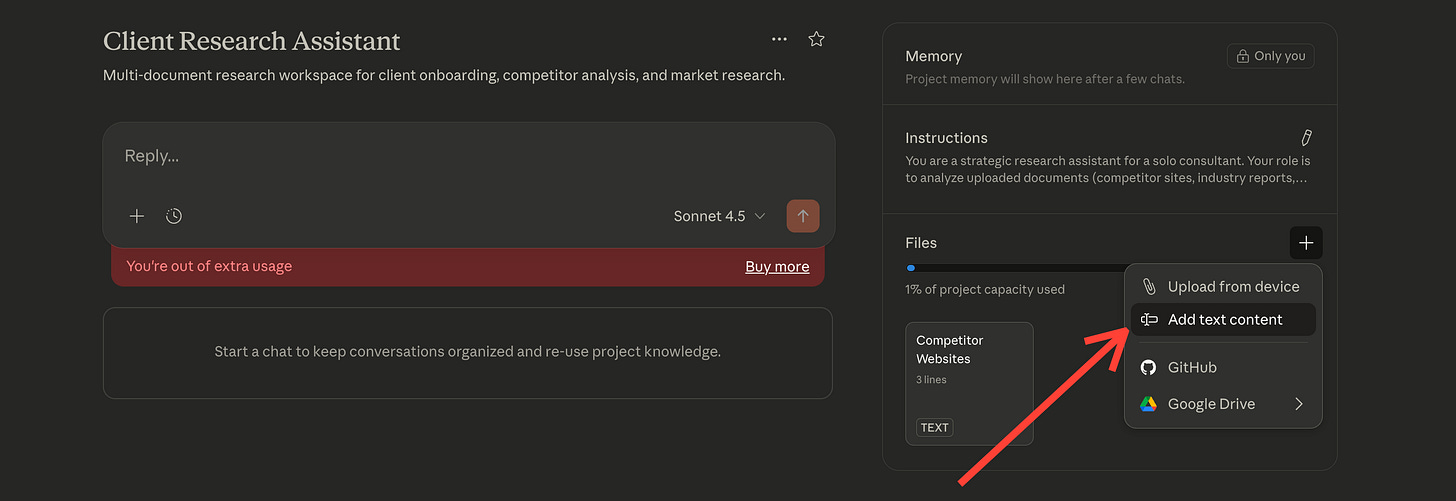
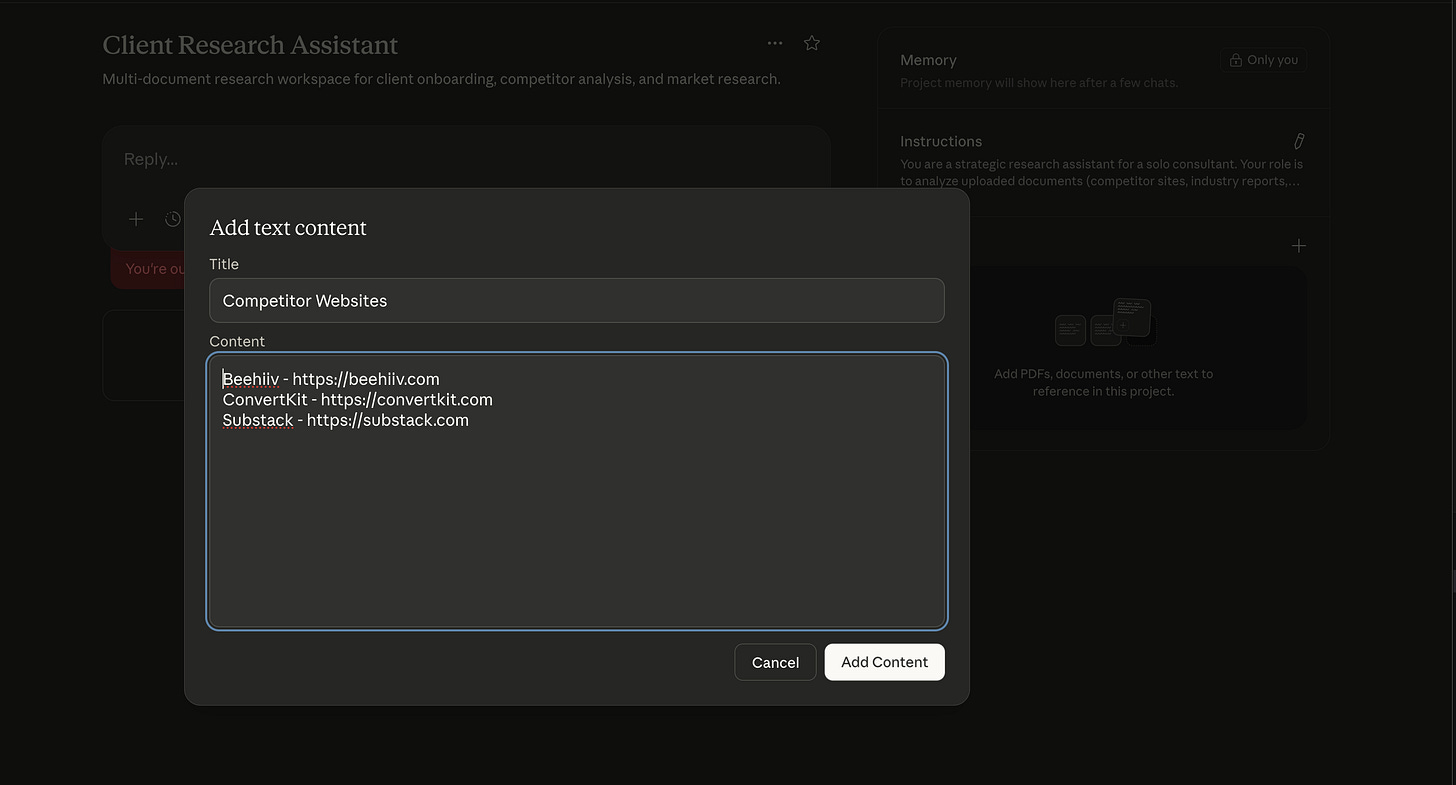
Finally Install Claude Chrome Extension which will help Claude open websites. You can check my step by step tutorial video as well to set up Claude in Chrome.
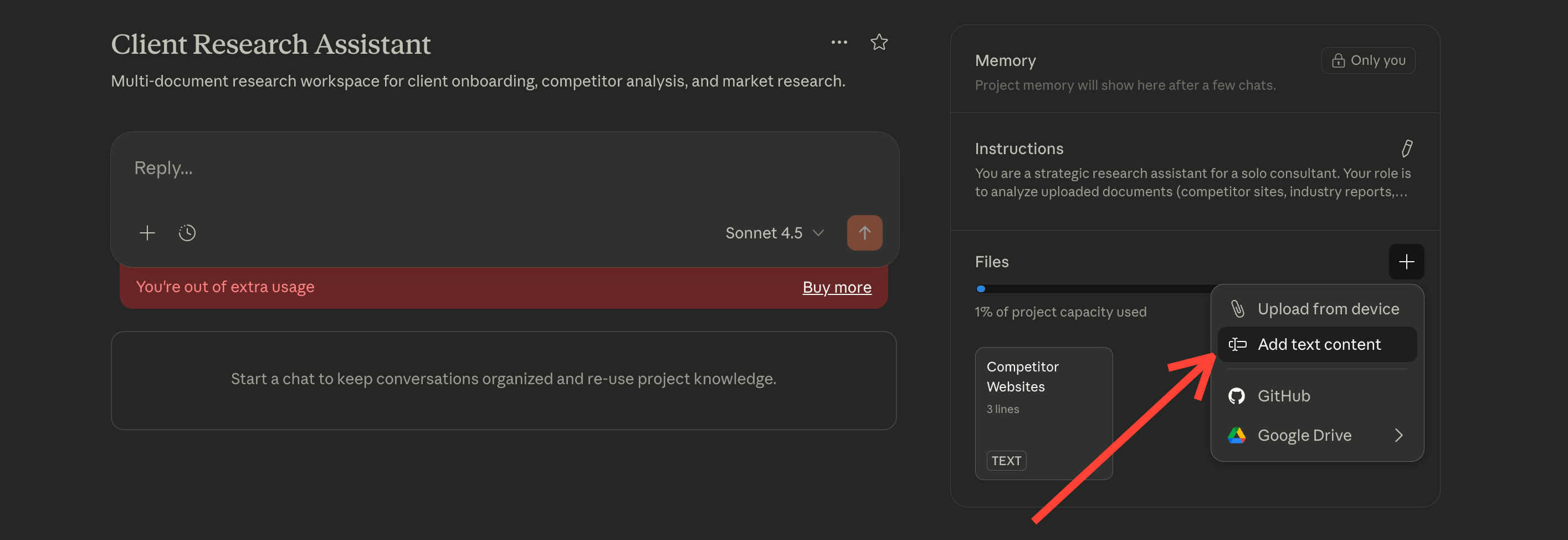
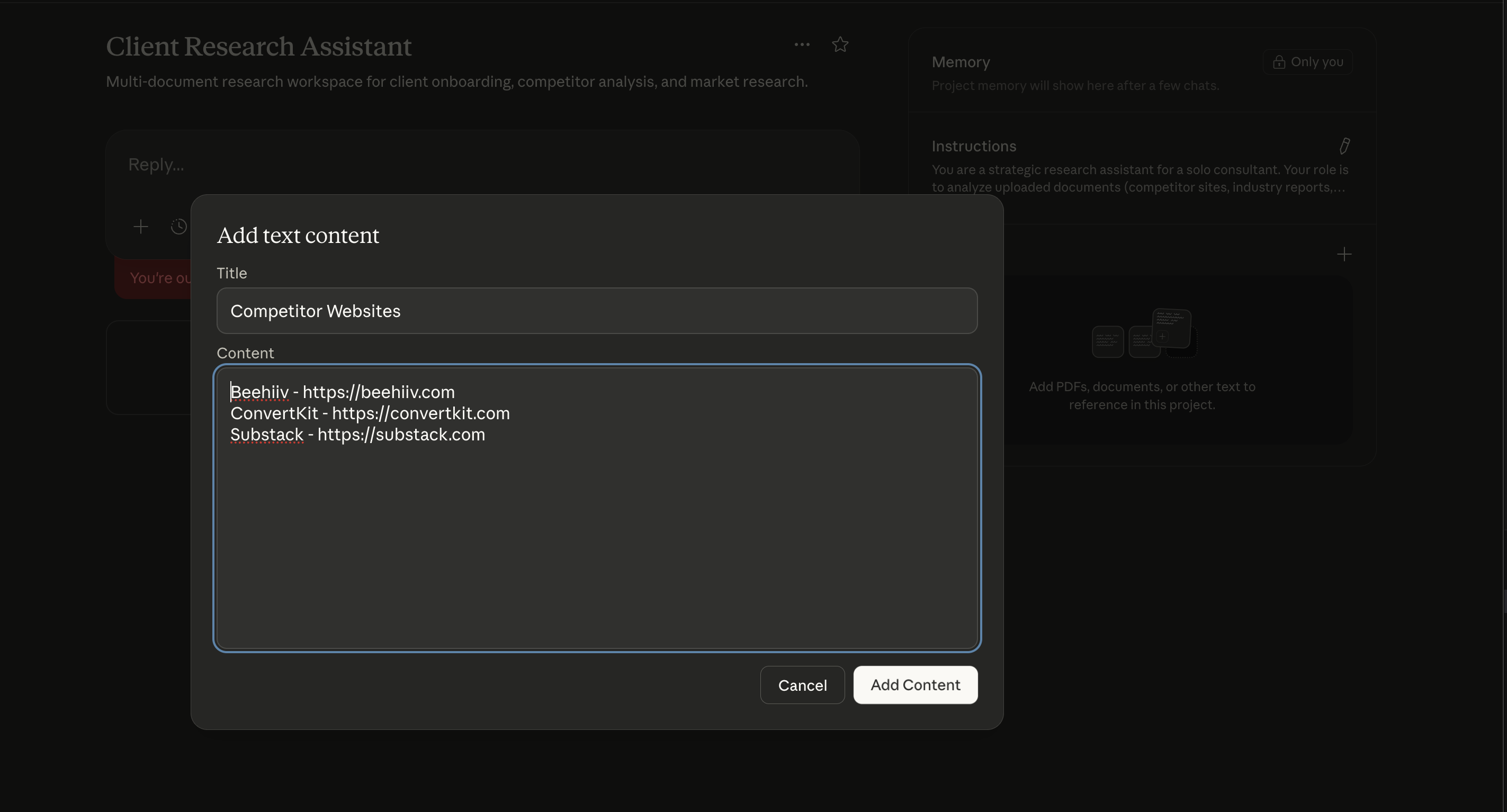
Otherwise, you can customize and set up the competitor analysis workflow that does automated competition analysis for you and creates the notion pages with it. We learned about that automation in the last lesson of our Prompt Engineering course.
Finally, you can also opt for manual process / copy-paste. For competitor websites:
Open the competitor’s site in your browser
Press Cmd+P (Mac) or Ctrl+P (Windows)
Choose “Save as PDF” as the destination
Name the file clearly:
competitor-acme-homepage.pdfSave to a research folder on your desktop
For industry reports:
Most reports are already PDFs. Just download them to your research folder.
For client briefs:
Save your intake forms, questionnaires, or brief documents as PDFs or DOCX files.
Naming convention that works:
Competitor files:
competitor-[company-name]-[page-type].pdfReports:
report-[topic]-[year].pdfClient files:
client-[company-name]-brief.pdf
This naming makes it easy for Claude to reference specific sources in its analysis.
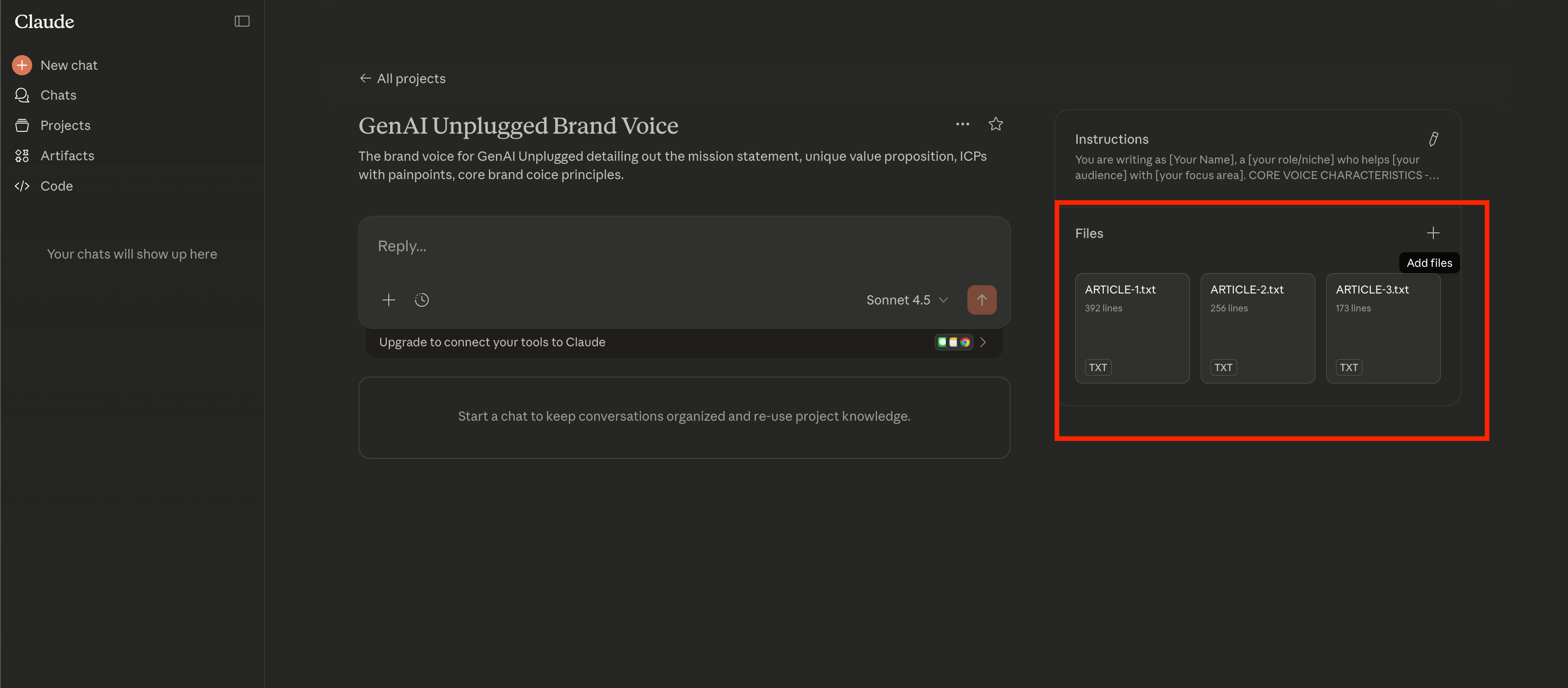
Once you have 5-10 files ready, go back to your Claude Project. Click add “Files (+)” and upload everything at once. You’ll see a list of uploaded files in the right sidebar.
The Project now has access to all these documents in every conversation. You won’t need to re-upload them or explain context again.
You can keep uploading any new competitor data or industry reports as and when relevant in future.
Step 3: The Research Prompt Library
You need three core prompts for most client research: competitor analysis, market synthesis, and dashboard generation.
Each prompt is designed to work with the custom instructions you set up in Step 1. Copy-paste them directly into your Project chat.
You can create Claude Skills for these specific tasks as well but that is for some other lesson in coming weeks. Hence, another reason for you to Subscribe.
Prompt 1: Competitor Analysis
Use this when you’ve uploaded 3-5 competitor websites and need to understand their positioning.
ANALYSIS REQUEST

I've uploaded competitor websites as PDFs and website links in the Project Database. Please analyze them and create a comprehensive competitor analysis.

Competitors to analyze: [List the filenames or website names, e.g., competitor-acme-homepage.pdf, competitor-beta-services.pdf]

Focus areas:
1. Core value propositions
2. Target audiences
3. Service offerings and pricing (if visible)
4. Messaging and positioning angles
5. Strengths and weaknesses

Output format:
- Positioning Summary Table (one row per competitor)
- Detailed Strengths & Weaknesses
- Market Gaps & Opportunities for my client
- Recommended Differentiation Strategy

Be specific and cite examples from the uploaded files.
When to use this:
During client onboarding when you need to understand the competitive landscape quickly.
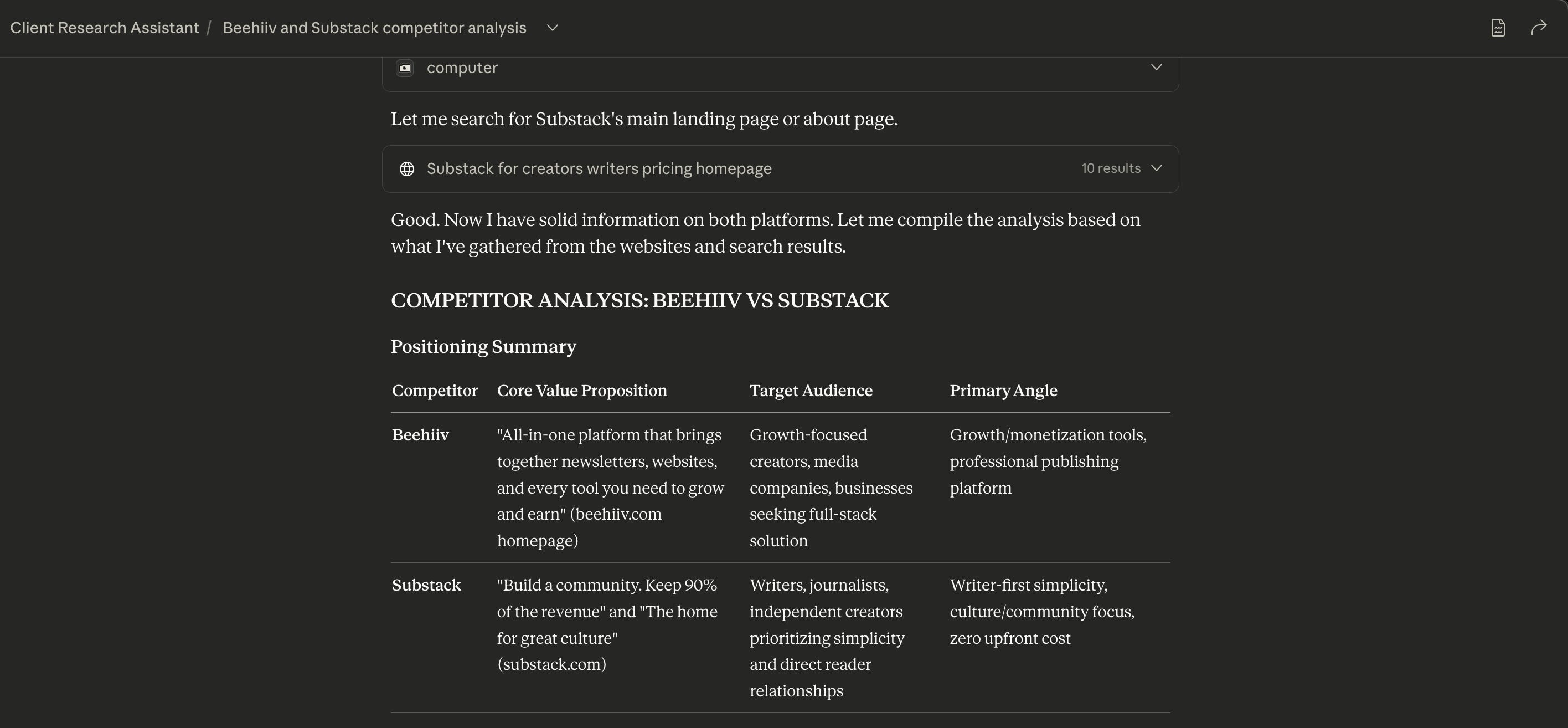
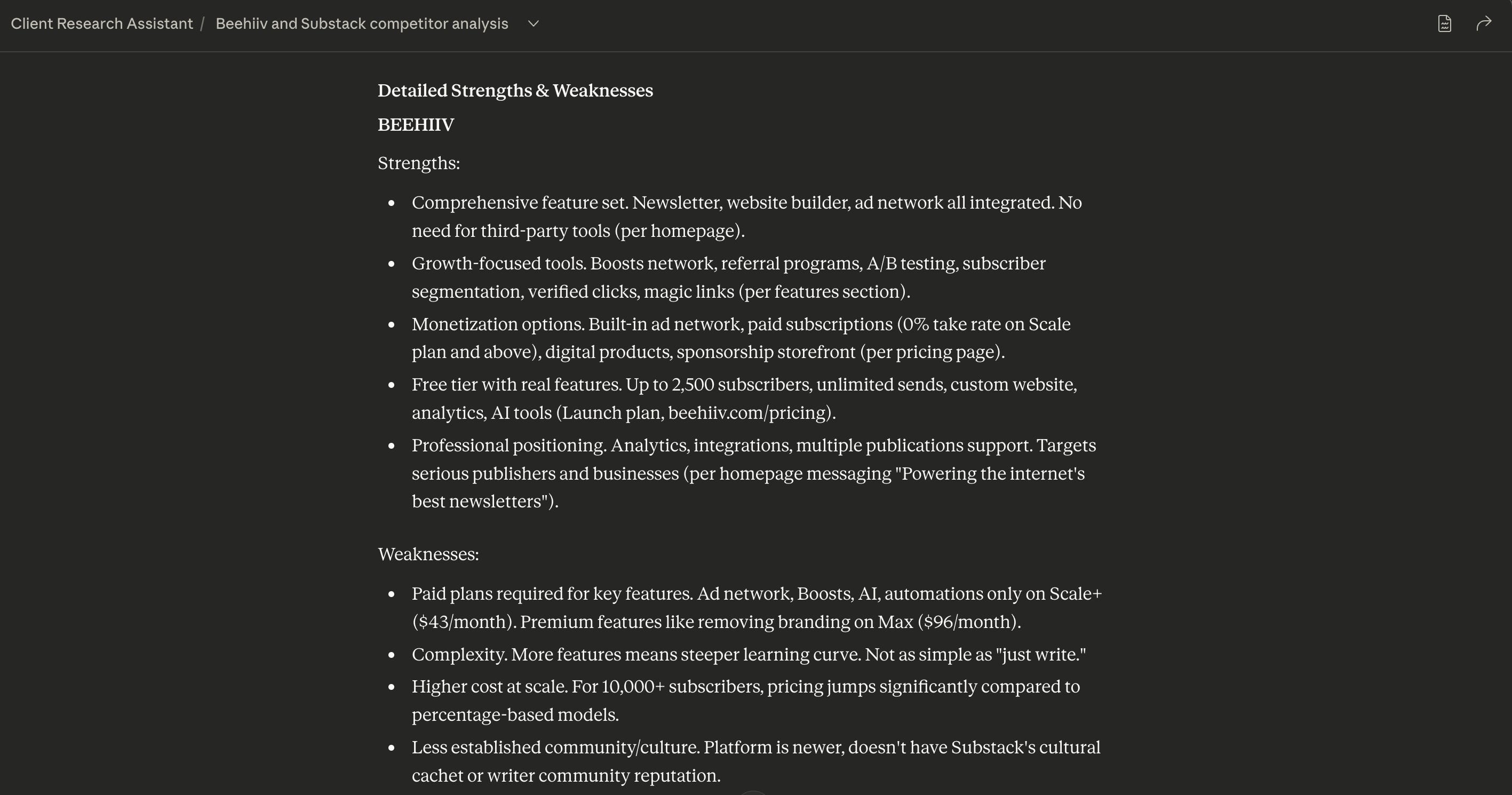
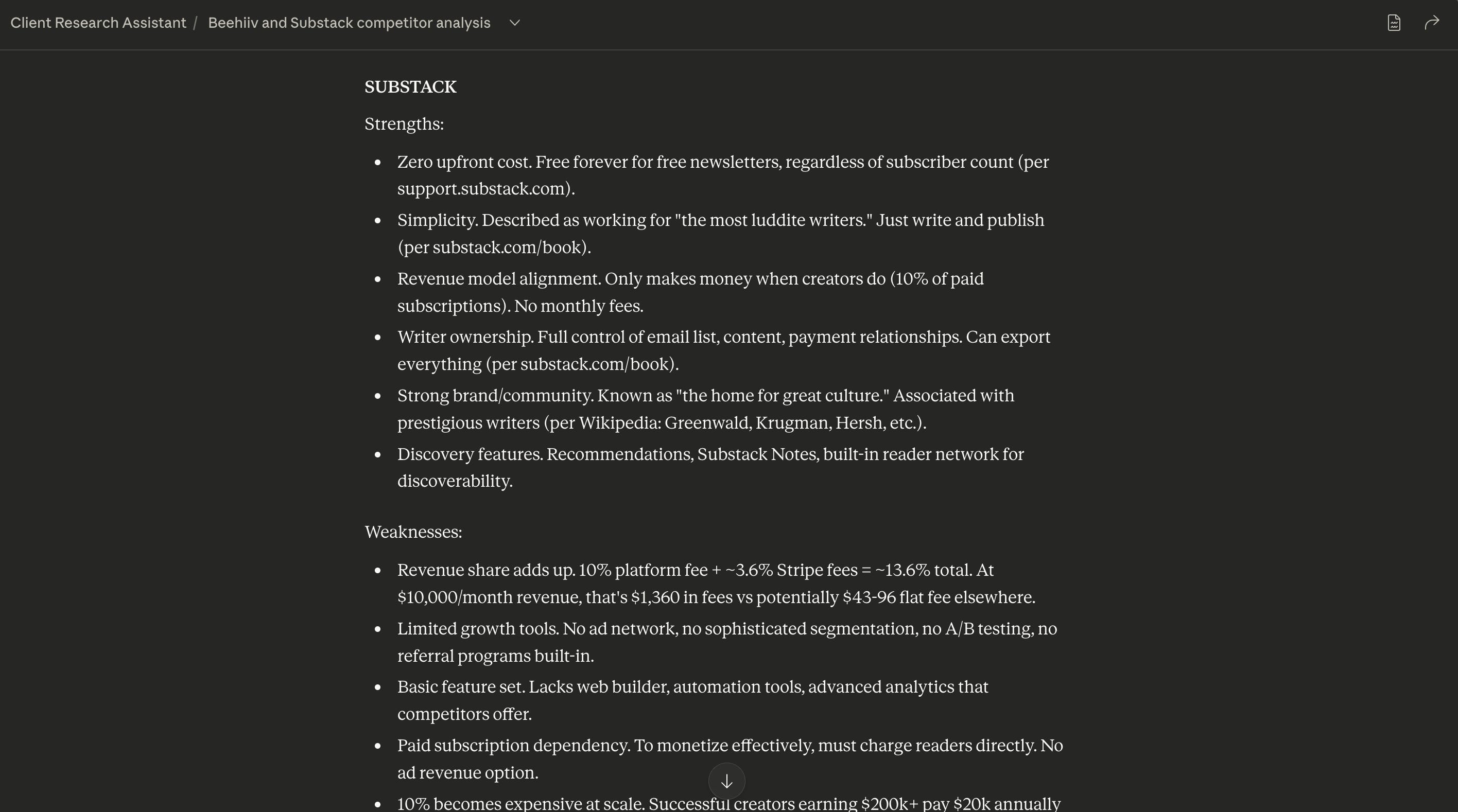
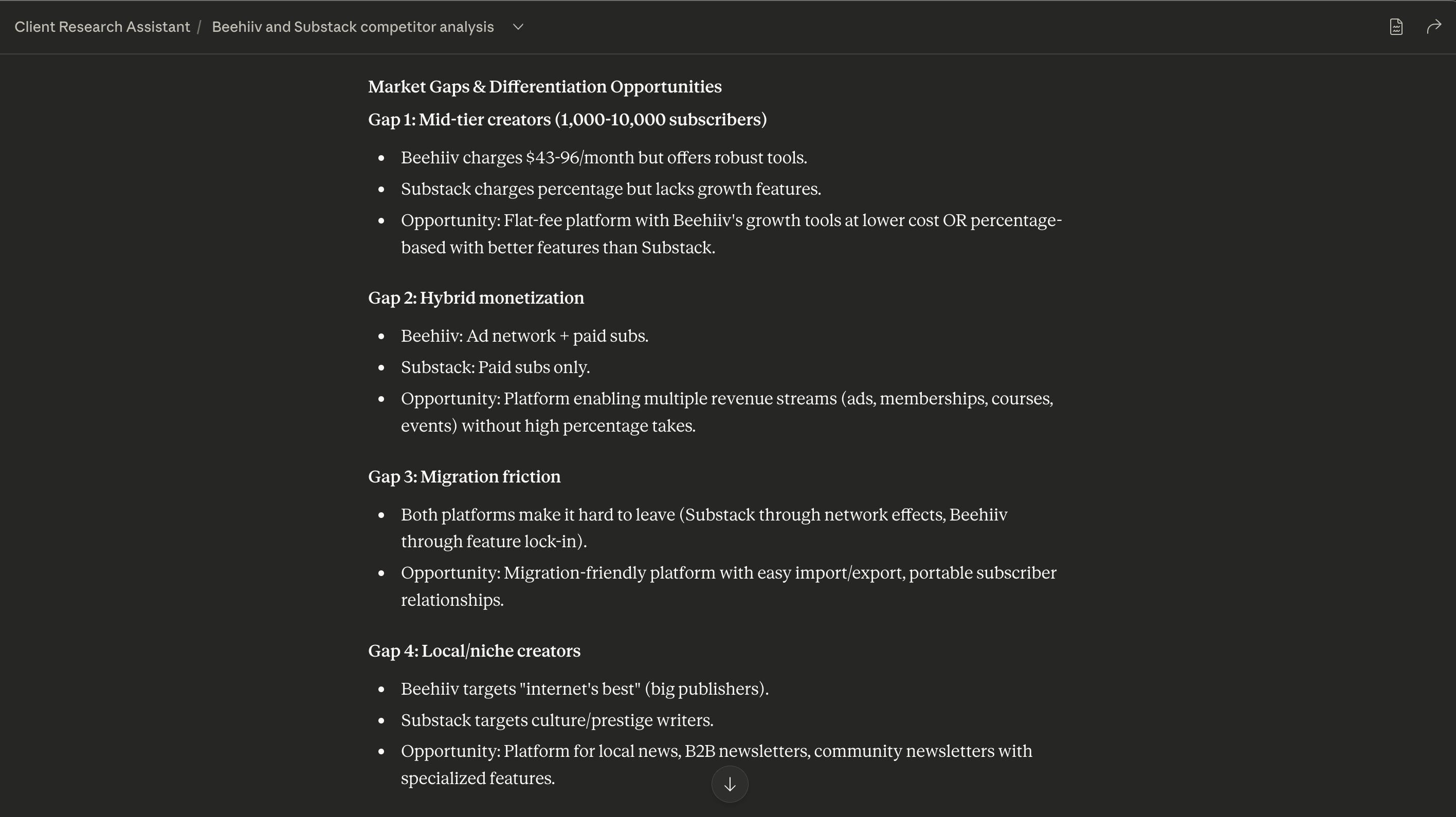
Sample output you’ll get:
A table comparing 3-5 competitors with columns for positioning, strengths, weaknesses, and market gaps.
Prompt 2: Market Research Synthesis
Use this when you’ve uploaded industry reports, trend analyses, or market data and need actionable insights.
RESEARCH SYNTHESIS

I've uploaded industry reports and market research documents. Please synthesize them into strategic insights for my client.

Documents uploaded: [List filenames]

Client context: [2-3 sentences about your client's business, goals, or challenges]

Focus areas:
1. Key industry trends affecting their market
2. Emerging opportunities they should pursue
3. Potential risks or challenges to prepare for
4. Competitive dynamics and market shifts

Output format:
- Executive Summary (3-4 sentences)
- Key Trends (3-5 trends with supporting data from reports)
- Strategic Opportunities (ranked by feasibility)
- Recommended Actions (specific, time-bound)

Include page numbers or section references from uploaded documents when citing data.
When to use this: When you need to translate dense industry reports into client-ready strategic recommendations.
Sample output you’ll get: A structured synthesis that pulls key data points from multiple reports, connects them to your client’s situation, and provides ranked recommendations.
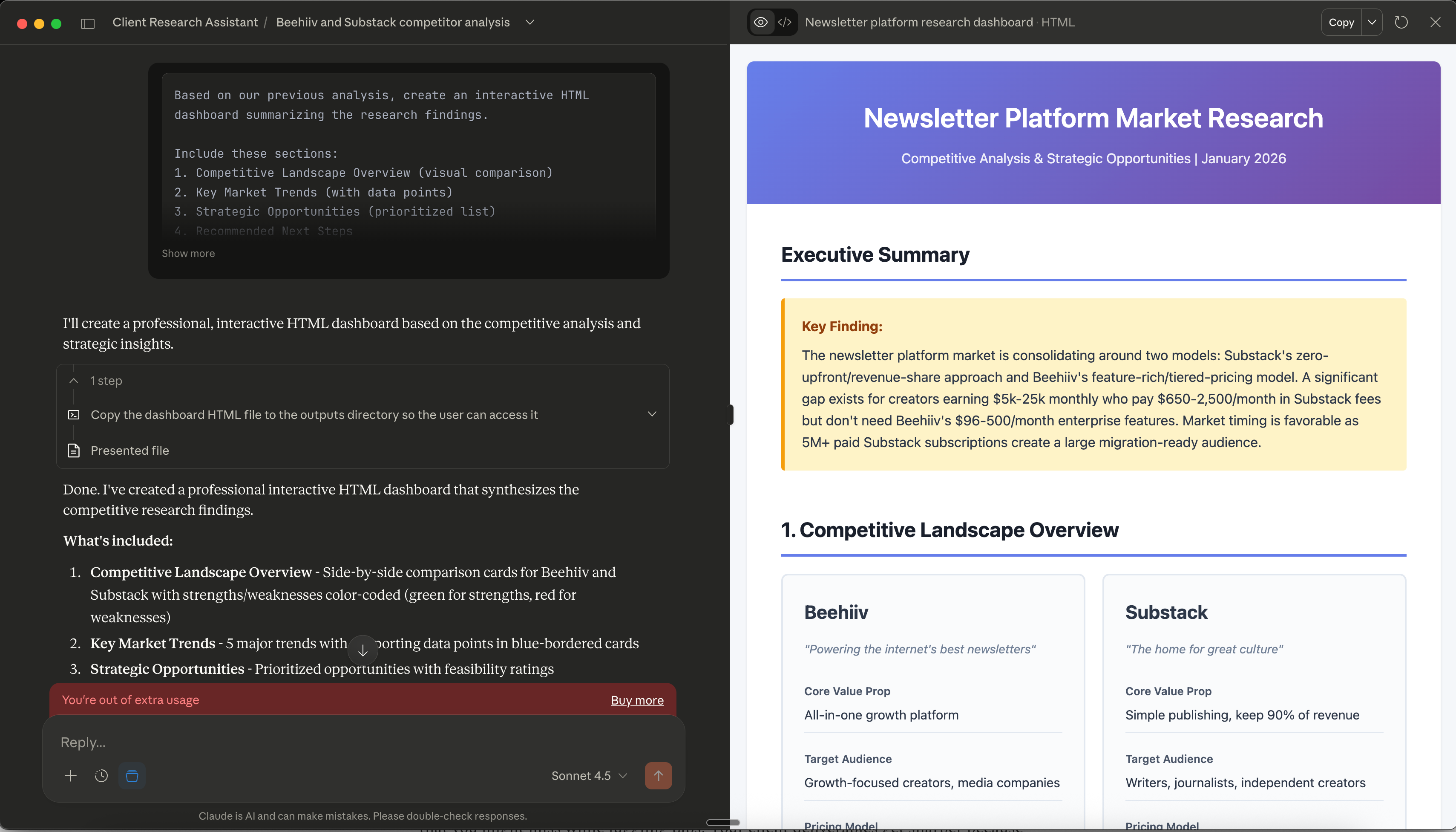
Prompt 3: Research Dashboard Generation
Use this after you’ve completed your analysis and want to create a visual summary for client presentations.
DASHBOARD REQUEST

Based on our previous analysis, create an interactive HTML dashboard summarizing the research findings.

Include these sections:
1. Competitive Landscape Overview (visual comparison)
2. Key Market Trends (with data points)
3. Strategic Opportunities (prioritized list)
4. Recommended Next Steps

Design requirements:
- Clean, professional styling suitable for client presentation
- Use tables, cards, or sections to organize information
- Include color coding (green for opportunities, yellow for considerations, red for risks)
- Make it readable and scannable

Generate this as an HTML artifact I can save and share.
When to use this: After completing your research when you need a client-facing deliverable.
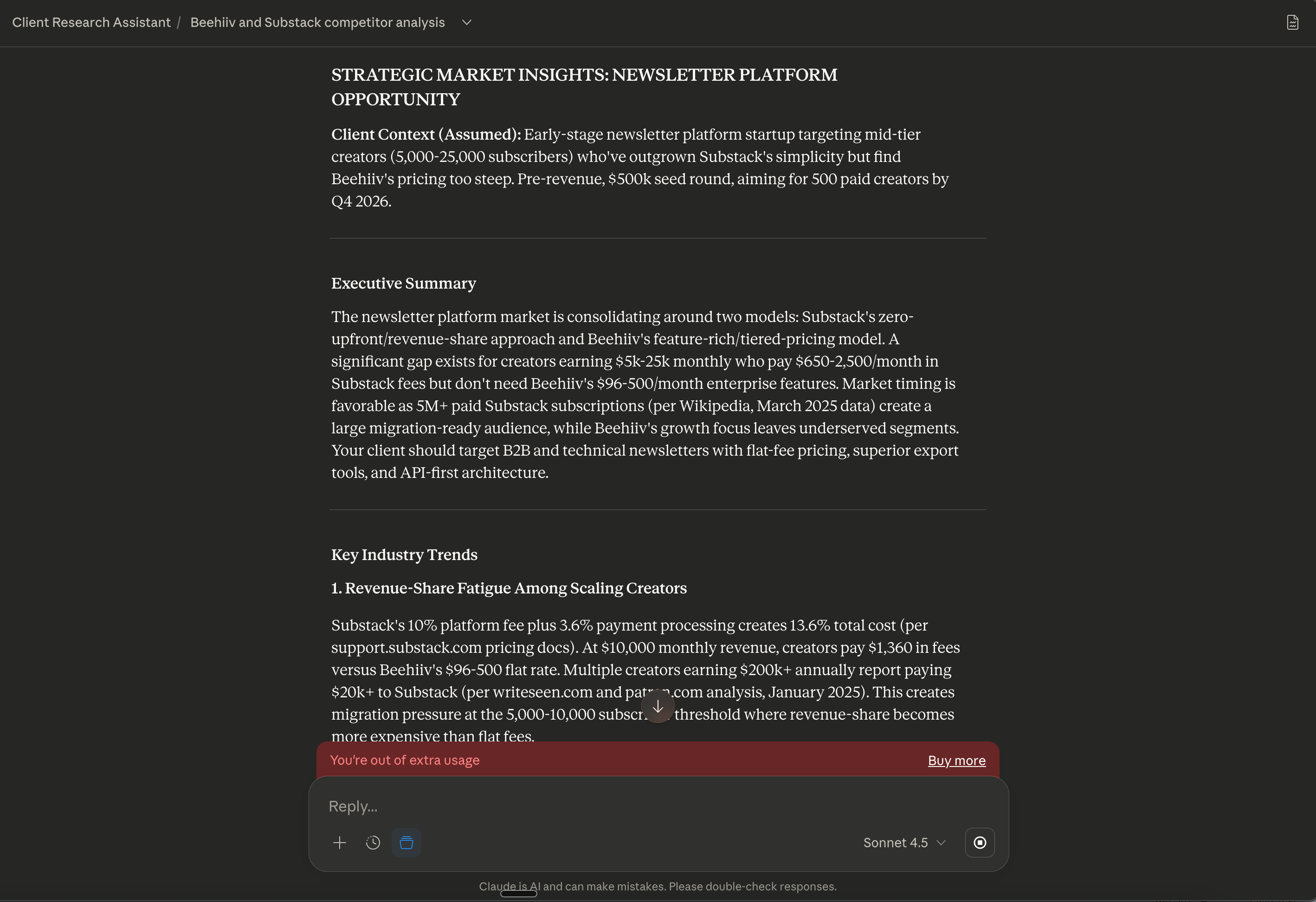
Sample output you’ll get: An HTML artifact (using Claude’s Artifacts feature) that you can save as a standalone HTML file. It will include styled sections, tables, and visual elements that make your research easy to present. You can open it in any browser or embed it in client documents.
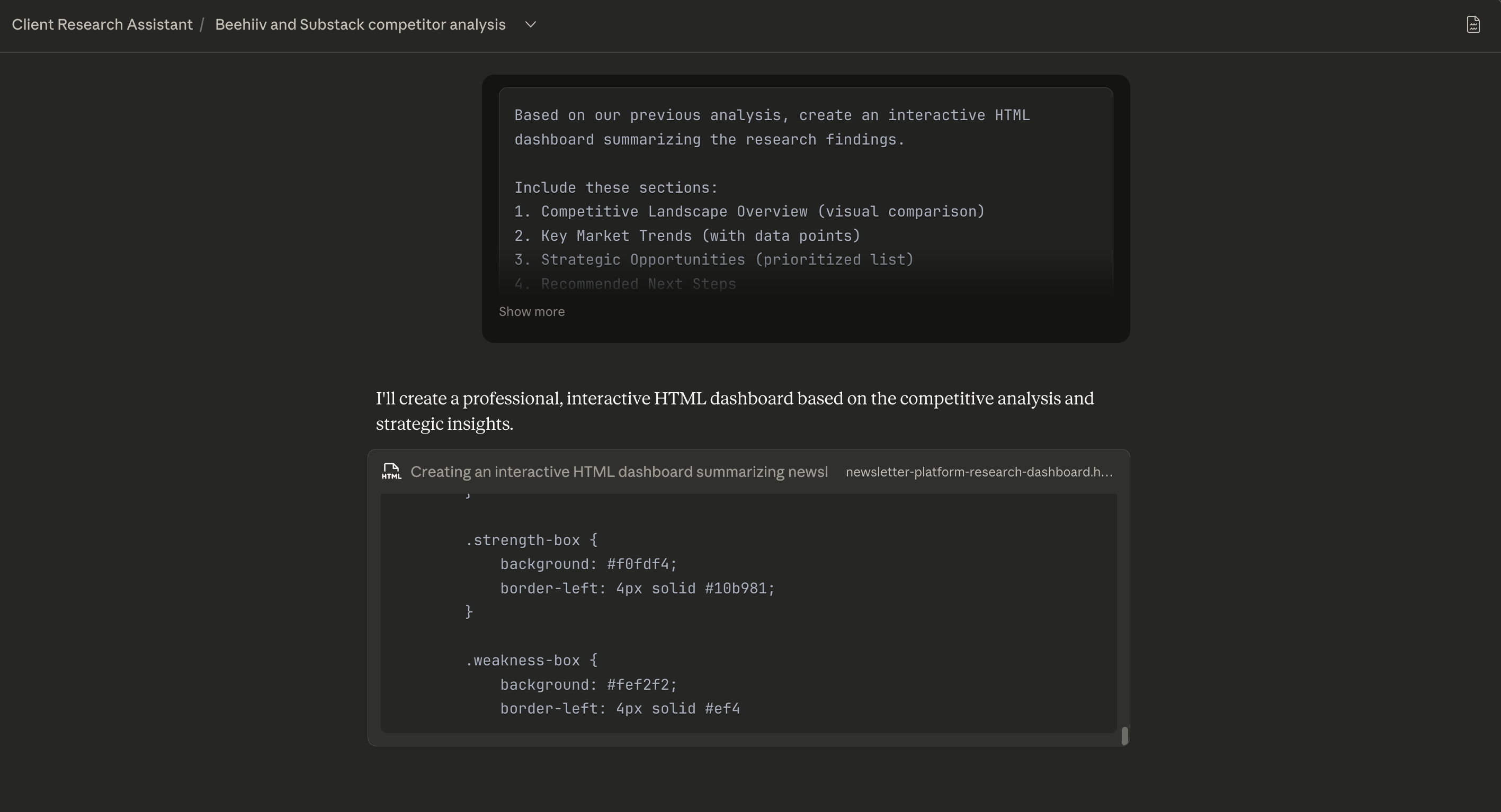
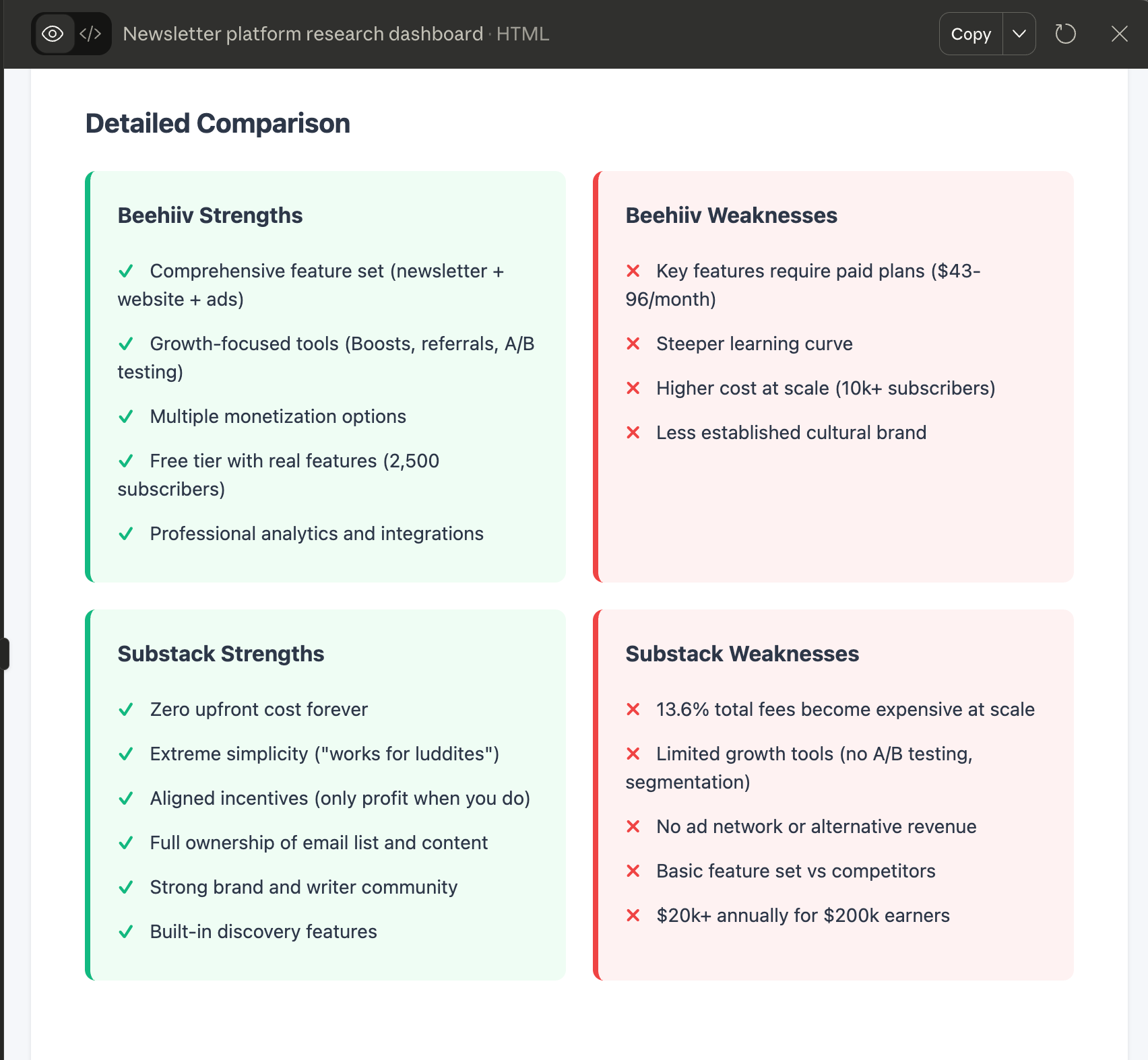
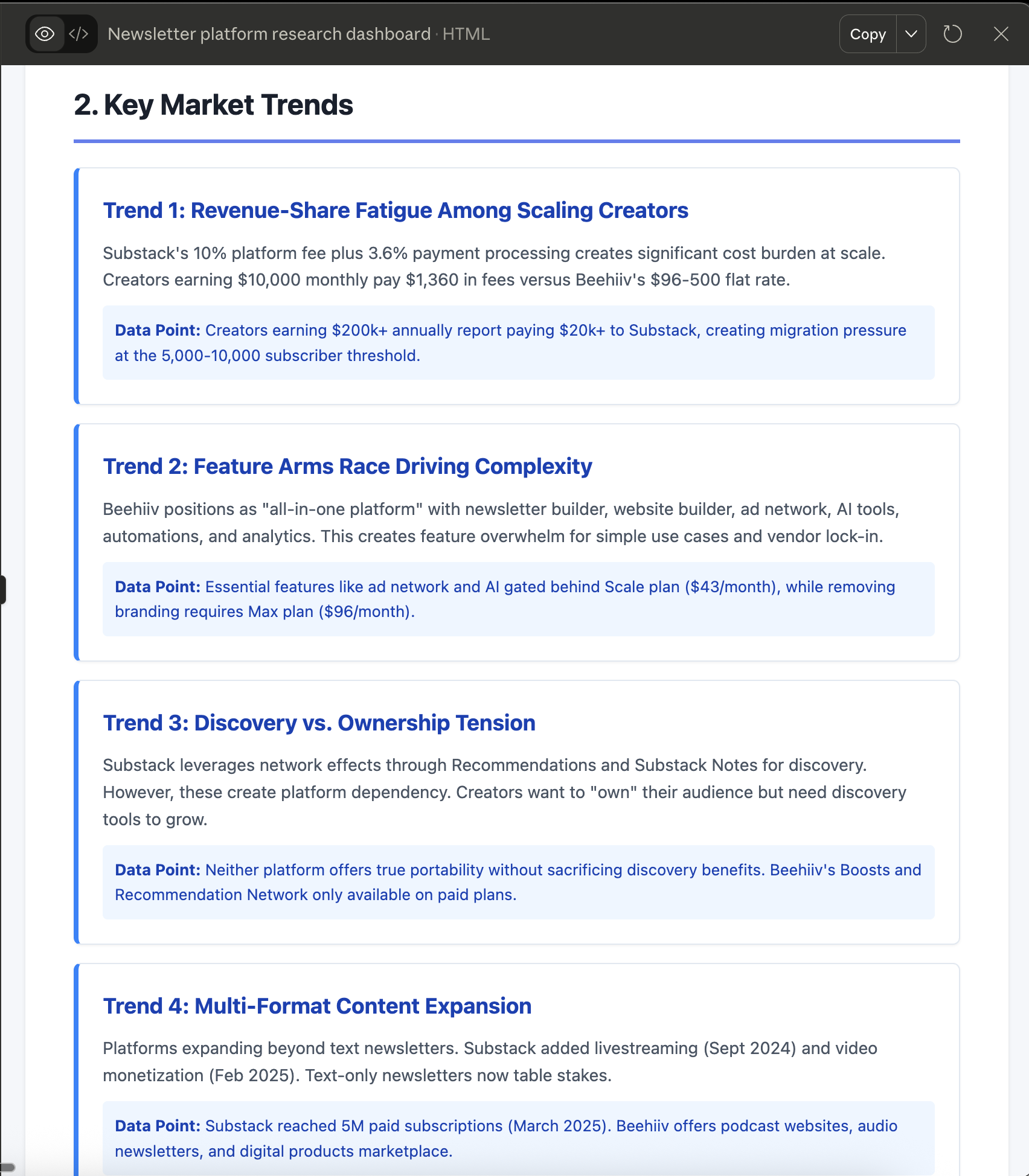
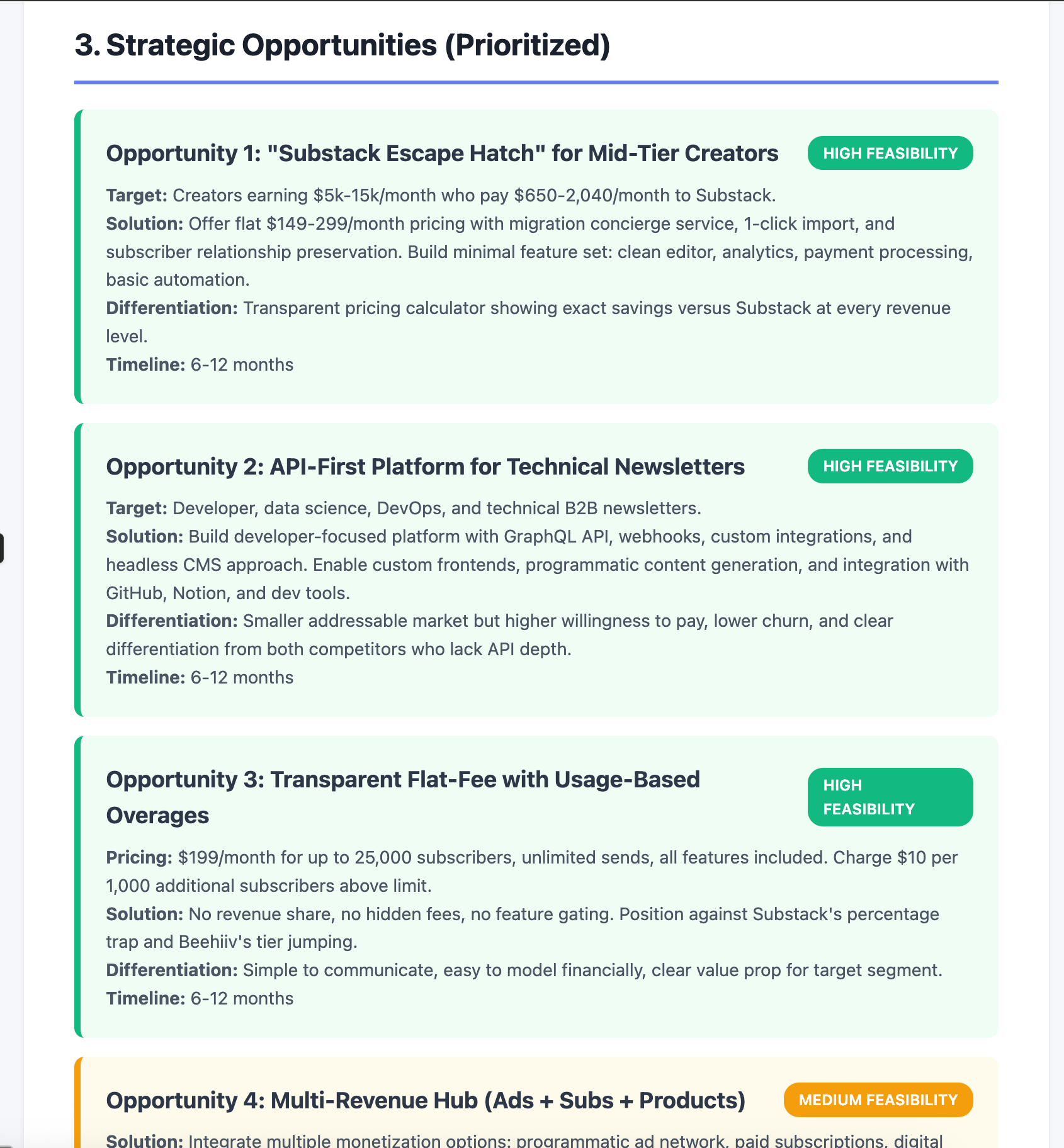
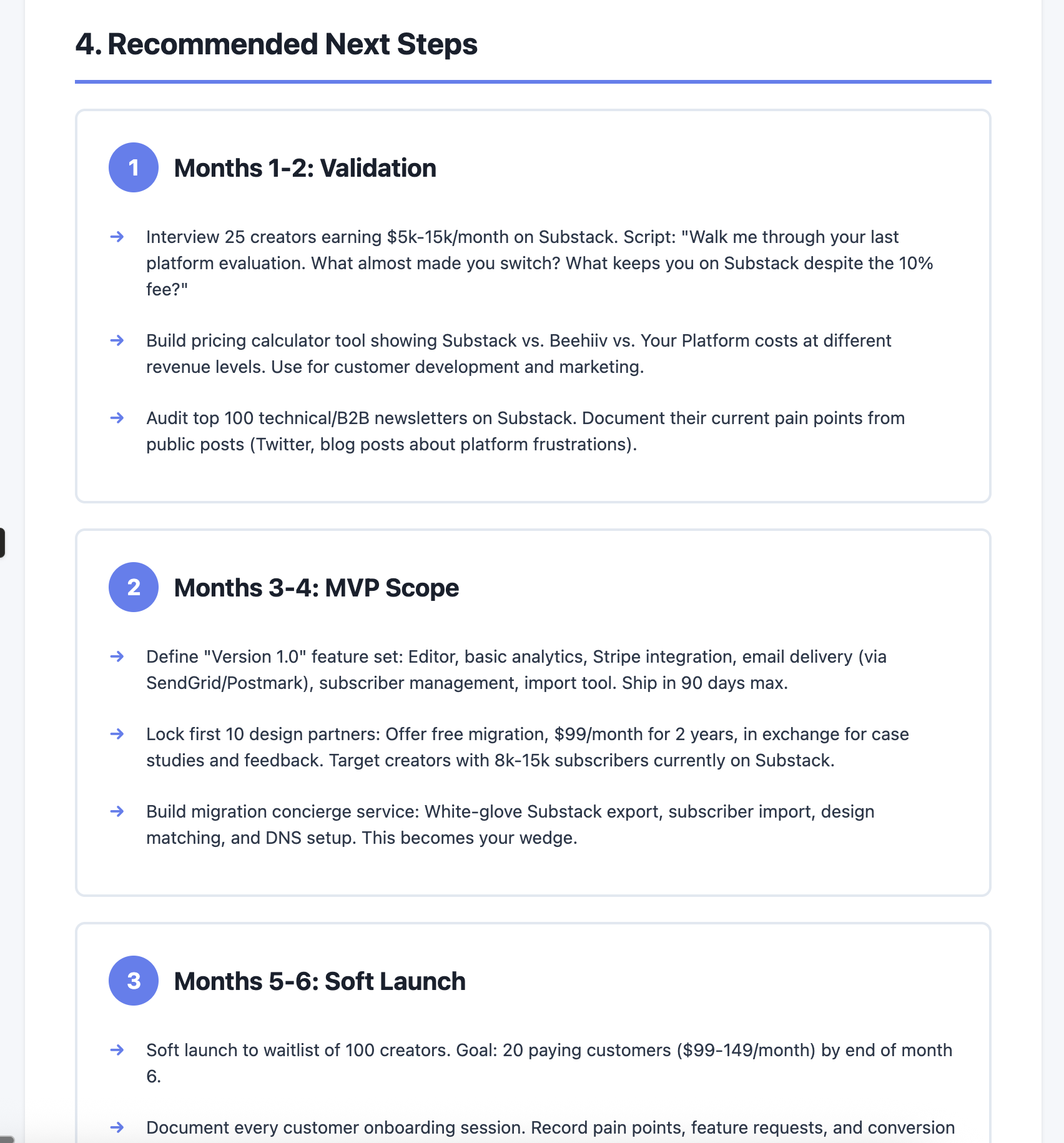
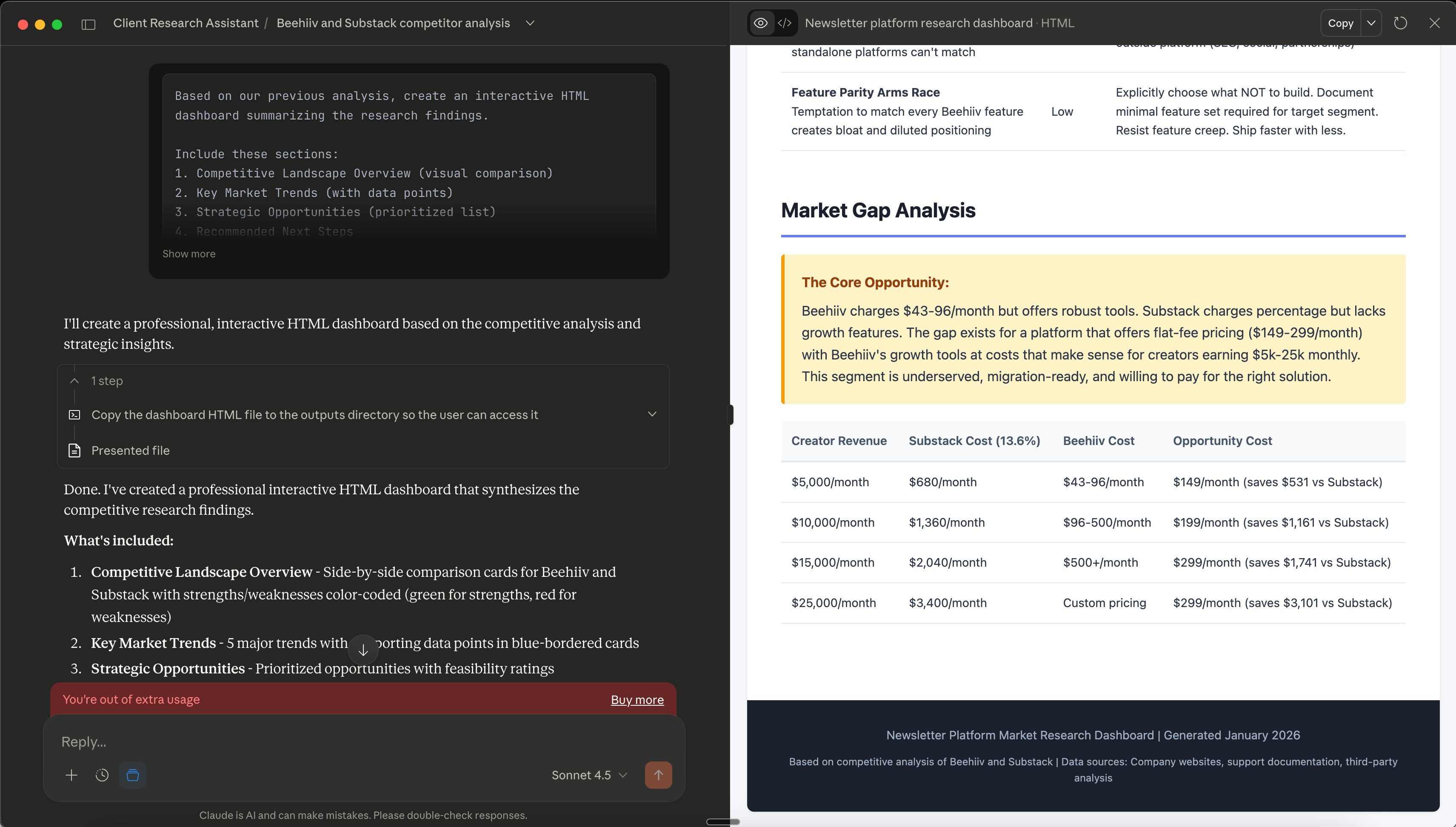
You’ll get a styled HTML page with sections, color coding, and professional formatting. Save it as research-summary-[client-name].html and share it directly or screenshot it for presentations.
The dashboard will include everything from your previous conversations in the Project, formatted for client consumption.
Troubleshooting Common Issues
Issue 1: Claude says it can’t find information in uploaded files
Solution: Check your file names in the Project sidebar. Use the exact filename when asking questions. Say “According to competitor-acme-homepage.pdf” instead of “the Acme file.”
Issue 2: Outputs are too generic or vague
Solution: Add more context to your prompts. Instead of “analyze competitors,” specify “compare pricing models, target audiences, and value propositions.” The custom instructions help, but specific questions get specific answers.
Issue 3: I uploaded a website PDF but Claude says it’s blank
Solution: Some websites don’t print well to PDF. Try using a browser extension like “Save as PDF” or “Print Friendly” that removes navigation and ads before saving. Alternatively, copy the text content into a .txt file and upload that.
Issue 4: The dashboard HTML doesn’t look professional
Solution: After Claude generates the dashboard, ask for revisions: “Make the styling more professional with a blue color scheme and larger headers.” Claude will regenerate the artifact with your requested changes.
Why This System Matters
Research is the invisible bottleneck in your consulting business.
Every hour spent reading competitor sites is an hour you’re not delivering client value.
At 5 hours per client, you’re capped at 32 billable hours per week if you want to serve 6 clients. That’s your revenue ceiling.
With this Claude Project system, research drops to 30 minutes per client. You upload files once, ask targeted questions, and get synthesized insights in minutes.
That frees up 4.5 hours per client, 27 hours per week across 6 clients.
Those 27 hours can go toward:
Serving 3 additional clients per month (+$6,000 at $2,000 per client)
Deeper strategic work that commands premium rates
Actually taking time off without sacrificing income
The system scales with you. Once you’ve built your first Project, creating new ones for different clients takes 5 minutes. The prompts stay the same. The custom instructions carry over. You’re building a research capability, not just completing a one-time task.
And here’s the hidden benefit:
your research quality improves.
Claude doesn’t forget what it read on page 47 of that industry report. It connects patterns across documents that you might miss while juggling tabs. Your client deliverables get sharper because your research foundation is stronger.
Frequently Asked Questions
How do I get competitor websites into Claude Projects?
Best will be to use Claude in Chrome extension and enable the Web Search tool in Claude Chat. Claude will automatically open Chrome browser and do the research for you.
Otherwise, use your browser’s “Print to PDF” function (Cmd+P on Mac, Ctrl+P on Windows) and save the page as a PDF. Name it clearly like competitor-acme-homepage.pdf and upload it to your Project. This works for most websites and preserves the content Claude needs.
What does Claude Projects cost?
Claude Projects is included in your Claude Pro subscription ($20/month). There’s no additional cost per project or per file uploaded. Free tier users get only one project access.
What’s the difference between Claude Projects and just using Claude chat?
Regular Claude chat forgets everything when you start a new conversation. Projects maintain persistent context. All uploaded files and previous conversations stay available. You can return days later and ask follow-up questions without re-explaining anything.
How many files do I need for effective research?
Start with 5-10 files: 3-5 competitor sites, 1-2 industry reports, and your client brief. That’s enough for comprehensive analysis. You can add more as questions arise, up to the 200-file limit per project.
Why does my research output still feel generic?
Add more specific context to your prompts. Instead of “analyze these competitors,” ask “compare their pricing models, identify gaps in their service offerings for mid-market clients, and recommend differentiation angles for a B2B SaaS company.” Specific questions get specific answers.
Key Takeaways
Research bottlenecks limit your client capacity more than any other factor in solo consulting
Claude Projects maintains context across documents and conversations, eliminating repeated work
Use Claude in Chrome extension for automated research OR upload manual competitor sites as PDFs using your browser’s print function
Three core prompts handle 90% of research needs: competitor analysis, market synthesis, dashboard generation
Custom instructions ensure consistent output formatting across all research projects
30-minute research sessions replace 5-hour manual processes when you let AI handle synthesis
The system scales. Create new projects for each client in 15 minutes using the same prompts
Your 15-Minute Challenge
Create your first research project right now:
Go to claude.ai and create a new Project called “Client Research Assistant”
Add the custom instructions from Step 1 (copy-paste from this article)
Install Claude in Chrome or find 2-3 competitor websites in your niche
Save them as PDFs and upload to your Project
Use Prompt 1 (Competitor Analysis) to generate your first research output
Success criteria: You should have a competitor comparison table with specific insights cited from your uploaded files. If you get generic output, add more detail to your prompt about what specific aspects to compare.
This 15-minute test proves the system works. Once you see the output quality, you’ll use it for every client onboarding.
What’s Next
You’ve built a research assistant that saves 5 hours per client. But research is just one piece of client delivery.
Next, we’ll tackle the other major time sink: creating client deliverables. You’ll learn how to build a Claude Project that turns your research insights into formatted strategy documents, presentation decks, and client reports in minutes instead of hours.
That system stacks on top of this one. Your research becomes the input for automated deliverable creation. Same quality, 10x faster.