



Claude's usage limits just got tighter. Again.
If you've built workflows around Claude Code, you've probably hit that wall mid-project. You're deep in something that matters and suddenly you're looking at a rate limit message. The work stops. You wait.
In a recent live session on our One Shot Show (S2E3), I sat down with Wyndo to walk through OpenAI Codex from scratch. Wyndo has been building on Codex for months alongside Claude Code, and this session is the clearest orientation to both tools I've seen.

By the end of this article,
you'll know exactly what Codex is,
how to set it up for serious work,
how to bridge it with Claude Code so you have a working cross-model system, and
whether the $20/month price tag makes sense.
👋 Julley, I'm Dheeraj and I'm an AI systems builder.
I build production-grade AI systems at work by day and ship my own products by night (9+). This newsletter is the bridge between those two worlds. Every system, every build, documented step by step.
Join 1,600+ builders getting the exact AI setups, prompts, and production configs that actually work in your business.
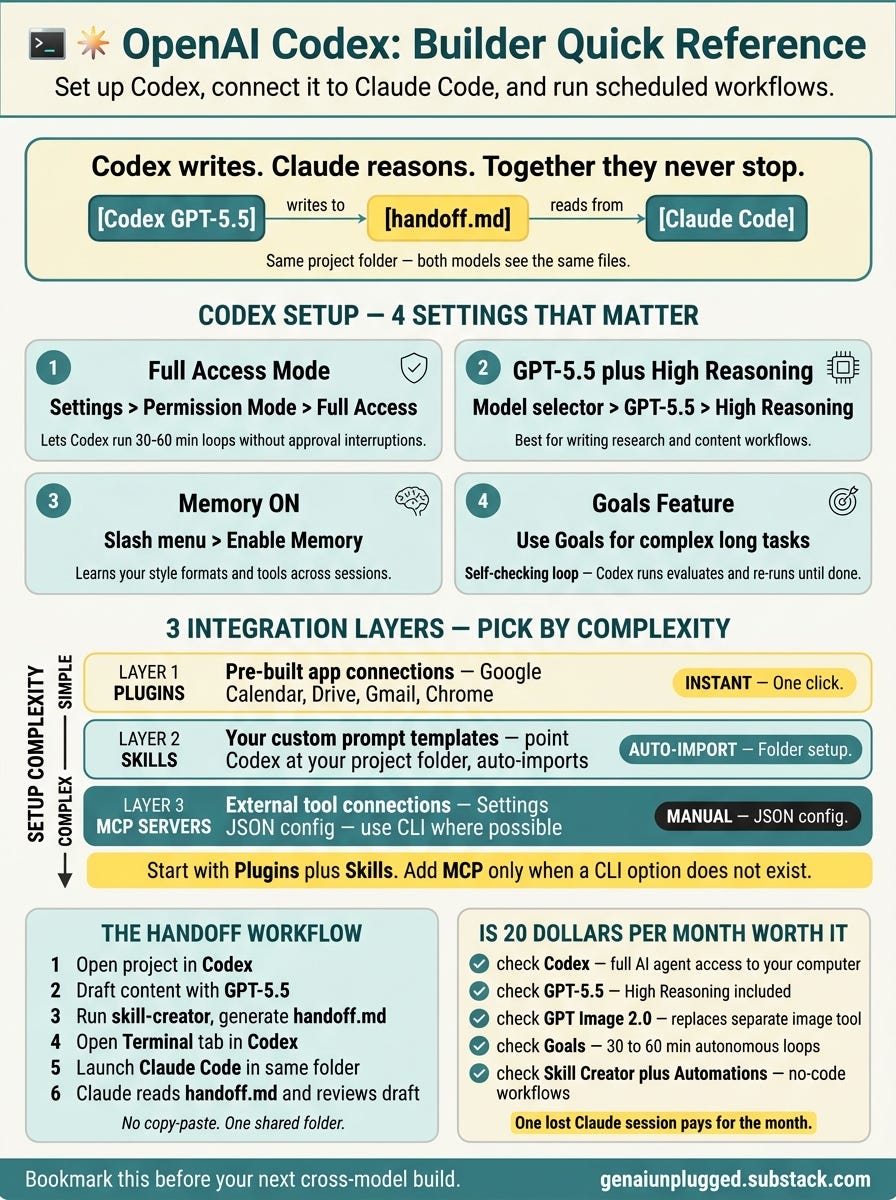
Codex and Claude Code aren't competing for the same job. One writes better, one reasons better. The builder who learns to run both can keep working when either one hits a wall.
Why Does Codex Matter Right Now?
Claude's Agent SDK and programmatic (claude -p) usage limits are changing on June 15. If you run automated Claude Code workflows or use the Agent SDK, the timing matters.
At the same time, Wyndo's view, backed by months of newsletter production, is that GPT-5.5 has closed the gap on knowledge work, particularly writing. Community comparisons largely agree for content workflows, though complex reasoning still favors Claude.
ChatGPT Plus ($20/month), which includes Codex, also bundles GPT Image 2.0, eliminating a separate image tool subscription most builders are currently paying for.
Wyndo has been tracking this from his own workflow with his newsletter (which he described as having 20,000 subscribers).
His conclusion: GPT-5.5 produces more human-sounding copy than Opus 4.7 for writing-heavy workflows.
Codex isn't a replacement for Claude Code. It's the backup that makes your whole system more resilient, and in some specific use cases, the better first choice.
What Is OpenAI Codex and How Is It Different from the Old Codex API?
Codex is a desktop AI agent app that can read files, edit content, and run terminal commands within the permissions you configure. It's not the old code-completion API from 2021. That product is gone.
The new Codex fills a specific gap: it does what Claude Code does technically (full file and terminal access), but packages it the way Claude Cowork does visually (a proper app, not a terminal).
If you've avoided Claude Code because terminal work feels uncomfortable, Codex is where you'd start instead.
Wyndo's take on the core distinction:
“Codex is basically worth the same as Claude Code where it can access your computer, but their app is way simpler.” - Wyndo
Wyndo uses Codex for writing and content creation. He uses Claude Code and Opus for planning, brainstorming, and complex agent harnesses that require deep context reasoning.
“I find Codex writes way better, more human compared to Opus 4.7. For brainstorming and planning I still use Opus because it has better context understanding.” - Wyndo
That division of labor is the framework I'd suggest for any builder starting out. Let each model do what it's actually better at.
How Do You Set Up Codex for the Best Results?
Setting up Codex correctly takes about 10 minutes.
Four settings separate a slow approval loop from a real autonomous workflow:
Full Access permission mode,
GPT-5.5 with High Reasoning,
Memory toggled ON, and
the Goals feature for long-running tasks.
Without these, you're using default settings that interrupt you constantly and run a less capable model. With them, Codex can run 30 to 60 minute autonomous loops without your involvement.
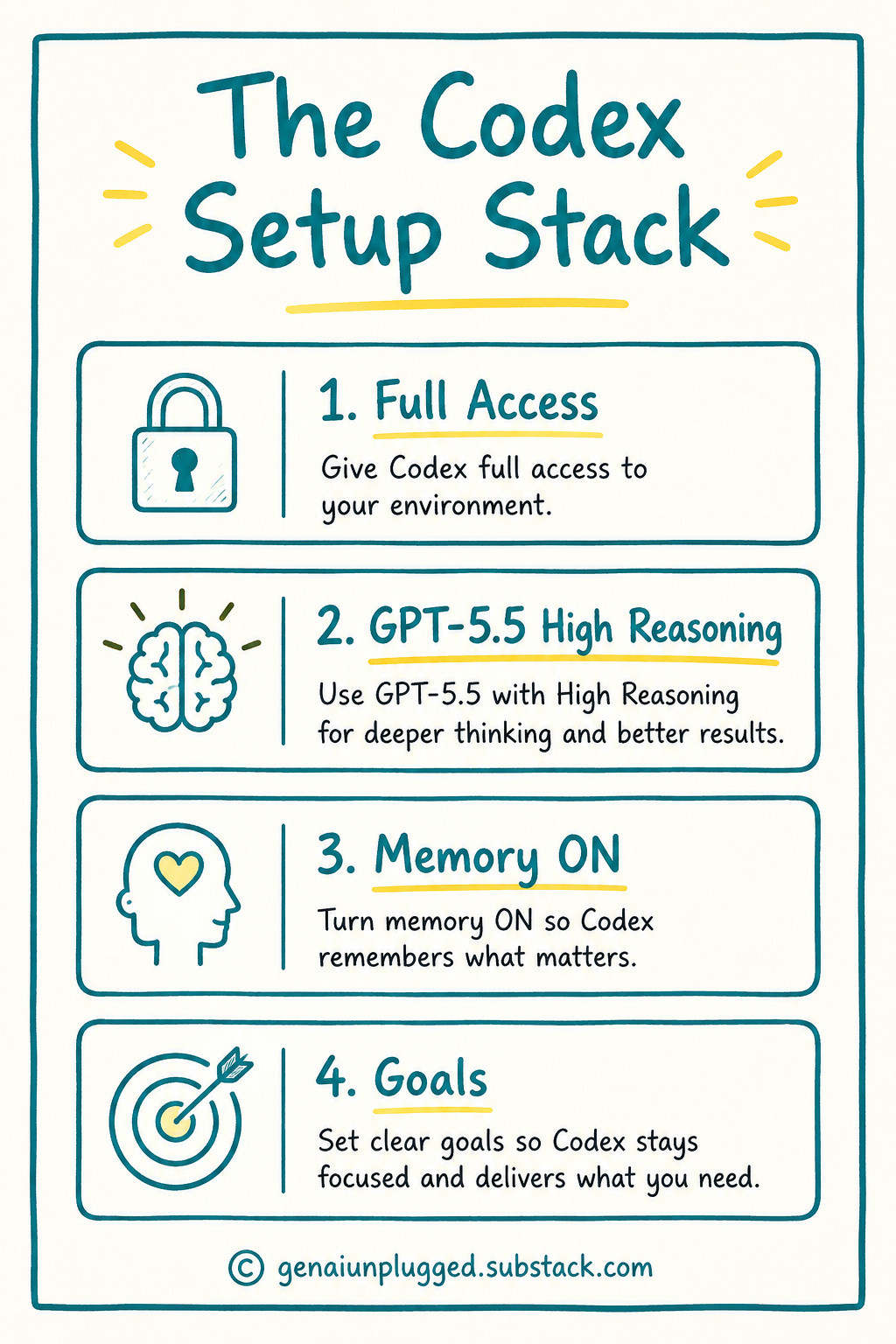
Here's what each one does:
1. Set Permission Mode to Full Access
The default mode asks you to approve every action before it runs. This works for sensitive workflows but breaks autonomous operation.
Switch to Full Access under Settings to let Codex run without constant interruption. You can drop back to default mode for anything involving email or private data.
2. Use GPT-5.5 with High Reasoning
This is the model configuration Wyndo runs for all knowledge work. High reasoning tells the model to think through problems more carefully before acting. For writing, research, and content workflows, this is the optimal setup.
3. Toggle Memory On
Memory lets Codex learn your preferences and style across sessions. After a few interactions, it starts adapting to your communication style, your preferred output formats, and your tools. Toggle it on via the slash menu in any chat.
4. Use Goals for Long-Running Tasks
Goals is the feature most new Codex users miss entirely. A Goal creates a self-checking autonomous loop. Codex executes, evaluates whether it hit the goal, then re-executes if not.
Wyndo runs tasks in this mode for 30 minutes to an hour without touching the keyboard. This is the equivalent of running a full agent workflow without building one from scratch.
Codex Setup Reference:
Permission Mode: Full Access (autonomous) | Default (human approval per action)
Recommended Model: GPT-5.5 with High Reasoning
Memory: ON, enable via slash menu
Long Tasks: Use Goals feature (30-60 minute autonomous loops)
Time to Configure: 10 minutes
What Are Plugins, Skills, and MCP in Codex?
Codex has three distinct integration layers that do different things.
Plugins are one-click pre-built app connections (Google Calendar, Drive, Gmail, Chrome).
Skills are your own custom prompt templates that live in your project folder and import automatically.
MCP servers (Model Context Protocol, meaning external tool connections) you add manually through Settings using a JSON config.
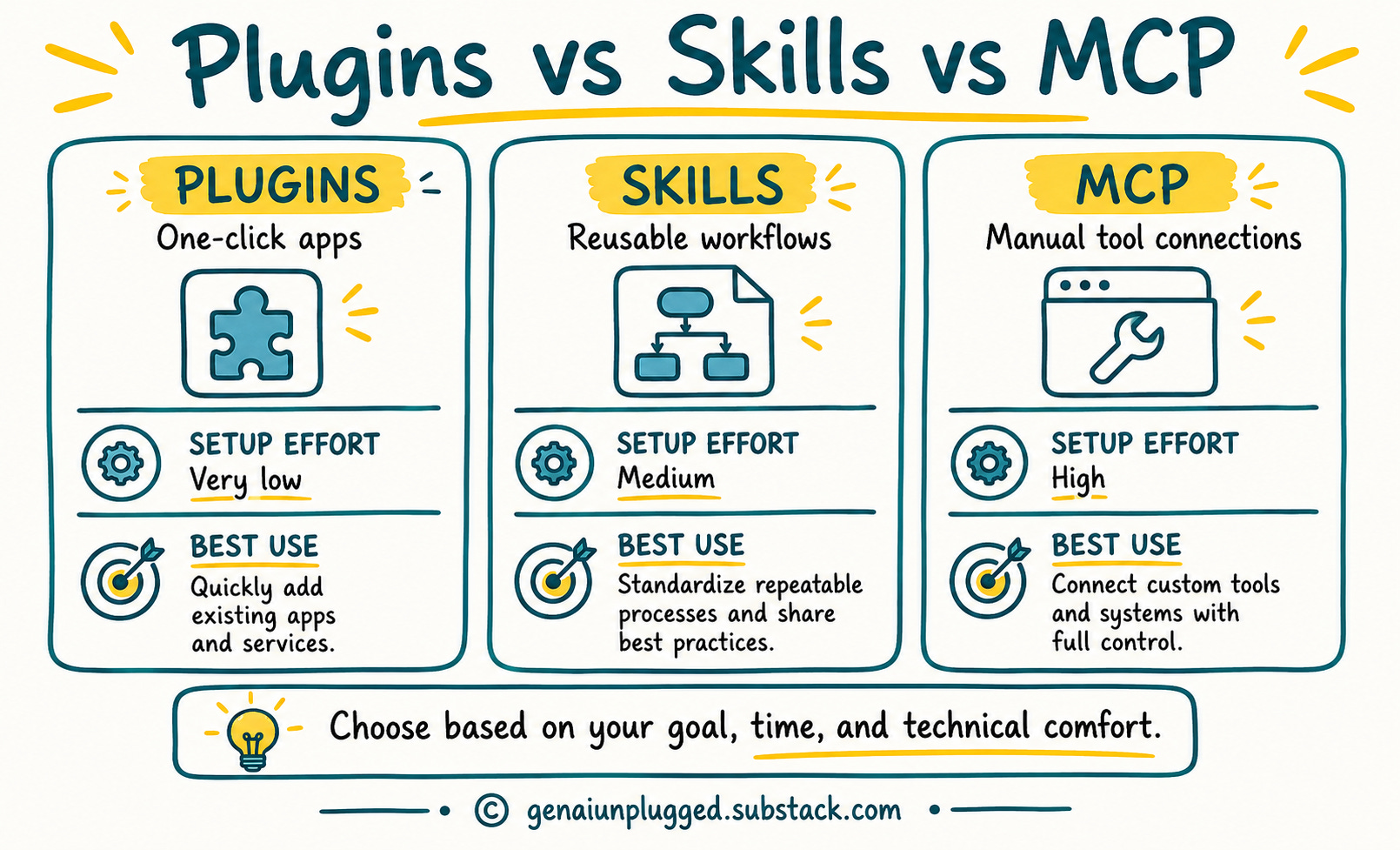
The naming is confusing because all three sound like “add-ons,” but once you map each layer to its function, the system makes sense.
Plugins require no setup beyond clicking “Add.” Codex connects to your Google Workspace apps or Chrome instantly.
Skills require no migration if you're coming from Claude Code: they live in your folder and appear in the Skills tab automatically when you add that folder to Codex.
Wyndo's setup showed a large local skills library (over 170 in his folder) appearing in the Skills tab automatically.
MCP is the most complex layer. You add MCP servers through Settings > MCP Server using the same JSON configuration you'd use with Claude. Wyndo's practical recommendation is to skip MCP where you can:
“With CLI you don't need any connections with MCP. MCP you need separate connections, but with CLI you can just turn it on.” - Wyndo
For simpler app connections, CLI beats MCP on reliability and setup time. The Notion CLI is a recent example.
I made the switch from the Notion MCP to the Notion CLI in my own project recently, and the maintenance difference is significant. Less configuration to manage, fewer things that break.
How Do Claude Code Users Add Codex Without Starting Over?
You don't have to choose between Codex and Claude Code, and you may not have to rebuild anything.
In Wyndo's live demo, adding his Claude Code project folder to Codex generated an agents.md that mirrored his CLAUDE.md, and his existing skills appeared in the Skills tab immediately.
Your setup may require manually seeding agents.md from your existing CLAUDE.md, but either way the migration is light.
In Wyndo’s words:
“When you add a folder inside of Codex it will automatically create a new agents.md which is kind of like a replication of CLAUDE.md. You don't have to do manual importing.” - Wyndo
If you've invested significant time building skills and project context in Claude Code, you keep most or all of it. You're giving a second model access to the same workspace.
Codex also keeps multiple chat threads open inside each project. Unlike terminal sessions that close when you shut the window, these conversations persist.
You can have a research thread, a writing thread, and a planning thread open in the same project simultaneously, each preserving its own context.
How Do You Run Codex and Claude Code Together?
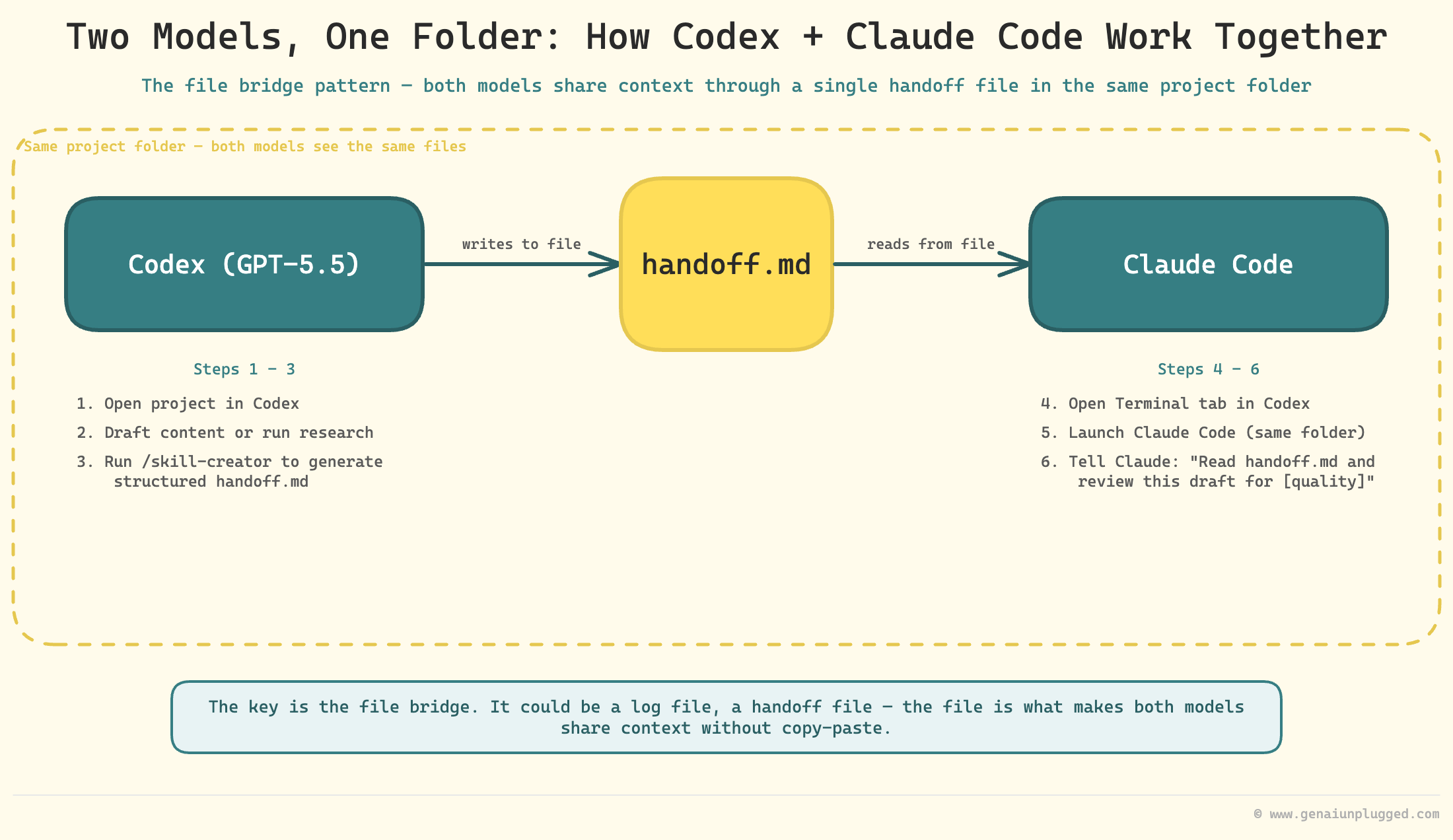
Codex generates a handoff.md summary of what it produced, what decisions it made, and what it recommends next. You reference that file in Claude Code, and Claude picks up the work from there.
The Codex terminal tab lets you open Claude Code in the same project folder, so both models share the same files. This cross-model review workflow takes about two minutes to set up and eliminates the need to copy content between tools.
The key is the file bridge. Here’s how it works in practice:
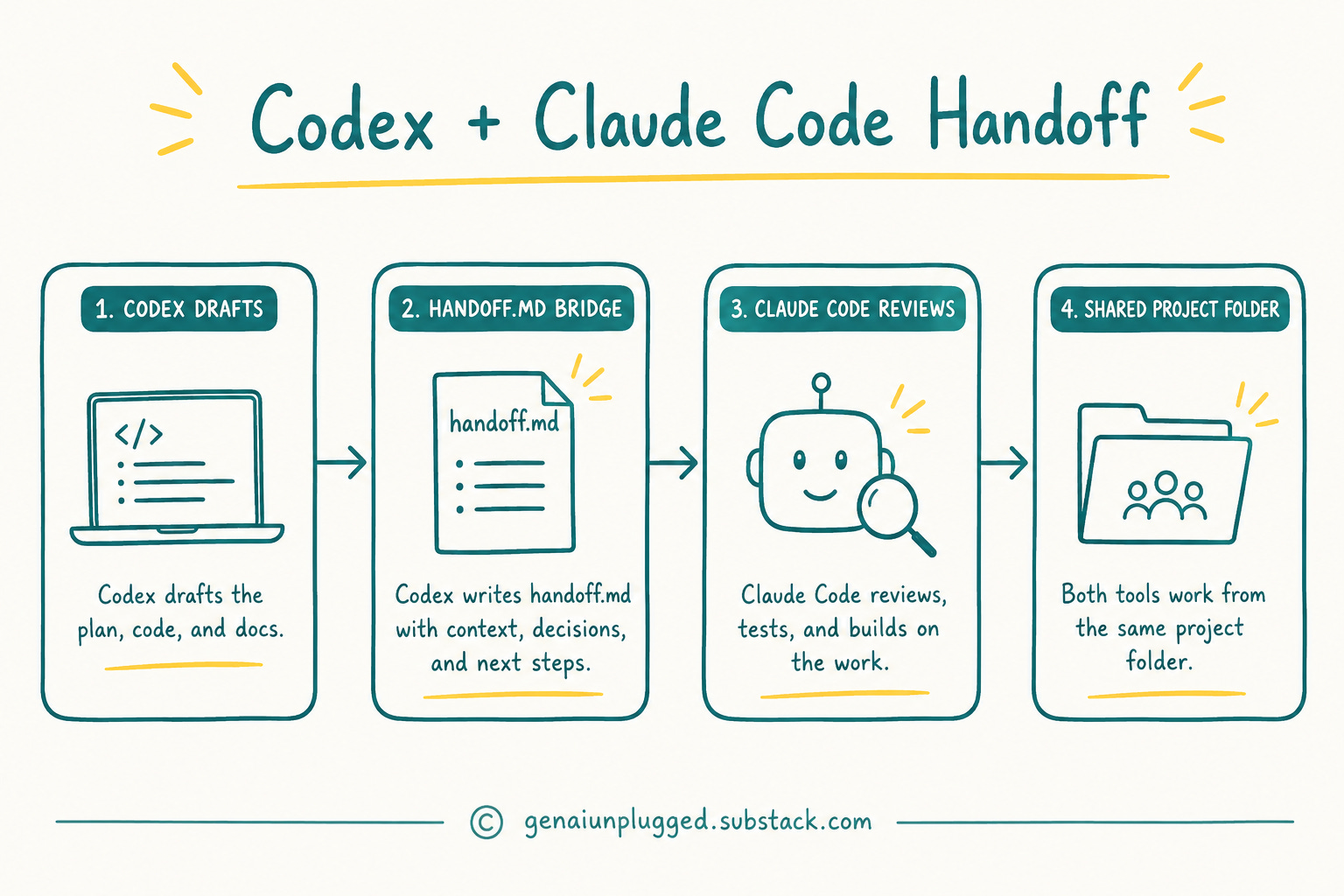
“It's more like you are creating a bridge between Codex and Claude, and in order to create a bridge you need some sort of a file. It could be a log file, it could be a handoff file.” - Wyndo
Here's the practical Codex workflow with Claude Code:
Open your project in Codex
Use Codex (GPT-5.5) to draft the content or run the research
Create a handoff skill in Codex via
/skill-creatorthat generates a structured handoff.md summary. Note:/handoffis not a built-in command. It's a custom skill you create once and reuse.Open the Terminal tab inside Codex
Launch Claude Code in the same project folder
Tell Claude: “Read handoff.md and review this draft for [specific quality: reasoning quality, accuracy against project files, logical structure]”
You can also run this in reverse. Claude Code handles the architecture and planning. Codex handles the writing and output polish.
The two models cover each other's weaknesses, and the handoff file is what makes the whole thing work without any manual copy-paste.
How Do You Build Scheduled Agentic Workflows in Codex Without Coding?
The skill creator lets you describe a workflow in plain language. Codex writes and saves the skill, then you set a recurring schedule through the Automations interface.
The entire process required no code. Check your Codex version for the current command names. The underlying features (Skills + Automations) are officially supported, but specific slash commands may vary.
The skill creator and automations features together let you build a recurring agentic workflow in one session, from natural language description to scheduled execution.
The codex workflow we built in one session:
Trigger the skill creator (Wyndo used
/skill-creatorin chat)Describe: “Fetch the latest AI news using Tavily and format it as a morning digest”
Codex writes the skill, saves it to your folder, makes it available immediately
Open the Automations interface and set a recurring schedule: “every morning at 9am”, done.
Every morning at 9am, the skill runs, pulls from Tavily, formats the output, and delivers it. Wyndo built this without writing a single line of code.
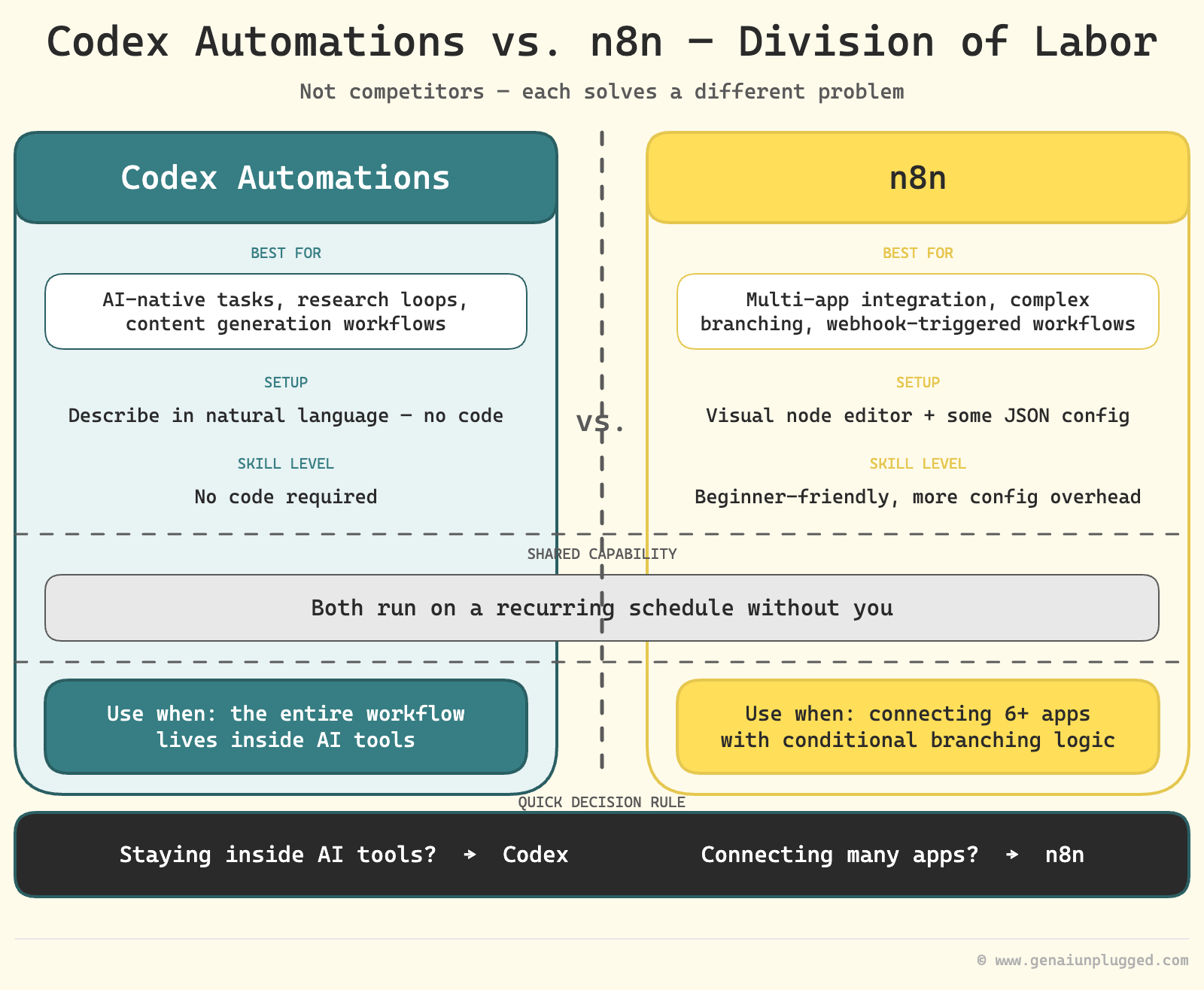
Codex Automations vs. n8n for Scheduled Workflows
Codex Automations
Best for: AI-native tasks, research loops, content generation workflows
Setup: Natural language description
Runs without you: Yes, on a recurring schedule
Skill level: No code required
Best when: The entire workflow lives inside AI tools
n8n Automations
Best for: Multi-app integration, complex branching, webhook-triggered workflows
Setup: Visual node editor, some JSON configuration
Runs without you: Yes, always-on
Skill level: Beginner-friendly, more configuration overhead
Best when: Connecting six or more apps with conditional logic
Both are valid paths. Codex Automations is the faster choice for workflows that stay inside your AI tools. n8n is better when you need complex branching across many external apps.
Is the $20 Codex Plan Worth It?
For most builders, yes, especially if you're paying separately for image generation. ChatGPT Plus ($20/month) includes Codex access and GPT Image 2.0, which eliminates the cost of a standalone image tool.
The usage limits are more generous in practice than the documentation suggests, and it functions as a reliable backup when Claude's daily or hourly limits interrupt your workflow.
One three-hour writing session you'd otherwise lose to a rate limit pays for the month.
Wyndo makes the value case plainly:
“I can get the same output or at times better output from GPT Image 2.0 images through Codex on the $20 plan. I was paying extra before. Now I don't need to.” - Wyndo
If you're currently paying $10-20/month for a separate image generation tool, ChatGPT Plus absorbs that cost.
ChatGPT Plus ($20/month) Includes:
Codex: Full AI agent access to your computer
GPT-5.5: High Reasoning mode included
GPT Image 2.0: Image generation, no additional cost
Usage Limits: More generous in practice than documented per Wyndo's testing
Goals Feature: Long-running autonomous loops (30-60 min)
Skill Creator + Automations: Scheduled no-code workflows
What Are the Security Risks of Connecting Apps to Codex?
Connecting apps to Codex means extending trust to OpenAI's infrastructure, the same way Claude Code users extend trust to Anthropic's infrastructure.
The highest-risk connection is email: a malicious message can contain instructions that override your intended workflow through prompt injection.
The three defenses that reduce this risk are
multi-agent guardrail chains (each agent does one narrow job),
restricting connections to large enterprise apps with their own security monitoring, and
using default permission mode for any workflow that touches email, contracts, or financial data.
Wyndo frames the core tradeoff directly:
“If security is your most concern, don't use it.” - Wyndo
That's not an argument against Codex. It's an honest description of what you're accepting when you give any AI agent access to your apps. The practical mitigations are real, but the baseline trust in the platform is non-negotiable.
Frequently Asked Questions
What is OpenAI Codex and how is it different from the old Codex API?
The current Codex is a desktop AI agent app, not the 2021 code-completion API. It gives GPT-5.5 access to your computer, reading files, editing content, and running terminal commands, all from a clean graphical interface.
It's functionally equivalent to Claude Code in capability but designed for people who don't want to work in the terminal.
Do I need to migrate my Claude Code setup to use Codex?
Minimal migration. In Wyndo's demo, adding his project folder generated an agents.md from his CLAUDE.md automatically. Your setup may require manually seeding agents.md, but either way your existing skills appear in the Skills tab and you're not rebuilding from scratch.
What's the difference between Plugins, Skills, and MCP in Codex?
Plugins are one-click app integrations (Google Calendar, Drive, Gmail, Chrome). Skills are custom prompt templates that auto-import from your project folder.
MCP servers are external tool connections added manually through Settings via JSON config. All three extend Codex's capability but at different levels of setup effort.
How do I set up Codex for the best results?
Four settings matter most: (1) Set permission mode to Full Access for autonomous operation. (2) Use GPT-5.5 with High Reasoning for knowledge work. (3) Toggle Memory ON so Codex learns your style and preferences. (4) Use the Goals feature for complex tasks that need to run autonomously for 30 to 60 minutes.
Can I use Codex and Claude Code together?
Yes. Open the Terminal tab inside Codex and launch Claude Code in the same project folder. Create a handoff skill in Codex (via /skill-creator) that generates a structured handoff.md summary, then reference that file in Claude Code. Both models share the same files and folder structure.
How do I create a scheduled workflow in Codex without writing code?
Use the skill creator to describe the workflow you want in plain language. Codex writes and saves the skill. Then open the Automations interface and set a recurring schedule. No code required. Check your Codex version for the exact command name.
Is ChatGPT Plus worth it for Codex access?
For most builders, yes, particularly if you're paying separately for image generation. ChatGPT Plus ($20/month) includes Codex and GPT Image 2.0. The usage limits are more generous in practice than documented, and it works as a reliable backup when Claude's limits interrupt your workflow mid-project.
Key Takeaways
Codex is the UI-friendly equivalent of Claude Code. Same level of computer access and capability, packaged as a proper app. Lower barrier to entry, equivalent power ceiling.
Four setup settings determine everything. Full Access mode, GPT-5.5 with High Reasoning, Memory ON, Goals for long tasks. These change Codex from a constant approval loop to a real autonomous agent.
Plugins, Skills, and MCP are three distinct layers. Plugins are one-click. Skills auto-migrate from your existing folder. MCP is manual setup. Start with the first two before adding MCP complexity.
Claude Code users keep most of their setup. In Wyndo's demo, adding his project folder auto-created agents.md from CLAUDE.md and surfaced all his skills. Your mileage may vary, but the migration is light.
The handoff bridge makes cross-model review practical. Codex drafts and a custom handoff skill generates a handoff.md summary. Claude Code reads it and reviews. Two models, different strengths, one shared folder, no copy-paste.
Automations is the underused feature. Skill creator plus the Automations interface gives you a scheduled, no-code agentic workflow in one session. Most builders don't know this exists.
ChatGPT Plus absorbs your image generation cost. GPT Image 2.0 is included in the $20/month plan. If you're paying extra for images elsewhere, that subscription becomes redundant.
Your 15-Minute Challenge
Get ChatGPT Plus (openai.com) and download the Codex app. Add one existing project folder.
That's the whole task. In 15 minutes you should see your skills appearing in the Skills tab and a working chat session with GPT-5.5 inside your project context.
If you're a Claude Code user, check whether agents.md was auto-generated from your CLAUDE.md. If not, seed it manually from your existing CLAUDE.md.
Success looks like this: you ask Codex a question about your project and it answers using your existing files and skills, without any manual setup work on your part.
Once the setup is verified, try the Goals feature for one task you'd normally supervise step by step. That's where Codex starts earning its place.
What's Next
In the next One Shot Show session, Wyndo and I go head to head: Claude Code vs. Codex on the same project. Same files, same task, different models.
We'll show exactly where each one pulls ahead and build the handoff bridge live so you can see the full cross-model workflow in one session.
If you want to follow the series, subscribe below. The next episode drops in two weeks.


