
How to control the large language models output? [Lesson 2]
Learn how temperature top p top k and penalties change LLM answers. Use simple settings and starter recipes for summaries, JSON extraction, planning, and ideas.

Imagine a friendly DJ who is building a playlist for your party. You tell the DJ a theme, and the DJ then chooses the next song again and again. If the DJ plays only safe hits, the music feels steady but maybe a little dull. If the DJ experiments too much, the party might drift. Great DJs use a few simple choices to keep the room happy.
Large language models (LLMs) work in a similar way. They pick the next token again and again, and a few simple settings guide those picks.
In this lesson, you will learn the main settings that you can tweak for large language models from providers like OpenAI, Anthropic, or Google. You will also learn how they change the feel of the LLM answer and which recipes to use for common tasks.
The big picture
Your prompt shapes content, while the LLM model settings shape style and variation. Think of it like this:
Prompt says what to cook
Settings decide heat and spice
We focus on the five most useful controls or settings of a large language model:
Model choice and context window
Output length and stop markers
Temperature
Top p and Top k
Frequency and presence penalties
By the end of this lesson, you will know when to touch each one and when to leave it alone.
Where to access these settings
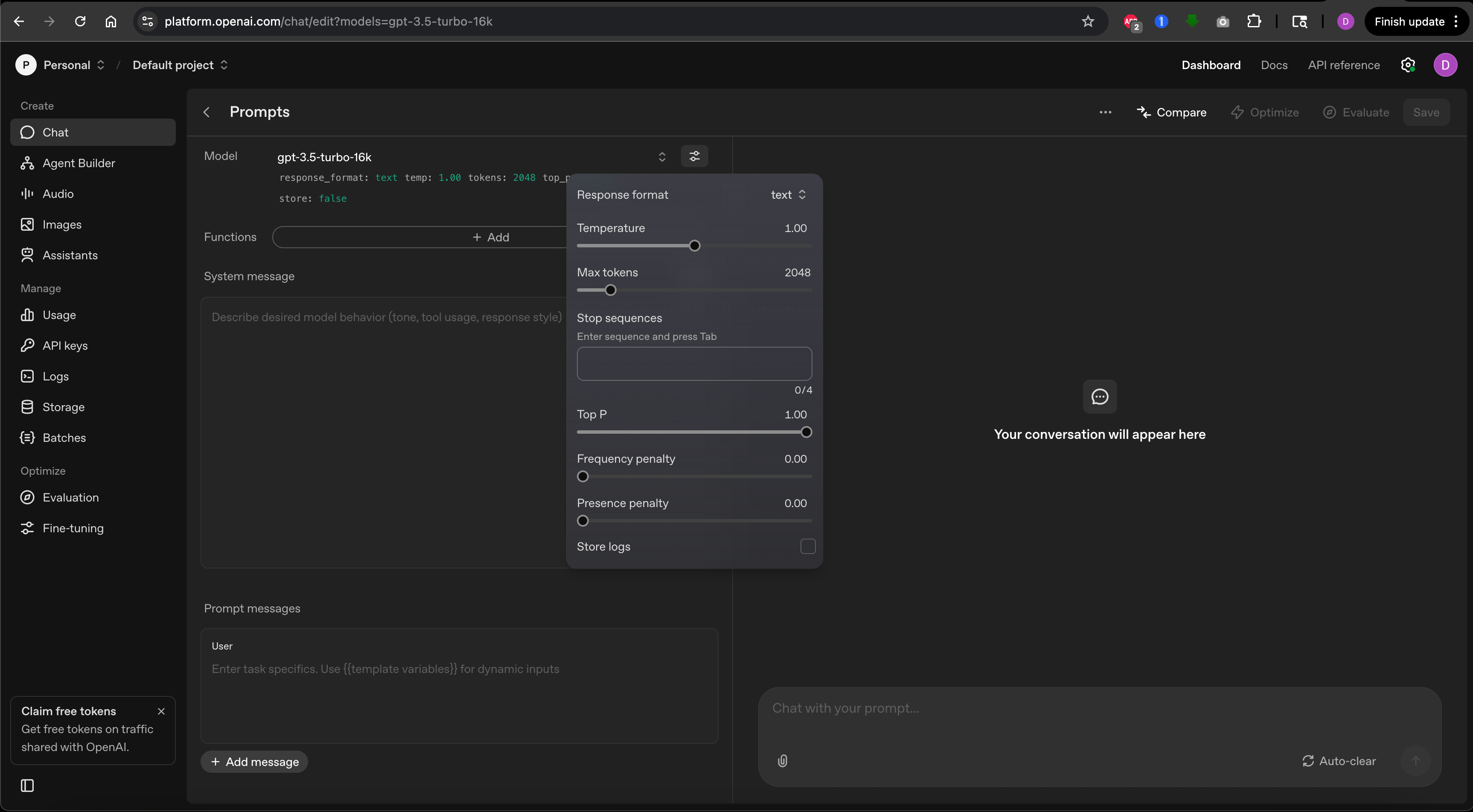
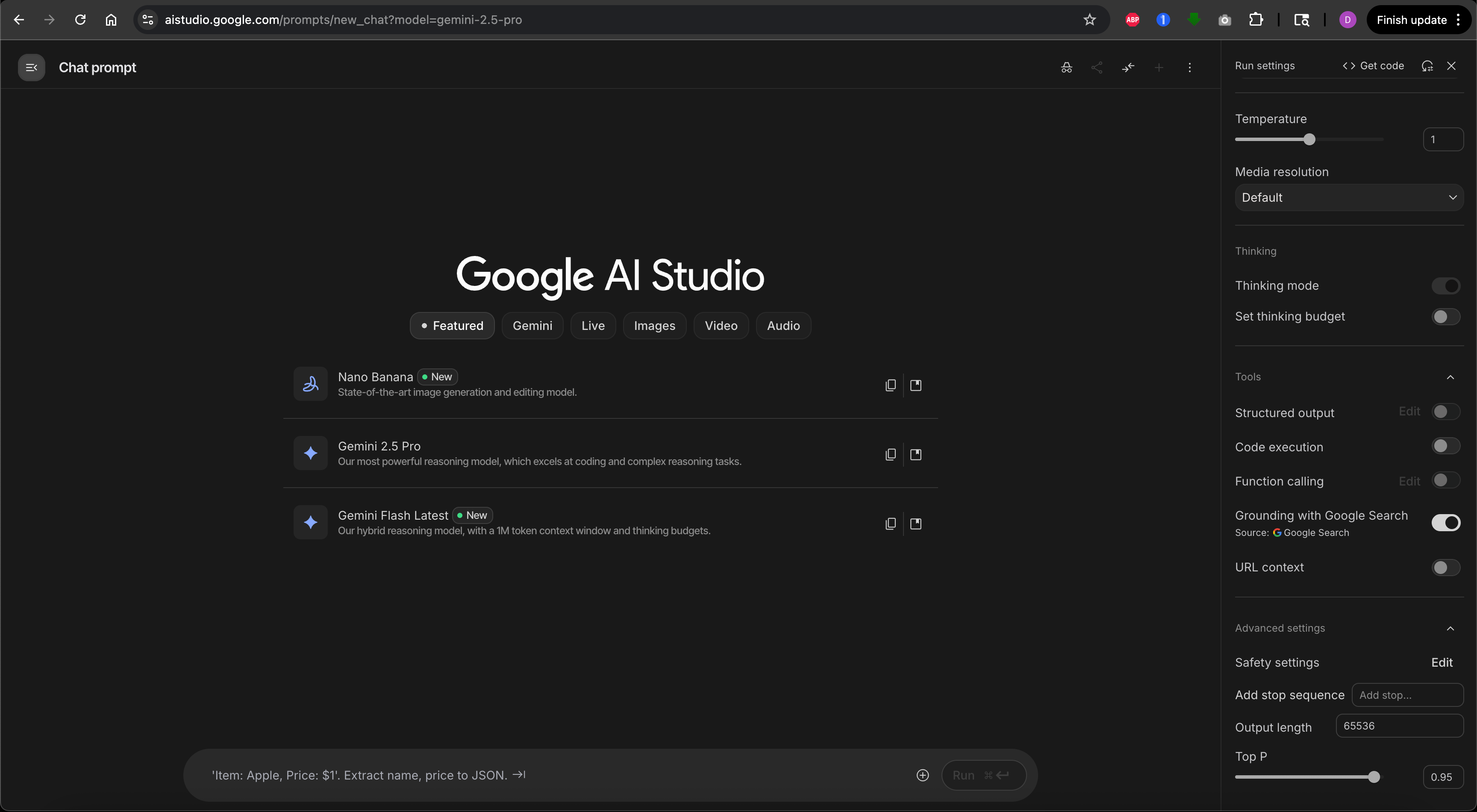
These settings are available when you use AI models through APIs or special playgrounds, not in the standard ChatGPT or Claude chat interfaces. To follow along in this lesson and play with these settings, you can access the OpenAI Playground or Google AI Studio.
Both offer free trials, though you may need to create an account. If you’re just learning concepts, you can follow along without hands-on practice and apply these ideas later when you use APIs.
Google AI Studio or OpenAI Playground
To follow along in this lesson and play with these settings, you can acess the OpenAI Playground or Google AI Studio.
1. Model choice and context window
Different generative AI models have different strengths. Some are fast, some handle bigger prompts, and some follow rules better. For beginner work, you can treat model choice like choosing a car class: a small city car for quick trips, a family car for comfort and storage, or a van for big cargo.
The context window is the space the model uses to read your prompt and its own answer. If your prompt fills most of that space, there is little room left for the reply. Keep prompts short and focused so the answer has room to breathe, just like we learned with the context window diagrams in Lesson 1. This one habit makes outputs cleaner right away.
Think of the DJ’s attention span. If you give the DJ a long story about your music taste, the DJ has less time to build the playlist. Give clear, short instructions instead.
Practical tips:
Use one or two short examples instead of many
Remove repeated info from long prompts
If you must paste long text, add a short instruction that tells the model which parts matter
2. Output length and stop markers
You can set a maximum length for the answer. Use it to keep outputs tight. If an answer cuts off, you can ask it to continue, but the goal is to guide the model so it finishes in one go.
Stop markers are special strings that tell the model when to stop. They are helpful when you want only the content between two markers. For example, if you ask for JSON, you can add a stop marker after the closing brace. This reduces extra text. You can use </finish>, STOP, or END as stop sequences too.
Back to our DJ metaphor, this is like telling your DJ “play exactly 5 songs” or “stop when this particular song ends.”
Practical tips:
Always set a length hint in your prompt
For strict formats, give an example format and a stop marker
3. Temperature
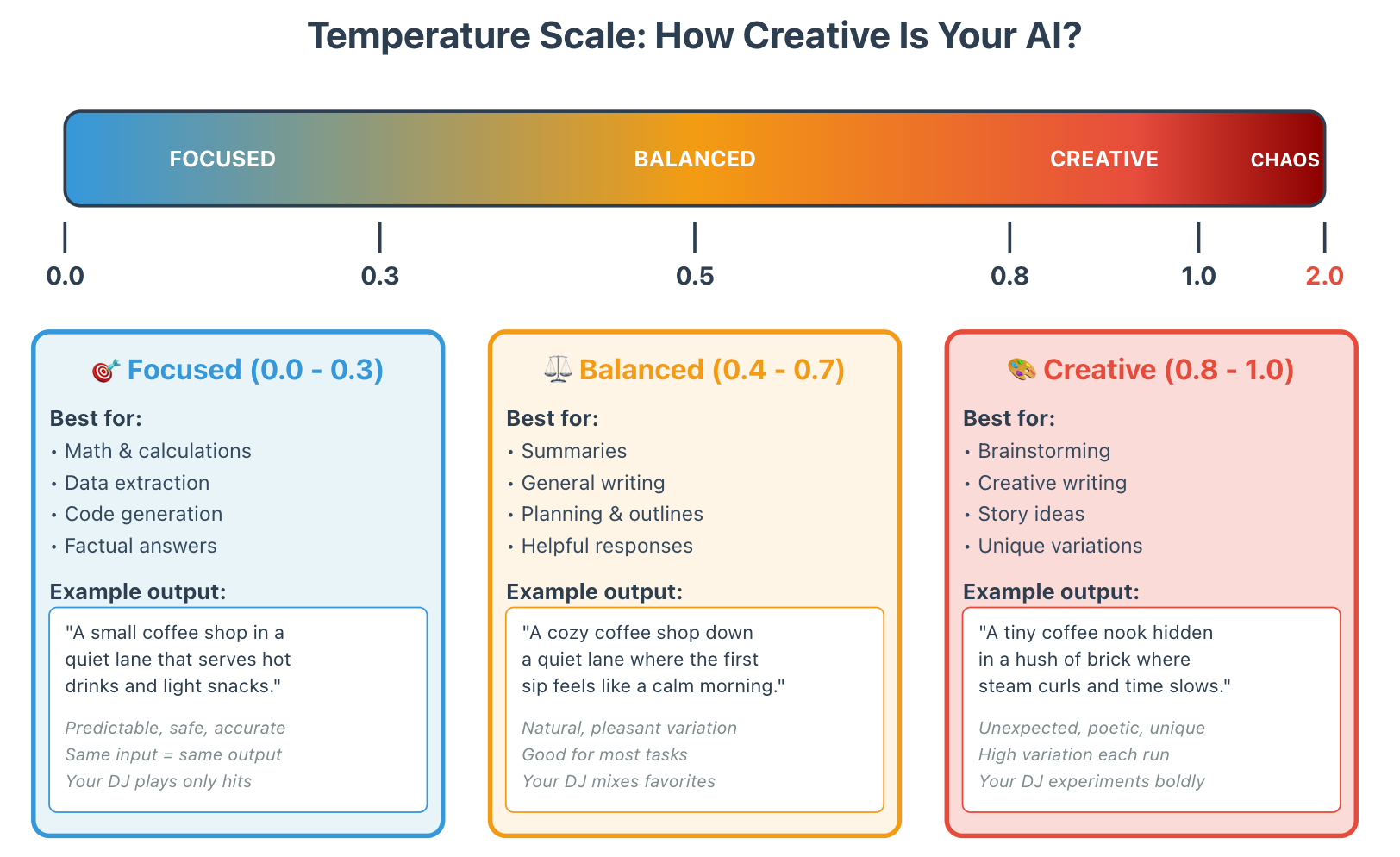
Temperature controls how adventurous the model is when picking the next token. The scale runs from 0.0 to 2.0, though values above 1.0 often produce unpredictable or nonsensical results and are rarely useful. Low temperature means careful and steady, while high temperature means creative and varied. The DJ analogy helps here. A cautious DJ plays the hits you expect, while a bold DJ mixes in fresh tracks.
How it feels
Temperature = 0 to 0.3: The model gives stable and focused answers. Great for math steps, extraction, and coding. Your DJ is playing only the proven classics.
Temperature = 0.4 to 0.7: Balanced and useful for many tasks. Good for summaries, planning, and helpful writing. Your DJ mixes familiar favorites with a few pleasant surprises.
Temperature = 0.8 to 1.0: Creative and surprising. Good for brainstorming, creative thinking, and story ideas. Your DJ is experimenting with unexpected combinations and new tracks.
Temperature above 1.0: Highly experimental and often chaotic. The output can become unpredictable or lose coherence. Your DJ is playing random sounds that might not even be music. Use with extreme caution or avoid entirely.
Example prompt
“Write a one line description of a small coffee shop in a quiet lane.”At low temperature (0.1), you might see:
“A small coffee shop tucked in a quiet lane that serves warm drinks and smiles.”At medium temperature (0.5), you might see:
“A cozy coffee shop down a quiet lane where the first sip feels like a calm morning.”At high temperature (0.9), you might see:
“A tiny coffee nook hidden in a hush of brick where steam curls and time slows.”Each answer fits the prompt, but the tone and creativity changes with temperature.
Common mistake
People turn up temperature to fix weak prompts. Start with a strong prompt first, then adjust temperature if the tone still needs a lift.
Seed and repeatability
Some large language models let you set a seed parameter so the model gives the same result on repeated runs with the same inputs and settings. This is helpful for tests or demos.
A seed is like a starting number that tells the model which random path to take. If you use the same seed with the same prompt and settings, you’ll get the exact same answer every time. Think of it like a recipe code that always produces the same cake.
When to use temperature or seed in GenAI models:
If you care about exact repeatability, set a seed (if supported) to any number you choose
If you care about steady quality but not exact match, run with temperature near zero and skip the seed
4. Top p and Top k
These two controls limit the pool of tokens the model can pick from at each step. Think of them as controlling the size of the crate your DJ pulls songs from. A smaller crate gives a safer vibe, while a larger crate invites variety.
Note: Most APIs use either Top p or Top k, not both at once. OpenAI and Anthropic use Top p by default, while some other providers may use Top k.
Top p (0.0 to 1.0)
The model looks at the most likely tokens and takes the smallest group whose total probability adds up to p. If p is 0.9, the model picks from a group that covers ninety percent of likely options. This is called nucleus sampling.
When your DJ uses Top p of 0.9, they’re choosing from the songs that make up 90% of what would fit your party. The remaining 10% of oddball choices are excluded.
Top k (typically 1 to 100, though it can go higher)
The model picks from only the top k tokens by rank. If k is 40, it considers only the forty most likely tokens.
With Top k of 40, your DJ is literally choosing from only the top 40 songs on their list, no matter what else might work.
Simple guidance
For stable work, leave Top p near 0.9 and leave Top k alone
For very careful work, lower Top p a little (try 0.8)
For playful brainstorming, raise Top p a little (try 0.95)
You do not need to change both at once. In most cases, you will set temperature and Top p. Many people never touch Top k.
5. Frequency and presence penalties
These two settings help you reduce repetition in the LLM output. Think of them as rules for your DJ about playing songs multiple times during the party.
Frequency penalty (-2.0 to 2.0)
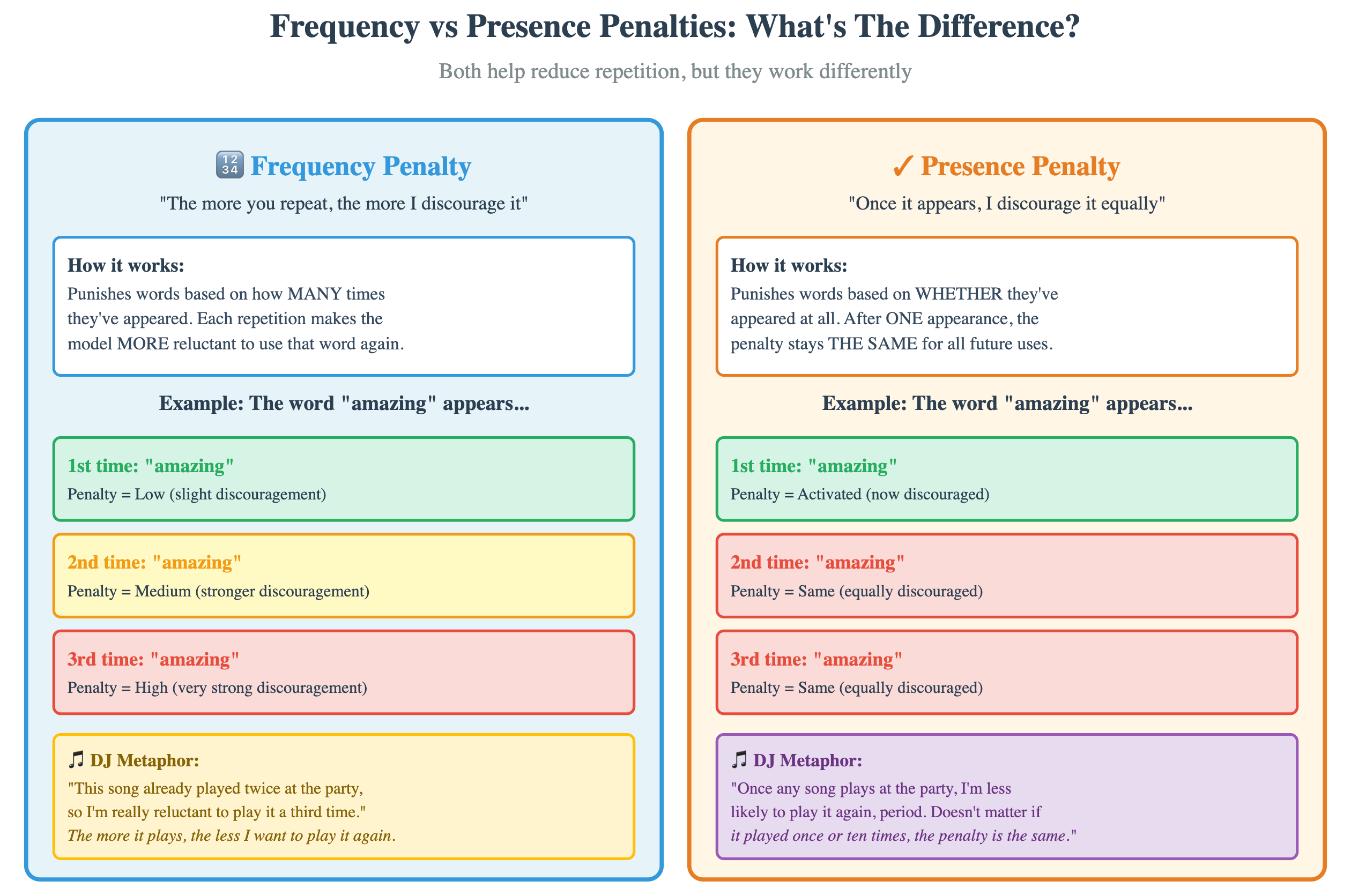
This setting punishes words that already appeared many times. If the word “amazing” shows up 3 times, the model gets more discouraged each time it tries to use it again. A positive value discourages repetition in the GenAI model response.
Your DJ notices that a particular song already played twice, so they become increasingly reluctant to play it a third time.Presence penalty (-2.0 to 2.0)
This setting punishes words that appeared even once. After “amazing” appears once, the model is equally discouraged from using it again, no matter how many times it appeared. A positive value encourages the GenAI model to discuss new topics and increases diversity.
Your DJ has a rule: once any song plays, it’s less likely to come back on, period. This encourages a wider variety of music throughout the night.When to use them
You do not need to touch these often. Keep them at zero unless you see loops or echoes, then raise a small amount (try 0.3 to 0.5).
Example uses:
You ask for product name ideas and the model repeats the same word in many names. Add a small frequency penalty to push it away from repeats.
You want city names across different regions. Add a small presence penalty to encourage variety.
Safe starter recipes/settings for GenAI models
Here are friendly defaults that you can copy or reference. They are not magic, they are simply good starting points, so feel free to tweak them as per your use case.
Extraction to JSON
Temperature near zero (0.0 to 0.1)
Top p around 0.9
No penalties
Clear schema and field rules in the prompt
Short factual summary
Temperature around 0.3
Top p around 0.9
No penalties
Word limit and section names in the prompt
Planning and outlines
Temperature around 0.5
Top p around 0.9
No penalties
Ask for numbered steps or a table
Brainstorming ideas
Temperature around 0.9
Top p around 0.95
Small presence penalty (0.3 to 0.5) if repeats show up
Ask for many short options and variety rules
Friendly long-form writing
Temperature around 0.7
Top p around 0.9
No penalties
Tone and structure rules in the prompt
Coding with tests
Temperature near zero (0.0 to 0.1)
Top p around 0.9
No penalties
Function signature and tests first
Use these as starting points. Run one or two samples and then adjust if needed. Remember, your DJ (the model) performs best when you give clear instructions (your prompt) combined with the right party vibe (these settings).
Common problems and simple fixes
Problem 1: Answer drifts off topic.
Fix: Lower temperature a little, add a clear rule that restates the goal, and add a refusal rule for low confidence. Your DJ is wandering too far from the theme.Problem 2: Answer is too short or cuts off.
Fix: Add a word or token target in the prompt, increase max output length, and remove extra context to leave room. You didn’t give your DJ enough time for the full set.Problem 3: Answer is boring or stiff.
Fix: Raise temperature a little, raise Top p a little, and add a style note or an example. Your DJ is playing it too safe.Problem 4: Answer repeats words or lines.
Fix: Add a small frequency penalty and ask the model to avoid repeating phrases. Your DJ keeps playing the same song.Problem 5: JSON breaks your parser.
Fix: Lower temperature, add a strict schema and an example, tell the model to produce only JSON with no narrative text, and add a stop marker if supported. Your DJ is adding commentary when you just want the song list.Mini exercises you can run today
Experiment 1: Tune the tone
Pick a short prompt and run it three times with temperature near zero, around 0.5, and around 1.0. Keep Top p at 0.9. Line up the three answers and notice tone and word choice.Experiment 2: Tune range of ideas
Brainstorm ideas for a product name. Run once with default settings, then add a small presence penalty (0.3). Compare the range of ideas.Experiment 3: Tune travel plan activities
Ask for a table of three travel days. Run with temperature near zero, then run with temperature around 0.7. The plan structure should match, but the flavor of activities will change.Experiment 4: Tune a summary
Pick a paragraph from any article and write a prompt for a summary for a busy manager. Run it at temperature 0.3, then run it again at 0.8. Paste both results into a note and mark which one you would send and why.Experiment 5: Tune variety
Ask for ten headline ideas for a calm productivity blog. First run at default settings, then run with a small presence penalty (0.3). Pick three favorites and list what changed between runs.Experiment 6: Tune structure
Ask for a three-row table that plans a weekend in your city. Use a format rule that names the columns. If the table breaks, lower temperature and add a stronger format example. Save the best prompt, this becomes your table recipe.Write down what you prefer for your work and keep those numbers as your personal defaults.
A tiny word on cost and speed
Bigger models often give stronger answers but take longer and may cost more. Small changes in prompt and settings can bring large gains without switching models.
So always start with clarity (refer to Lesson 1 of the course), add the right setting recipe, and switch models only if you still miss your goal after a couple of careful tries.
Key Takeaways
Prompts shape content of LLM response, while settings of GenAI models shape style and variation
Keep prompts short so the answer has room inside the context window
Temperature changes how adventurous the model is (stay below 1.0 for most tasks)
Top p and Top k control the set of tokens the model can choose (most APIs use one or the other)
Frequency penalty punishes repeated words more each time they appear
Presence penalty punishes any word that appeared even once
Use simple starter recipes for extraction, summary, planning, ideas, writing, and code
Adjust one setting at a time and test with the same prompt
Write down your defaults so you can reuse them for different use cases
These settings work in API environments and playgrounds, not standard chat interfaces
Next Lesson
You now know how to guide the feel of the answer. In the next module, we will build core prompting patterns that always help. You will learn instruction prompts, few-shot prompts, and clean ways to set roles and styles so your results are reliable every time.
Keep experimenting with your DJ controls, and soon you’ll know exactly which settings create the perfect vibe for each task!