
I Built a Native macOS Backup App in 2 Hours with Claude Code (And I’m Not a Swift Developer)
Learn how Claude Code, a terminal-based tool, with “Code” in its name is actually for anyone with a real problem to solve.

Two hours. That’s how long it took to go from “I keep forgetting what I backed up” to a native macOS app with SHA256 verification sitting in my menu bar.
I’m not a Swift developer. I’ve never built a Mac app before. But I had a problem that’d been bugging me for months - maybe years - and I finally solved it by having a conversation.
That conversation was with Claude Code. And before you click away because of the word “Code” in the name, hear me out.
What is Claude Code?
Claude Code is an AI coding agent tool from Anthropic that builds systems for you. It integrates the Claude AI models directly into a developer’s terminal allowing natural language commands to automate tasks and build systems.
The Word “Code” Shouldn’t Scare You
Let me get this out of the way first:
Claude Code isn’t just for programmers.
I know what you’re thinking. It’s got “Code” in the name. It runs in a terminal. It must be for developers doing developer things, right?
Wrong.
Claude Code is a conversation partner that can do things on your computer. Yes, it writes code when needed. But it also organizes files, creates documents, builds utilities, launches apps, and solves real problems you describe in plain English.
I used it to build a native macOS backup app and I’m not a Swift developer.
Does it mean I can do vibe coding with Claude Code?
To me, yes, it is the same experience people call “vibe coding”, where you describe what you want and watch it come to life.
So, it isn’t just for coders. It works for anyone with a real problem:
Organizing messy folders with thousands of files
Building utility apps that live in your menu bar
Creating Chrome extensions for your specific workflow
Launching iOS apps from idea to App Store
Setting up productivity systems with automation
Content management - renaming, tagging, organizing media
Data processing - converting, cleaning, analyzing files
The terminal interface might look intimidating, but you’re just... typing what you want. Like texting a very capable friend who happens to know how to build things.
This is the story of how I used Claude Code to solve a backup problem that’d been nagging me for months.
Total active time: about 2 hours across a few sessions.
The result: a native macOS backup app with SHA256 verification that I actually trust with my data.
What Problem Was I Actually Trying to Solve?
The problem was managing incremental backups between my working SSDs and a large archive HDD. I kept forgetting which folders I’d already backed up, leading to duplicate copies or fear of deleting content I hadn’t archived yet.
Time Machine doesn’t support selective sync, and no existing tool tracked exactly what was backed up. I needed something that would remember the last sync state and only copy new files. So, option was either use some PAID software or use Claude Code to vibe-code one at the cost of Claude Code subscription which I was already paying.
I create YouTube content. And I had a problem I was frustrated yet embarrassed to admit, one I’d been living with for months, maybe years.
What did I tell Claude Code?
Here’s exactly how I described it to Claude Code (typos and all):
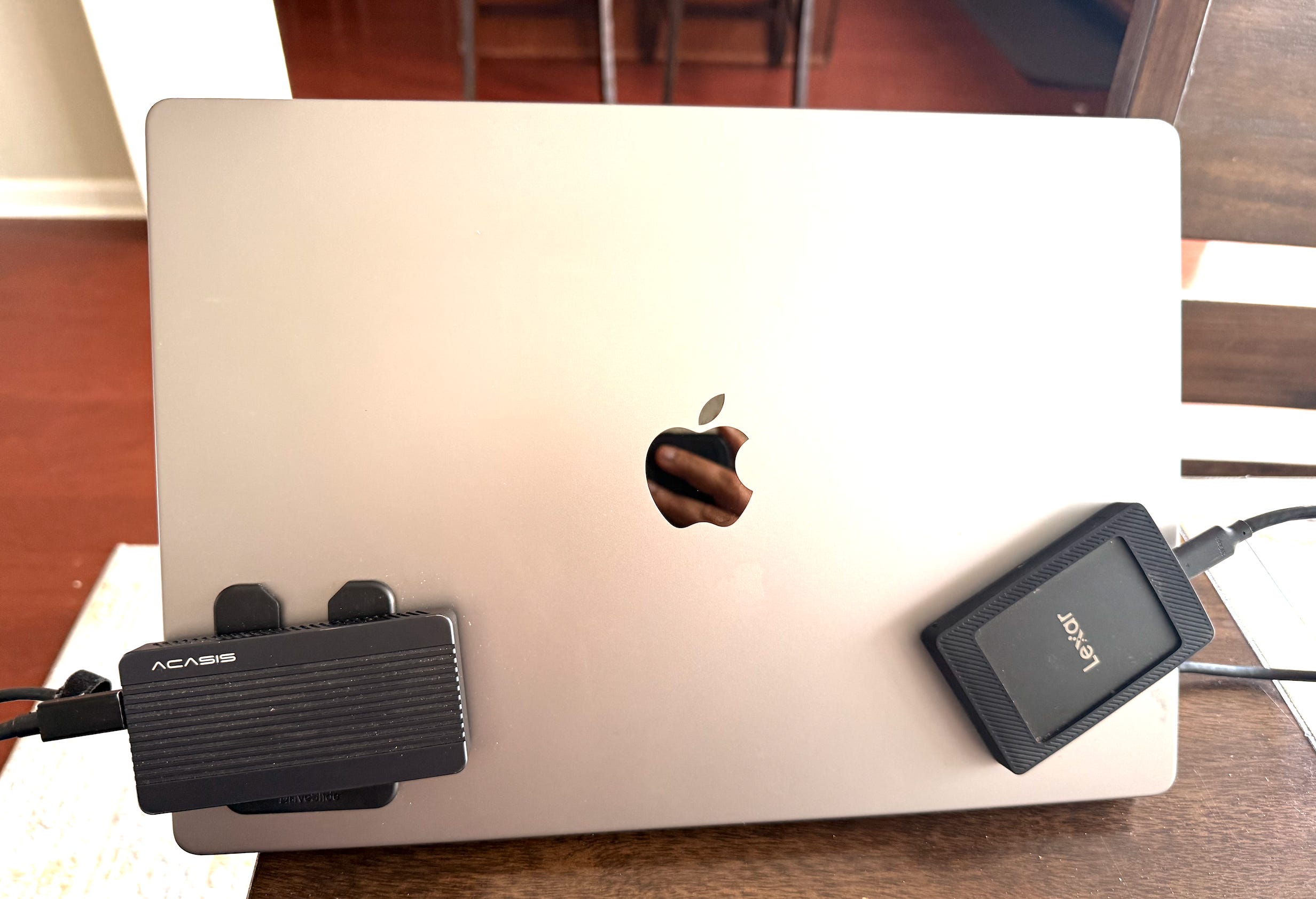
“I currently have a problem that I face more or less every month. See I have this big 18 TB external HDD and I have two SSD (2TB and 1TB) always connected to my MacBook. These are my working SSDs on day to day basis. Lot of content is copied on it especially for my YouTube channel so large video files raw, merged, edited, finallized, repurposed. I try to maintain them and keep them organized in the SSDs.
That’s the real pain. Not elegant. Not a product spec. Just a frustrated human who keeps forgetting what was backed up and lives in fear of deleting something important.
Then once in a while, I’d copy the content to offline 18TB HDD in the names of these SSD folders created on that HDD. Time Machine Backup in MAC doesn’t support sync with external drives.
The problem is that I forget upto which folder or folder in folder I’d copied the content last time from active SSD to Passive Large HDD folders. I figure it out and then copy them to HDD and then delete the content on SSD to free up space.
Then more updates happen on active one for 2-3 months and then same problem arise...”
I ended with:
“I want to safely archive, backup my content on HDD from SSD and then remove content from SSD but only delta always. So tell me.”
When Did My Backup Script Become a Native App?
Claude code didn’t immediately start coding. It explored options - rsync scripts, existing backup tools, automation workflows. But nothing quite fit my needs. That’s when I asked something that changed everything:
“Shall we create a Mac app for it? Simple based on Swift?”
And then the follow-up that committed us:
“Is there a way you can build the app for me?”
Yes. Yes there was.
How Did I Figure Out the Requirements?
Before any code was written, I had to think through what I actually needed. Claude asked clarifying questions, and I responded with this detailed explanation:
Can you confirm one thing? Currently there’ll be data in all the drives like HDD and SSDs - so the app’ll ensure and detect that whatever duplicate is present on HDD isn’t again copied and it maintains that sync going forward? It’ll know what was synced last time.

Also, if one folder on SSD had 30 files, I made a copy or sync to HDD using the app, these 30 files get copied or synced to HDD. Now I delete 18 of those files and it remains 12 files but over next couple of months I add 20 more files, so this time it’ll add 20 more to existing 30 in HDD from that folder. Am I right?

I don’t want anything deleted from HDD that’s been archived.
This conversation crystallized the requirements:
Delta sync — Only copy new/changed files
Append-only archive — Never delete from HDD, even if deleted from SSD
Know what was synced — Manifest tracking backed-up files
SHA256 verification — Paranoid-level confirmation that files copied correctly
Manual deletion — Show me what’s safe to delete; I decide
Claude even asked about test-driven development. I wasn’t going to write tests myself, but I appreciated that it was thinking about reliability.
The First Build... And First Friction
Claude code built the app. Models, services, views - a proper Swift/SwiftUI project structure. I opened it and...
“How do I use the app? I tried opening, it opened but how do I configure my drives?”
The app was running. But I couldn’t figure out how to set it up. Claude walked me through it, but then:
“There’s no option to add drive or anything.”
First bug. Claude fixed it. I could now add drives. But then:
Ok now it allowed me to add the drives I want to backup. However, since I’m not connected to the external HDD now, once I’ve added the source drives there’s no way to select the destination folder again or path again.
And then:
Not just that but I’m also asking to Edit the Source Drive configuration target folder here the only opportunity is to select at the time of adding the drive after that there’s no way to edit it.
This is what real product development looks like. Not a perfect spec executed flawlessly. A back-and-forth where you discover problems by using the thing.
The UX Deep Dive
At some point, I realized we needed to step back and think about the whole flow. I asked Claude Code to really think about it:
How’ll it work? When I connect all drives and select the folders for it, will it do scan of both source and destination and then tell me what’ll be synced or backup (I’m talking first time).

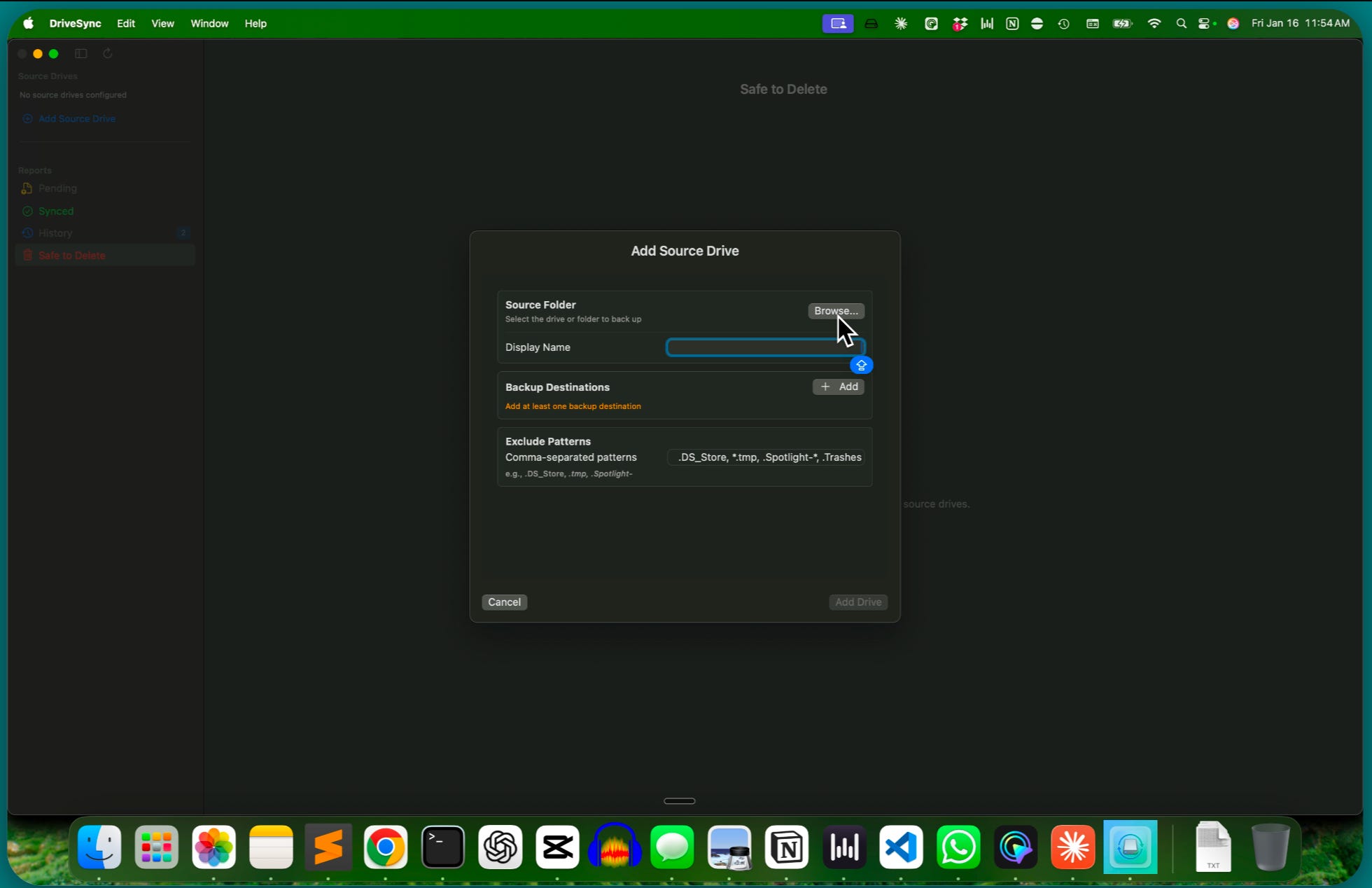
Secondly, check this Edit Drive screenshot, don’t you think instead of letting me type folder name for Target folder name, it should be Path selector?

Finally, do we really need it especially the Option 2 here? Similarly Option 1 should only allow to select the drive not folder path because that’s being mapped in Source properties. Hence, I was saying if we’ll select the path of Target folder in Source Drive config, why’s this needed?

Think carefully about this UX flow for the user and weigh in options. Critique these options or any other and come up with best approach to solve this. You need to think deep (ultra-think) about it before implementing.
This led to a complete UX redesign. And then I had another idea:
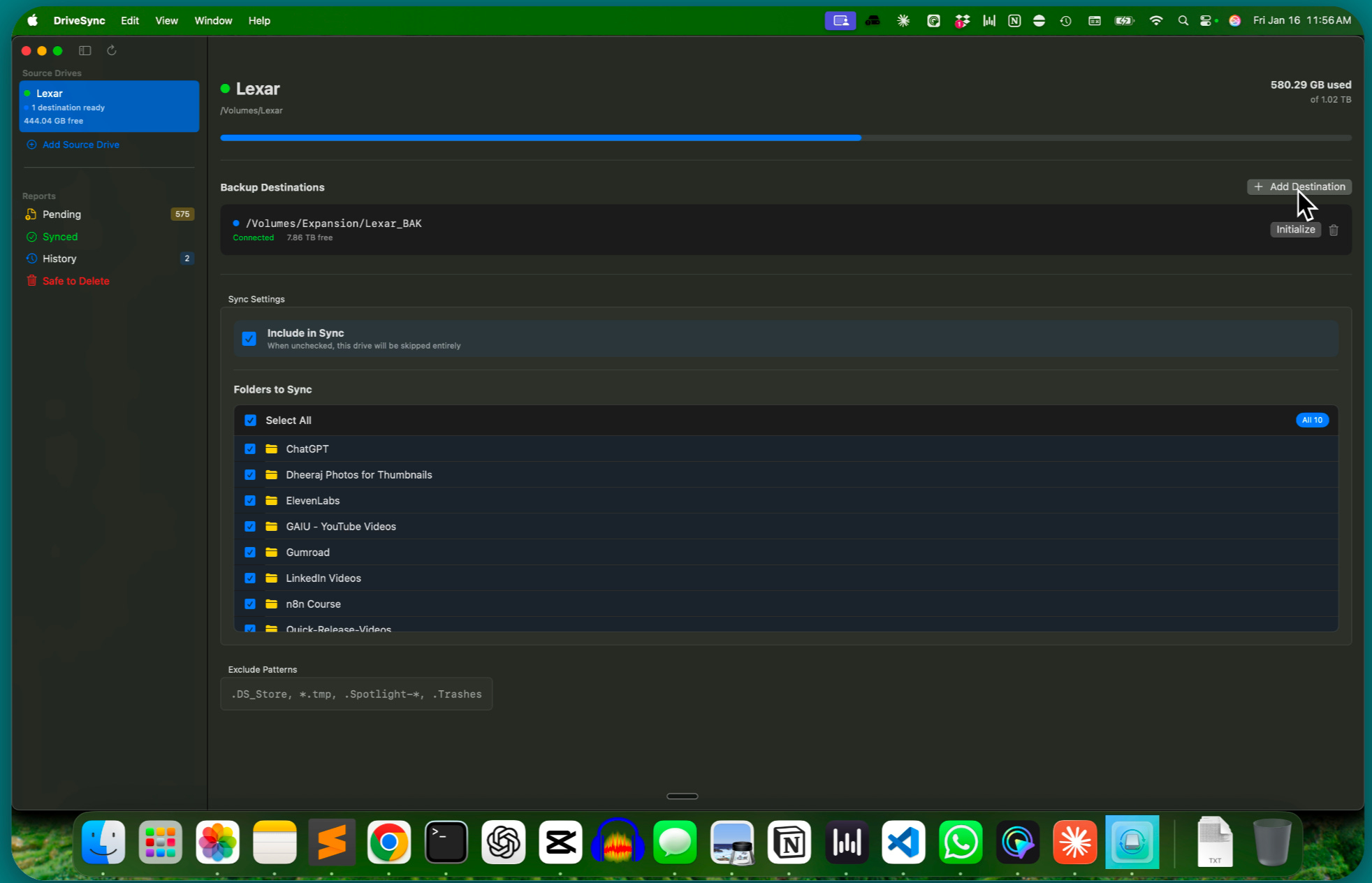
Yes implement this new design. In fact there should be a way to add multiple destinations as well now in case I want to backup same Source drive or any folder of the source drive to more than one external HDD or paths.
This wasn’t in my original requirements. It emerged from thinking through the problem together.
What if I get a second backup drive someday?
What if I want redundancy?
The data model evolved:
struct SourceDrive {
    var name: String
    var sourcePath: URL
    var destinations: [BackupDestination]  // Multiple destinations!
    var excludePatterns: [String]
}

struct BackupDestination {
    var path: URL
    var isConnected: Bool
}
The Polish Phase
Now we had a working app with the right architecture. But using it revealed small annoyances:
“This is much better UI, now in the screenshot, the Settings button doesn’t do anything and we can remove it I think as there’s no settings. Quit button’s hard to click seems there’s some precise location where when clicked then it works.”
Claude fixed both. Settings button gone. Quit button now has full-width click area.
But then I thought about a harder problem:
“Finally, I believe that in the second screenshot, SyncAll button’s showing at Files Pending screen but what if One Source Drive Destination isn’t available while other source destination is available? Like both sources are copying data to multiple destinations and only one’s available out of them. Then what happens to Sync of Source files that doesn’t have Destination attached or available? Should we think in terms of per destination sync as well along with graceful handling in SyncAll when destination isn’t available for some files that’ll be skipped. Should the UI/UX be cleaner to make it understandable?”
Claude code explained that files without available destinations would be skipped. But I pushed:
“Is it just warning? What happens to files which can’t sync?”
Claude confirmed they stay in the pending list until the destination’s connected. Good. But I wanted visibility:
“Add post-sync summary with skipped file count.”
Now after each sync, I see exactly what happened:
Sync Complete
✓ 47 files synced (128 GB)
⚠ 12 files skipped - destination unavailable
Skipped sources: YTVideos_2
The Bugs That Almost Broke Me
Not everything was smooth. Here are the real struggles I hit and how Claude fixed them.
The 410,000-File Bug
This one hurt. I connected my HDD with existing backups and the app showed:
410,947 files pending
Wait, what? Most of those files were already on the HDD. The app was going to re-copy everything.
Turns out, the scan only checked the manifest file (which was empty on first run). It never looked at what was actually in the destination folder. Claude’s fix:
The issue wasscanForPendingFiles()only checked the manifest, not actual destination files. Fixed by addingcheckFileExistsInDestinations()to check actual files.
One function. Problem solved. But I never would’ve found that bug without real data.
Initialization Taking Days
I had 400,000+ files to initialize. The app was computing SHA256 hashes for every single file. Progress estimate: days.
My message:
it seems still there is some problem somewhere in this initialize thing so now I am starting from clean slate
Claude implemented “Quick Init” mode - scan file sizes and dates without hashing. Hash verification happens during actual sync, not setup. Initialization went from days to minutes.
The Date Comparison Trap
Even after Quick Init, the pending count didn’t change. Still 408,118 files.
The bug: Quick Init stored destination file dates. But the pending scan compared source file dates. They never matched.
Claude’s fix:
For unverified files (Quick Init), only compare by size. Only check dates for hash-verified files.
These are the subtle bugs that kill projects. You don’t know they exist until you’re testing with real data at real scale.
Build Errors I Couldn’t Read
Swift 6 threw errors like:
DriveMonitor: deinit calling MainActor-isolated methodI had no idea what that meant. Claude did:
Removed deinit block entirely to fix Swift concurrency error.
Other hits: macOS 14 API compatibility issues, types not visible across modules, missing Error protocol conformance.
Each one would’ve been a Stack Overflow rabbit hole without Claude Code.
The Invisible Progress Problem
During sync, the app just showed “Syncing...” with a spinner. For 400GB of files. No count, no percentage, no ETA.
there is no progress shown here as well so how do I know how much done how much not
Claude added file-by-file progress: current file name, X of Y files, percentage complete. Basic stuff but it didn’t exist until I complained about it.
When Did Everything Finally Click?
After about 2 hours of active conversation across a few sessions, I had a working app. I tested it with real data. It scanned my SSDs. It detected what was already on the HDD. It showed me exactly what needed to be synced.
My response:
Amazing. This is super cool!! Let’s package, build and release and I’ll start using it now everything’s working and well tested.
That feeling going from a fuzzy frustration to a working solution is hard to describe. I didn’t write a single line of Swift. But I built an app.
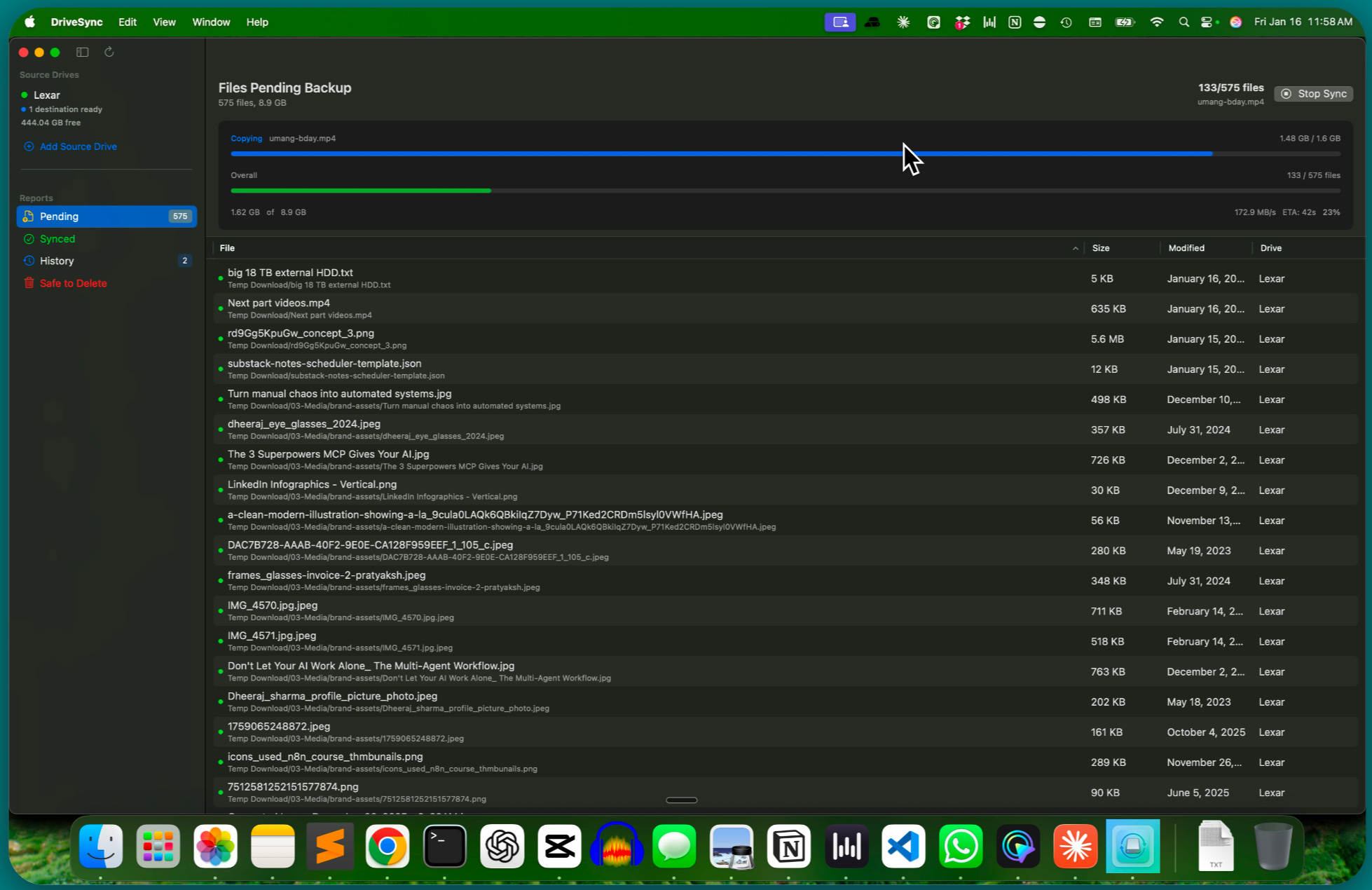
What Does the Final App Look Like?
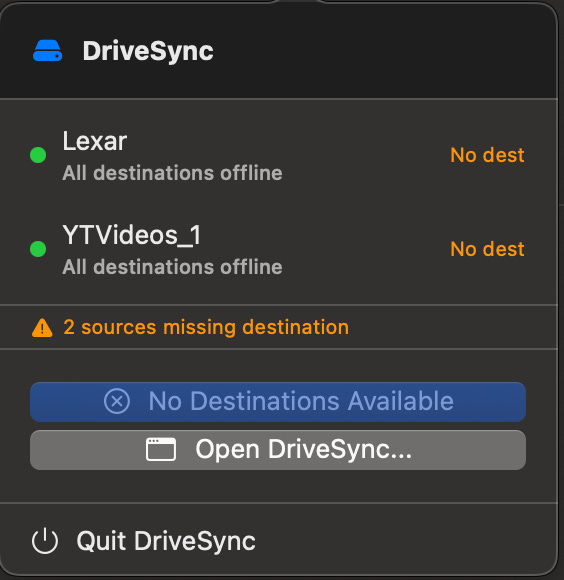
Menu Bar Dropdown
Main Window
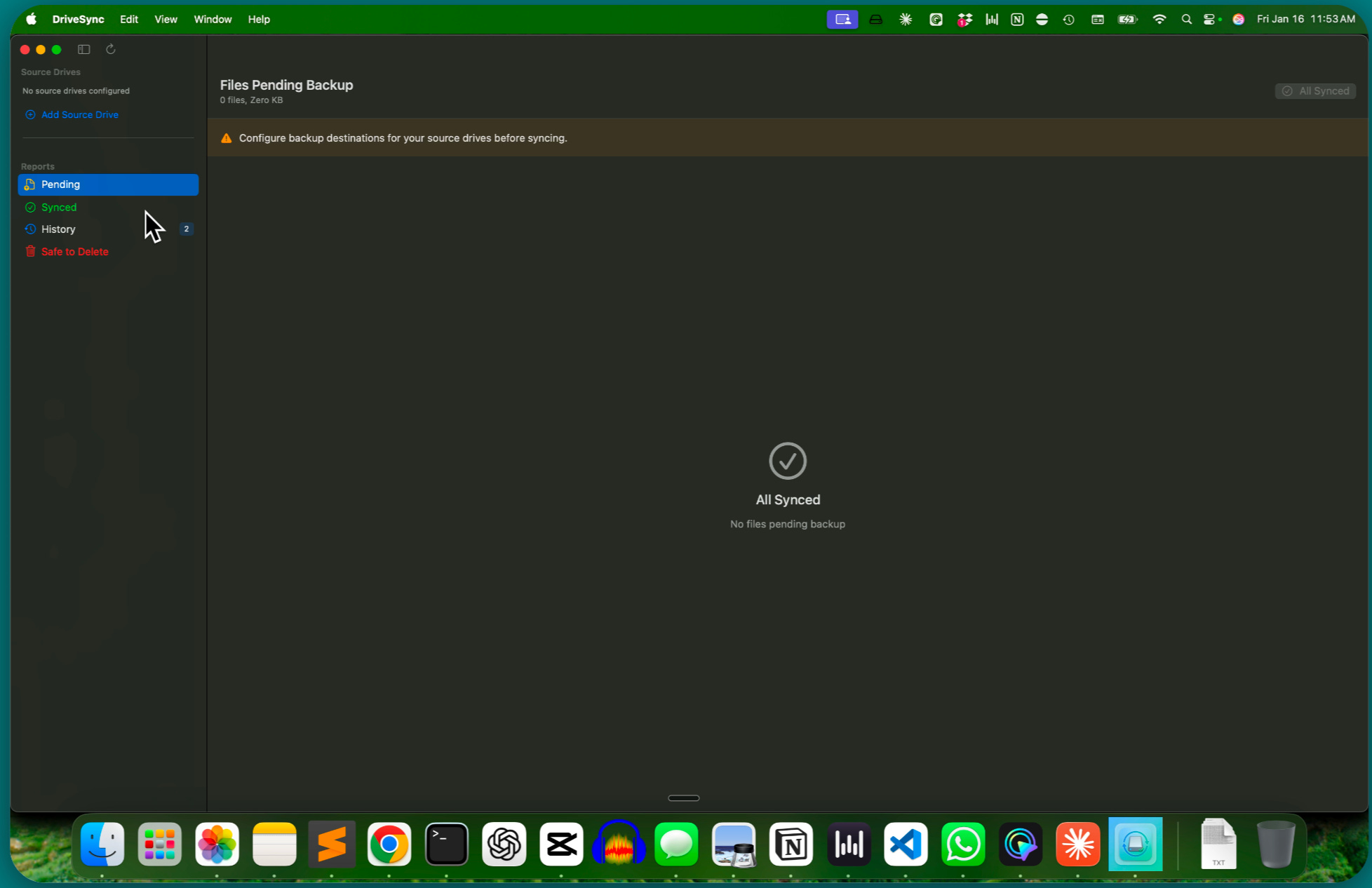
Sidebar with all source drives and their connection status
Pending files list with size and sync-ability indicators
Progress view during sync with file-by-file status
“Safe to Delete” report showing verified files
Status banners when some destinations are offline
Under the Hood
SHA256 verification for every copied file
JSON manifests tracking what’s backed up
Automatic drive detection on mount/unmount
Exclusion patterns for junk files (.DS_Store, .Spotlight-*, etc.)
Multiple destinations per source drive
What Technical Details did Claude Code Handle for me?
Here’s a partial list of things Claude handled that I would’ve spent hours googling:
SwiftUI app lifecycle for menu bar + window hybrid apps
NSStatusItem setup for menu bar icons
FileManager.enumerator for recursive directory scanning
CryptoKit SHA256 with chunked file reading for huge video files
Codable protocol for JSON serialization
@MainActor for thread-safe UI updates
NSWorkspace notifications for drive mount detection
URL resource values for volume capacity info
NSOpenPanel for native folder selection dialogs
Each of these would be a Stack Overflow search, documentation dive, and trial-and-error session.
Instead, I described what I needed, and Claude implemented it correctly.
What Did I Learn from This Build?
Describe Your Pain, Not Your Solution
My first message wasn’t “build me an app.” It was “I have this problem every month and it’s driving me crazy.” That context matters.
It’s Okay to Not Know What You Want
I didn’t start with multi-destination support. That emerged when I asked “what if I get another backup drive?” Let the conversation discover requirements.
Use the Screenshots and Report What’s Wrong
Just paste screenshots and Claude code will understand the issues. “The quit button in screenshot is hard to click” is better feedback than “change the button frame.” Describe symptoms; let Claude diagnose.
Ask Claude to Think Step-by-Step and use Design Skills
When the UX was confusing, I explicitly asked Claude to “think deep (ultrathink) / step-by-step using Design Skills about its UI-UX before implementing.” Sometimes you need to slow down and reconsider the whole approach.
The Terminal Isn’t Scary
I was typing natural language the whole time. Yes, it’s a terminal. Yes, it looks technical. But I was just having a conversation about my backup anxiety.
Was Building a Custom macOS Backup App Worth It?
Yes, absolutely. Two hours of conversation with Claude Code replaced months of backup anxiety. The app now tracks every file I’ve backed up, verifies copies with SHA256 hashes, and tells me exactly what’s safe to delete.
No more guessing, no more duplicate copies, no more fear of losing files. Here’s the before/after comparison:
“I forget upto which folder I copied last time” → Manifest knows exactly what’s backed up
Manual drag-and-drop → One-click sync
No verification → SHA256 hash for every file
Anxiety before deleting → “Safe to Delete” report
Single backup location → Multiple destinations per source
No visibility → Menu bar icon shows status at a glance
Time invested: ~2 hours of active conversation
Result: A native macOS app I’ll use for years
Anxiety level: Gone
What Does This Mean for Non-Developers?
It means you can build custom software without being a programmer or knowing anything about a programming language.
Claude Code lets anyone describe a problem in plain English and get a working solution, whether that’s a macOS app, a Chrome extension, or an automation script. The only requirements are a real problem to solve and willingness to describe what you need.
Here’s what I want you to take away:
Claude Code isn’t “for developers.” It’s for anyone with a problem to solve who can describe what they need.
You don’t need to know Swift. You don’t need to know how to structure a project. You don’t even need to know exactly what you want at the start. You need:
A real problem that bugs you
The ability to describe it (even messily, with typos)
Willingness to try things and give feedback
The word “code” in the name’s almost misleading. Yes, code gets written. But you don’t write it. You describe, you feedback, you iterate.
I’ve seen people use Claude Code for:
Organizing thousands of photos by date and location
Building Chrome extensions for specific workflows
Creating iOS apps from scratch
Setting up automated file processing pipelines
Building personal dashboards and productivity tools
Managing content libraries with custom metadata
None of these required being a “developer.” They required having a real problem and the patience to describe it.
My other builds using Claude Code
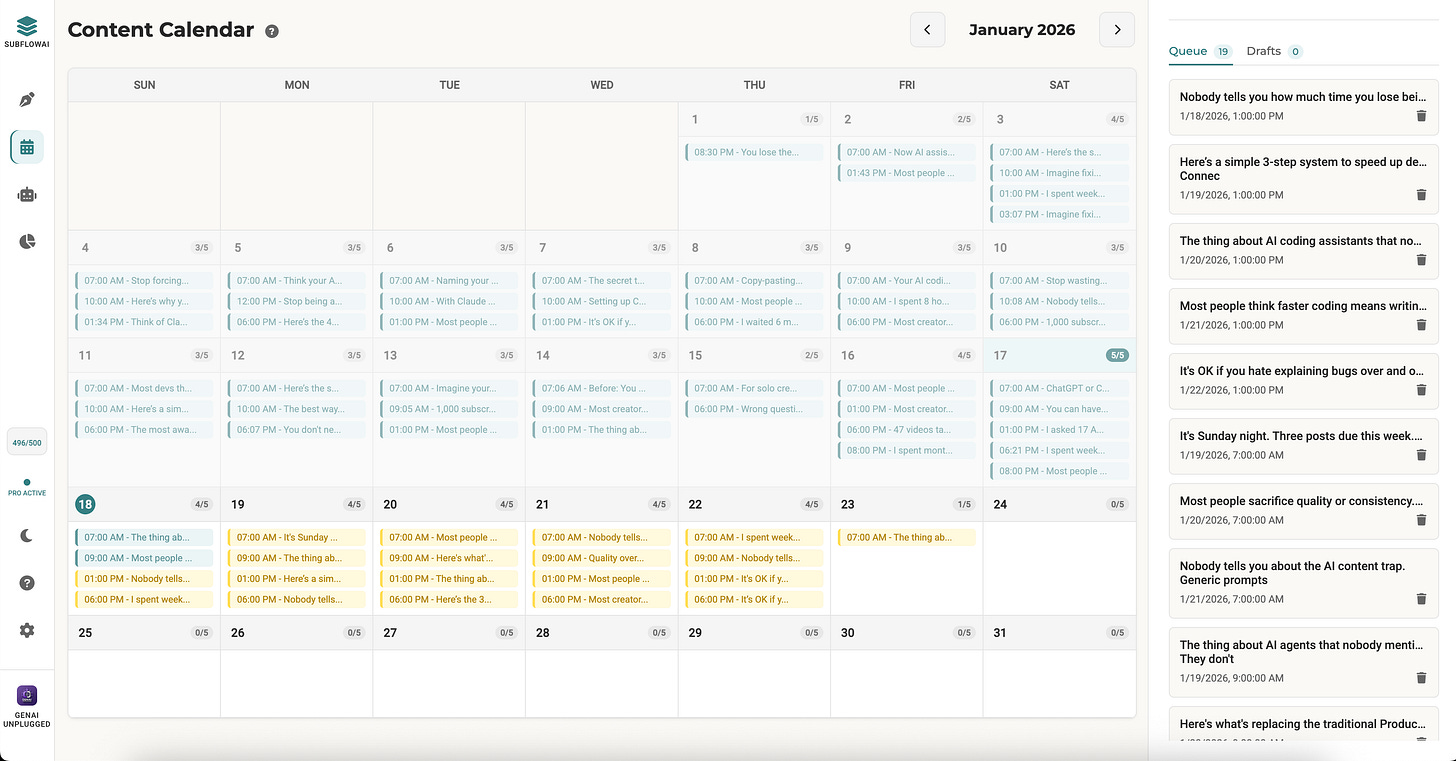
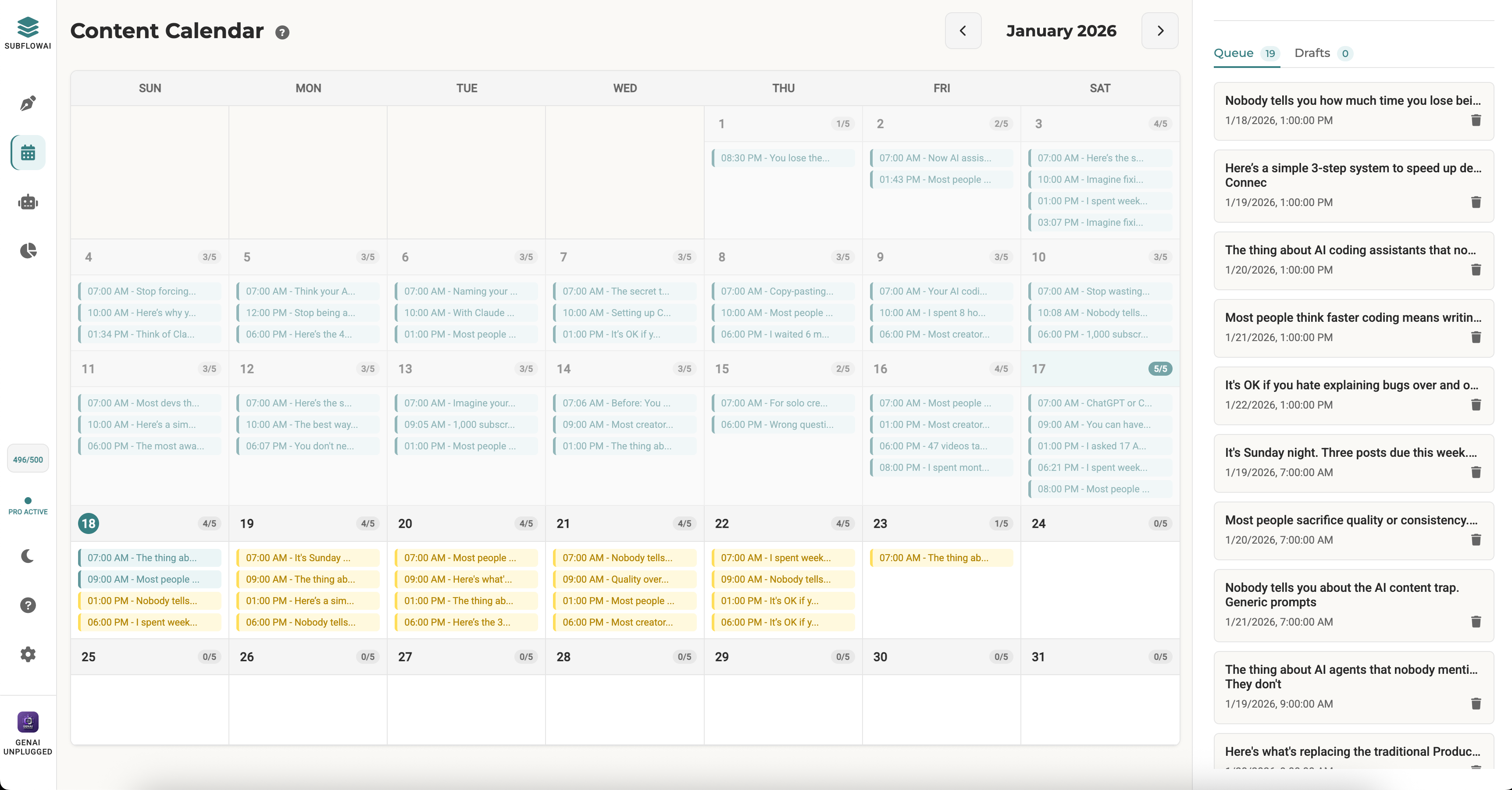
SubflowAI - A fully functional published chrome extension in Chrome Webstore that helps you schedule months of Substack Notes in few minutes. If you want to try for FREE, here is the link to it: Schedule 30 Days of Substack Notes in 5 Minutes.
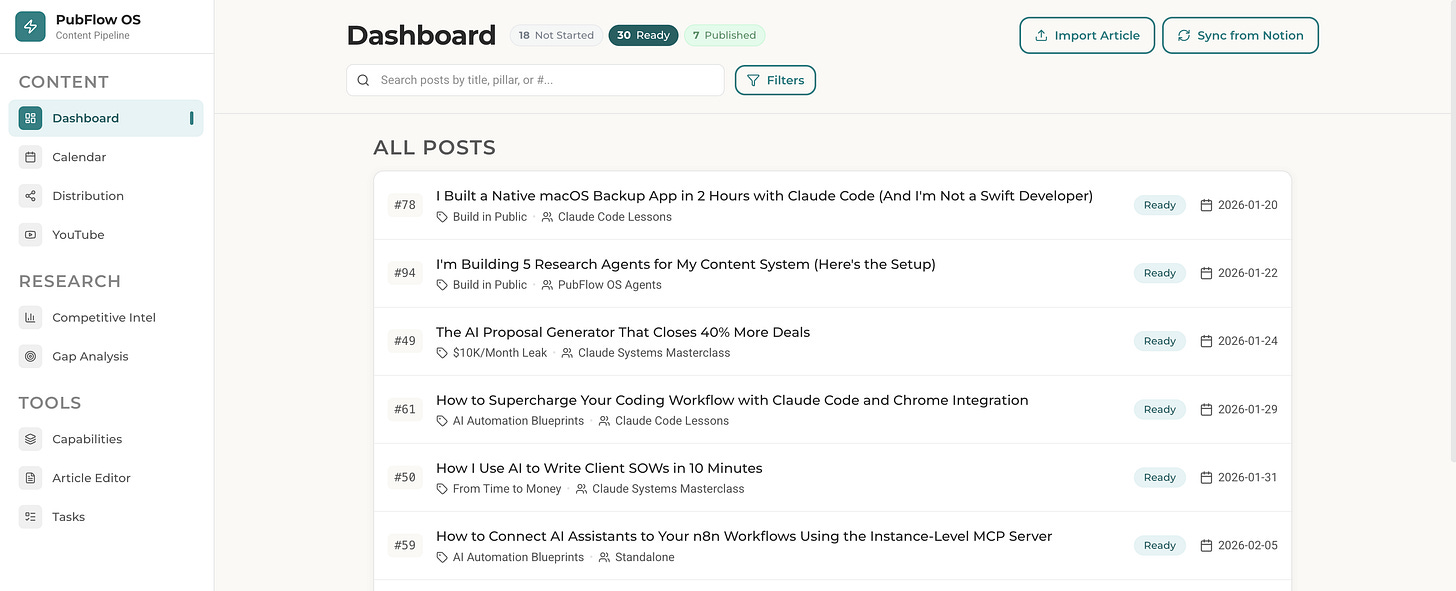
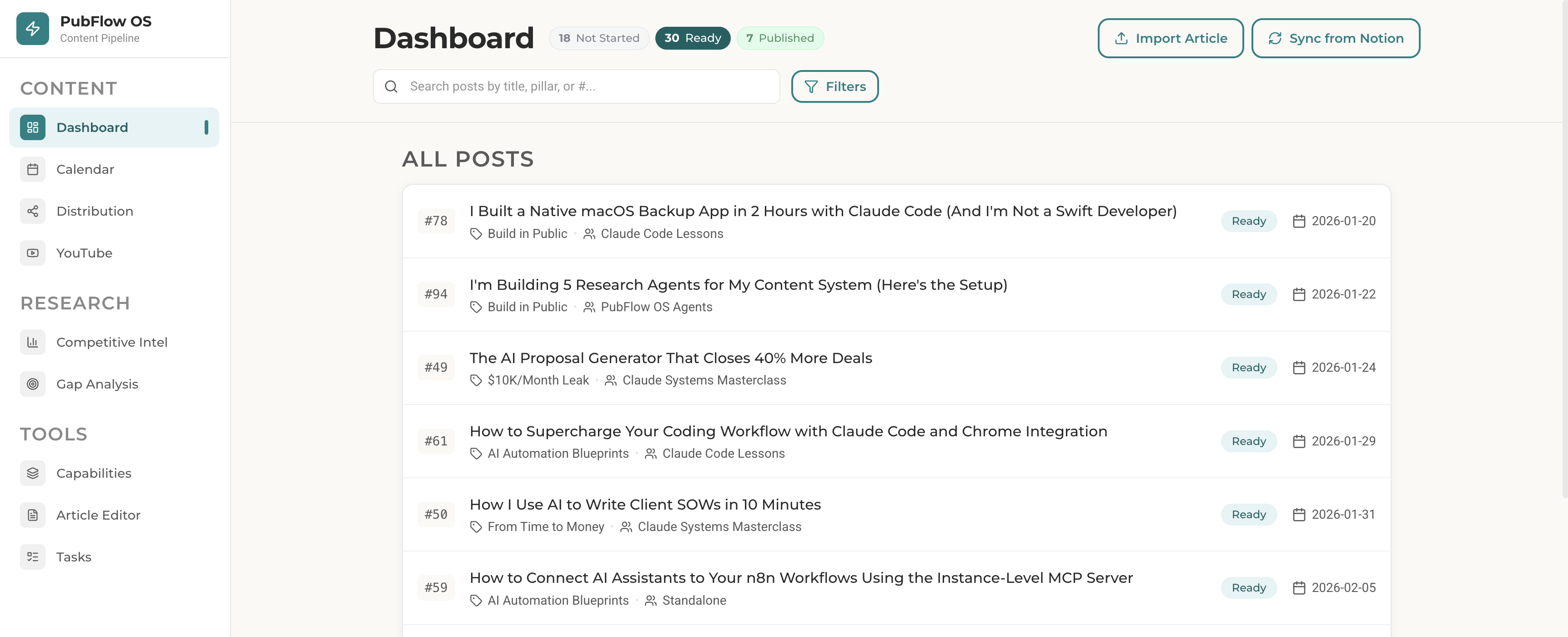
PubflowOS (WIP) - My AI-powered content pipeline operating system that turns a post idea in Notion into a publication-ready article which is complete with research, my own brand voice and experiences, SEO/AEO optimization, brand avatar hero images, and social distribution assets.
I am going to publish lessons about both of them in coming weeks including how built a team of 5 AI agents supporting me in PubflowOS. So don’t forget to hit that subscribe button now.
How Can You Try This Yourself?
If you’ve got a problem that existing apps don’t solve, here are prompts you can adapt:
Prompt 1: Describe Your Problem (Copy and Customize)
I have a problem with [describe your workflow].
Currently I [what you do now],
but it's frustrating because [the pain point].

What I want is [desired outcome].
I don't need anything fancy - just something that [core requirement]. Can you help me think through options?

Ask me clarifying questions and brainstorm with until we finalize the plan.
Prompt 2: Turn a Solution Into an App
I like this approach. Can we turn this into a simple [Mac app / iOS app /local web app / etc.]?

I want it to:
- [Feature 1: the main thing it does]
- [Feature 2: how it shows status/progress]
- [Feature 3: any safety checks needed]

I'm not a developer, so please walk me through running, building, and deploying it when you're done.

Make a phase by phase plan and implement it step by step thoroughly reviewing the important checkpoints with me.
Then follow this process:
Describe your problem honestly. Include the embarrassing parts. “I forget what I backed up” is more useful than “I need a sync solution.”
Answer clarifying questions. Claude’ll ask about edge cases you haven’t considered.
Try the result. Use what gets built. Notice what’s awkward.
Give feedback. “This button’s confusing.” “What happens if X?” “I wish it’d also Y.”
Iterate. The best solutions emerge from conversation, not specification.
My backup anxiety’s gone. I have a tool that does exactly what I need, nothing more. It took 2 hours and zero prior Swift knowledge.
How Do I Get Started with Claude Code?
Claude Code runs in your terminal and needs a one-time setup.
Prerequisites:
A Claude subscription (Pro, Max, Teams, or Enterprise) - get one at claude.ai
Terminal access (Mac Terminal, Windows PowerShell, or Linux terminal)
1.1 Native Installation command (recommended)
macOS, Linux, WSL:
curl -fsSL https://claude.ai/install.sh | bashWindows PowerShell:
irm https://claude.ai/install.ps1 | iexWindows CMD:
curl -fsSL https://claude.ai/install.cmd -o install.cmd && install.cmd && del install.cmd1.2 Start Claude code and log in to your account
When you first start the Claude Code session, you will be prompted to log in.
Open terminal and write:
claude
# You'll be prompted to log in on first use
/login
# Follow the prompts to log in with your accountYou can log in using any of these account types:
Claude Pro, Max, Teams, or Enterprise (recommended)
Claude Console (API access with pre-paid credits)
Once logged in, your credentials are stored and you won’t need to log in again.
1.3 Test your setup
claude --versionYou should see the version number. If you get an error, restart your terminal and try again.

1.4 Start a conversation with Claude code
Navigate to where you want your app/build/system to live. You should create different folders called workspaces for different projects.
I use Documents folder in macOS as base folder for all my differet project workspaces. You can use any local you like on your system.
cd ~/Documents
mkdir macos-backup-app
cd macos-backup-app
This creates a dedicated folder for your app/build/system. Everything Claude Code builds will live here for this app/build/system.
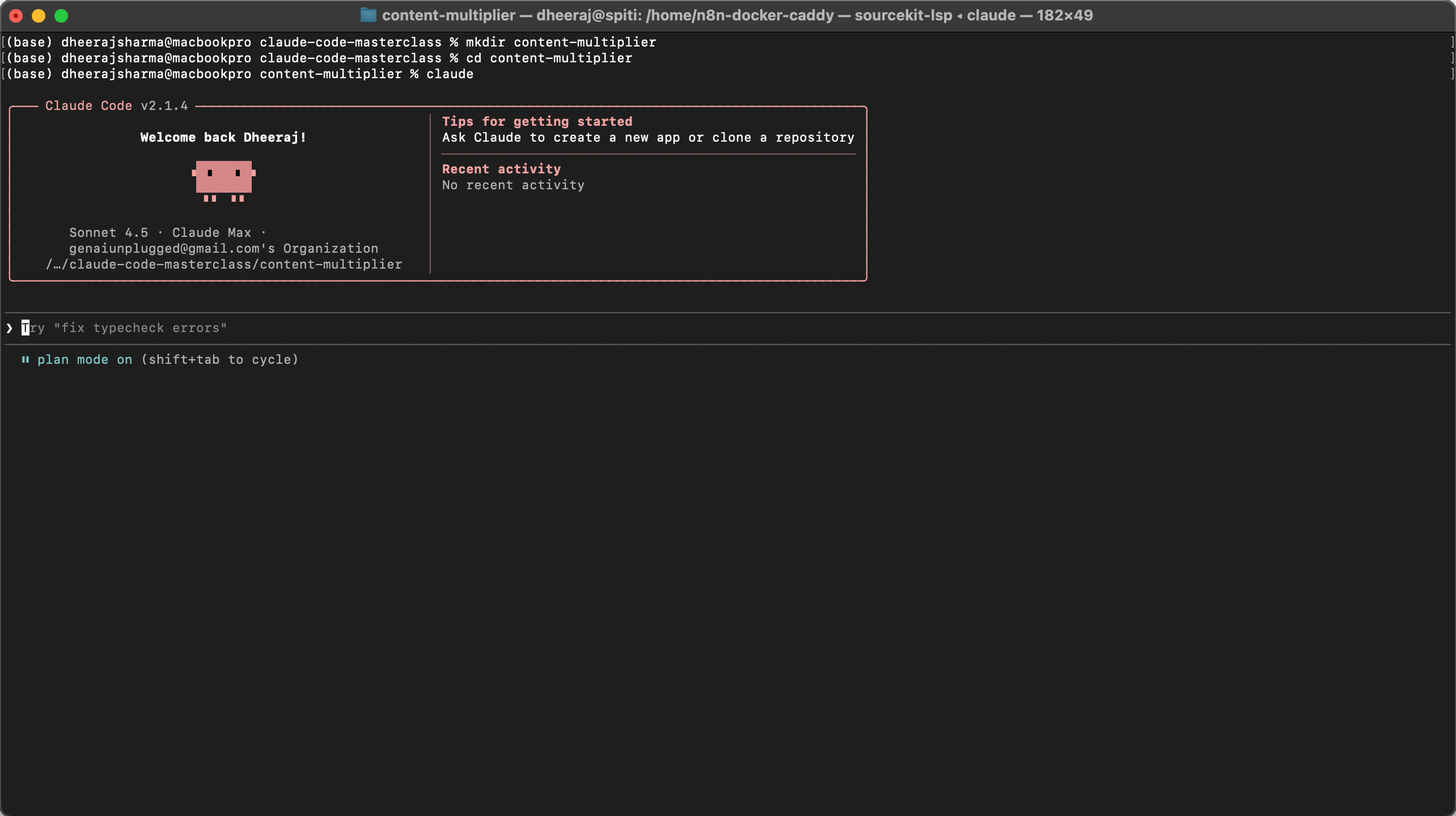
Start Claude Code:
claudeYou’ll see a welcome message and a prompt. Claude Code is now listening and ready to build whatever you describe.
That’s it. No project setup, no configuration files, no IDE plugins. Just describe what you need.
What If Something Goes Wrong?
Common issues and quick fixes:
“Command not found” after install → Close and reopen your terminal
App won’t build → Ask Claude “What’s the error?” - it can read build output
App runs but crashes → Describe when it crashes; Claude can add error handling
Need to change something later → Just describe what you want different
The beauty of conversational development:
when something breaks, you describe it the same way you’d tell a friend. “It crashes when I click the sync button” is enough for Claude code to investigate and fix it for you.
What problem’ve you been living with that you could finally solve? Learn how to build AI agents that do real work or explore AI-powered content automation to get started.
DriveSync is a personal project built with Claude Code. The backup problem was real, the typos were real, and the solution works.
Your PluggedIn assets for this post
What’s inside:
claude-code-config.json - Claude Code Config (config)
example-backup-problem-description.pdf - Example: Completed Backup Problem Description Prompt
01-describe-your-backup-problem.pdf - Describe Your Backup Problem to Claude Code
02-turn-solution-into-mac-app.pdf - Turn Your Backup Solution Into a Mac App
backup-app-setup-checklist.pdf - DriveSync Backup App Setup Checklist

Wow. Congratulations. I just build my first couple of apps with Claude Code. This stuff is addicting! :-)
You can now cancel your iCloud subscription?