


Your email attachment workflow is Manual Chaos.
You get 10 emails daily with attachments. Client contracts. Invoices. Screenshots. PDFs. Design files. Each one needs saving to Google Drive, organized into folders, and renamed properly.
You open Gmail. Click the email. Click the attachment. Wait for download. Open Finder. Find the Downloads folder. Drag to Google Drive. Rename the file. Repeat ten times before you even start your actual work.
The real cost isn’t just annoyance. It’s time.
Each attachment takes 2 minutes to handle manually. That’s 20 minutes per day. 100 minutes per week. 87 hours per year. At $100 per hour, that’s $8,700 in lost capacity you could spend on client delivery, content creation, or sales calls.
You’re not slow or disorganized. Your tools don’t talk to each other. Gmail sits separate from Google Drive, separate from your notification system, separate from your brain.
Nothing connects, so you become the connection, manually moving files all day.
You can save Gmail attachments to Google Drive automatically with an n8n workflow. It checks your inbox every minute for unread emails, uploads each attachment to a Drive folder with a structured filename, and sends a Discord summary. Setup takes 45 to 60 minutes.
Think of It Like This
Think of your inbox like a mail sorting room at a busy office building. Every day, packages arrive addressed to different departments. In a manual system, one person opens each package, reads the label, walks it to the right floor, files it in the correct cabinet, and updates the logbook. That person is exhausted by noon.
In an automated system, the mail room has conveyor belts, barcode scanners, and pneumatic tubes. Packages get scanned once, sorted by destination, and delivered automatically while the mail clerk focuses on exceptions that actually need human judgment. The system doesn’t get tired. It doesn’t forget. It just runs.
This n8n automation workflow is your mail sorting room. Gmail is the loading dock where packages arrive. The workflow is the scanner that reads each envelope. Google Drive is the filing system with labeled cabinets. You’re no longer the exhausted clerk carrying files around. You’re the manager who designed a system that runs itself.
👋 Julley , I'm Dheeraj, an AI systems builder.
I build production-grade AI systems at work by day and ship my own products by night, 12 and counting, including SubflowAI and the Content OS Agents Toolkit. This newsletter is the bridge between those two worlds. Every system, every build, documented step by step.
Join 3,000+ builders getting the exact AI setups, prompts, and workflows that actually work in your business.
What This Workflow Does
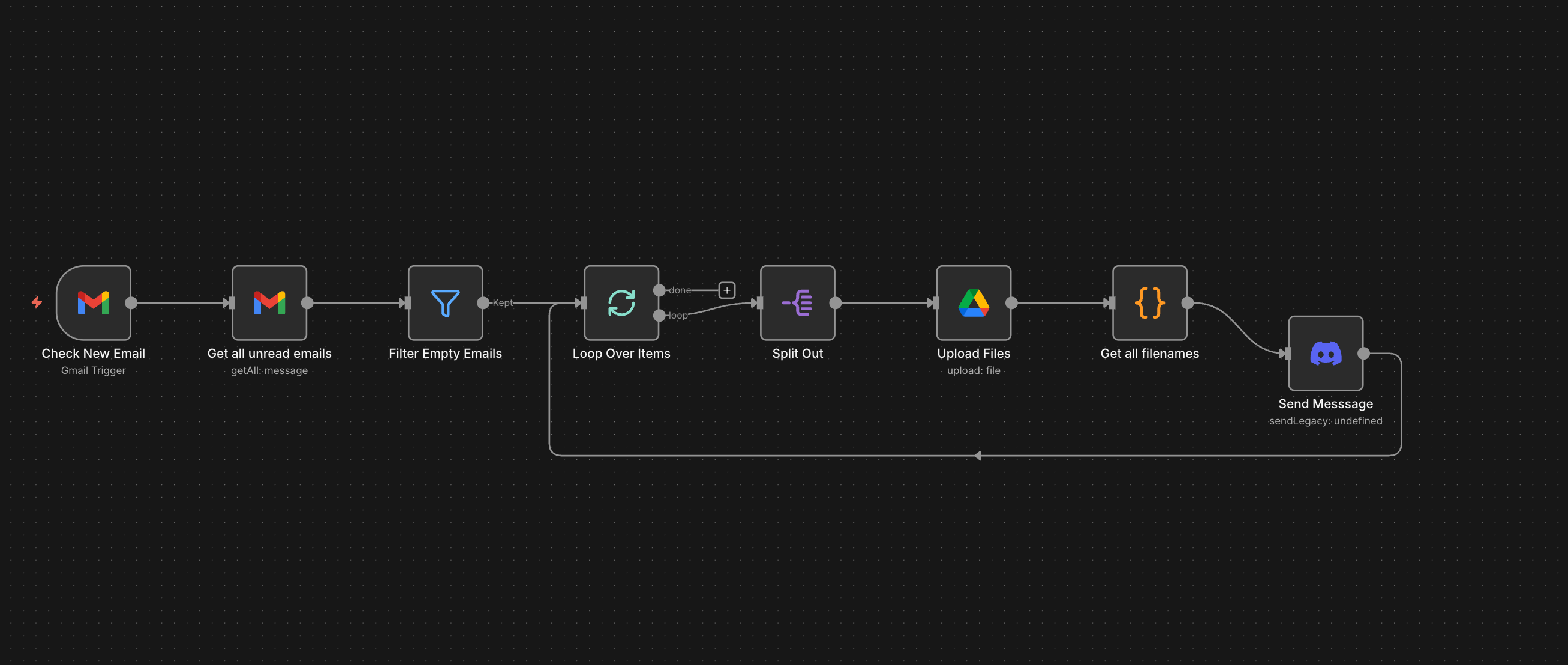
This workflow saves Gmail attachments to Google Drive automatically using n8n. You wake up to organized files, properly named, already in your Drive. No more manual downloads.
Here’s what happens while you sleep:
The workflow checks your Gmail inbox every minute for new unread emails
It reads each email and checks if it has attachments
If there are no attachments, it skips the email
If attachments exist, it processes them in batches
It splits out each individual attachment from multi-attachment emails
For each file, it uploads directly to your Google Drive folder with a structured filename that includes the email ID, subject, and original filename
After all attachments are saved, it collects the list of filenames and sends you a Discord notification with exactly what was saved
You get a clean summary without checking Gmail or Drive
Your new morning routine:
Check Discord to see the notification: “
Following attachments saved successfully: Contract_ClientName.pdf, Invoice_Oct2024.pdf, Screenshot_BugReport.png”All files already in Drive, organized and named
You saved 20 minutes
Your inbox is processed, files are archived
You still have your entire day for real work
Time saved:
20 minutes per day, 100 minutes per week, 87 hours per year
At $100 per hour, that’s $8,700 in recovered capacity for billable client work
Learn with me: the Claude Code cohort
I run the Claude Code cohort on Maven for founders, creators and tech teams: six live sessions across six weeks, building a real AI system with me. If you would rather build it alongside me than read about it, this is the room.
Each cohort is a small, hands-on group, and a new one starts every month.

Use code GENAI20 for 20% off. Check the Syllabus →
What is MCP - Model Context Protocol? [Lesson 1]

Every few months, a new AI application claims it can ‘connect to everything.’ But how do these AI models actually talk to other apps, databases, or websites?
Tools You Need
n8n
Purpose: Workflow automation
Free Tier?: Yes (self-hosted)
Paid Cost: $20/month (cloud)
Gmail
Purpose: Email source and attachments
Free Tier?: Yes
Paid Cost: $0
Google Drive
Purpose: File storage
Free Tier?: Yes (15GB free)
Paid Cost: $1.99/month (100GB)
Discord
Purpose: Notifications
Free Tier?: Yes
Paid Cost: $0
Total monthly cost:
$0 to $20 depending on whether you self-host n8n and get paid Google One subscription.
Most solopreneurs run this on the free tier. If you process hundreds of attachments daily and need more Drive storage, add $2 monthly for 100GB.
How to Auto-Save Gmail attachments to Google Drive using n8n
Total time: 45 to 60 minutes
Step 1: Install n8n (15 minutes - Optional)
Option A: Self-Hosted (Free)
Follow n8n local installation Video
Use Docker for easiest setup n8n docker local installation Video
Option B: n8n Cloud ($20/month)
Sign up at n8n.io
Skip installation, go straight to workflow import
Step 2: Import the Workflow (5 minutes)
Download the JSON file from the link: 001-Auto-Save-Gmail-Attachments-to-Google-Drive.json
Open n8n
Click Workflows → Import from File
Select the downloaded JSON
Click Save
The workflow appears in your n8n workspace. Don’t activate it yet.
Step 3: Connect Gmail (10 minutes)
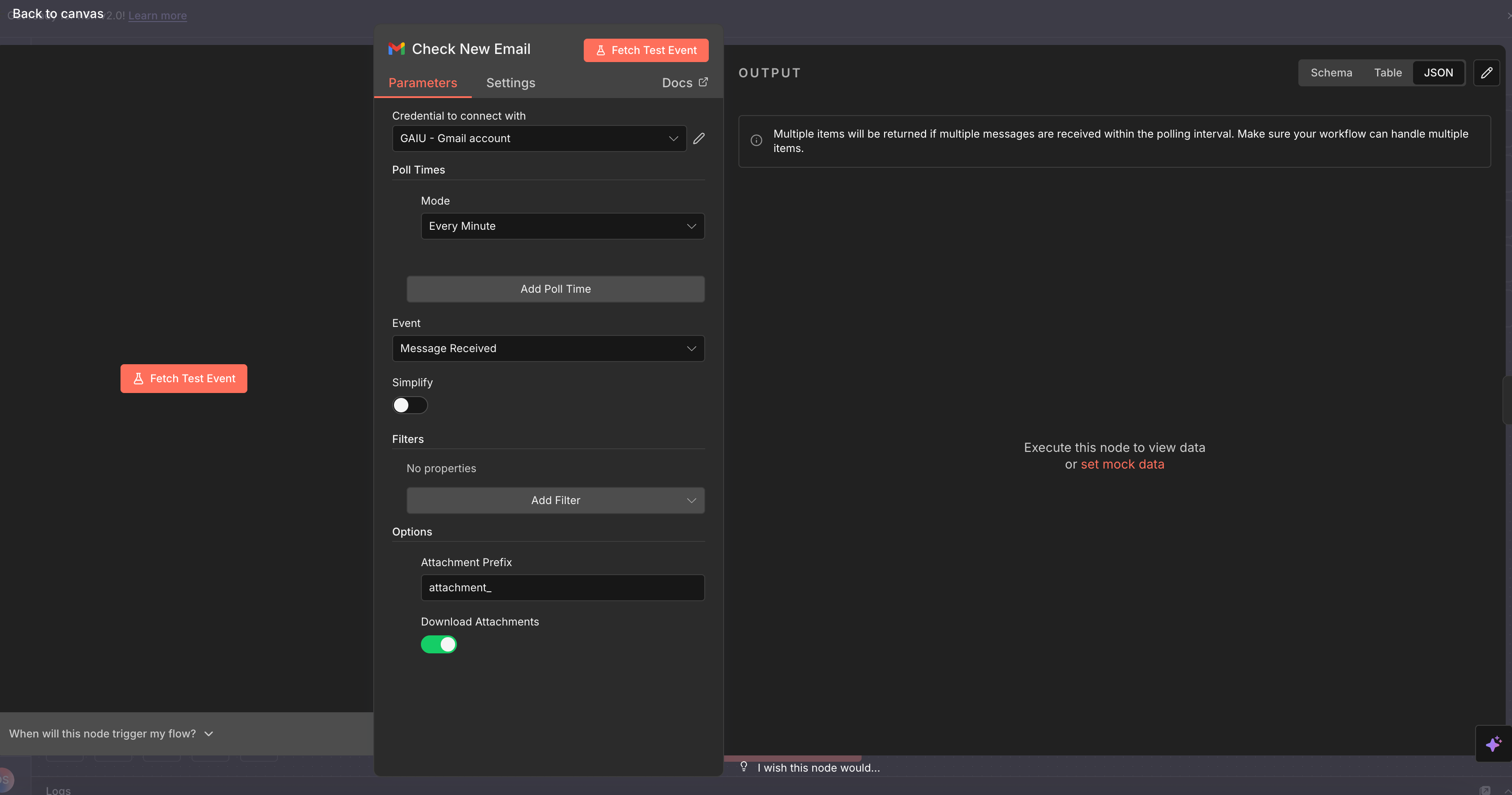
Find the Check New Email node (Gmail Trigger) in the workflow
Click Create New Credential
Authenticate with Gmail using OAuth2
Allow n8n to read your emails and attachments
Set poll time to Every Minute (or adjust to your preference)
Note: The workflow only processes unread emails with attachments. It won’t touch read emails or emails you’ve already labeled.
Step 4: Connect Google Drive (10 minutes)
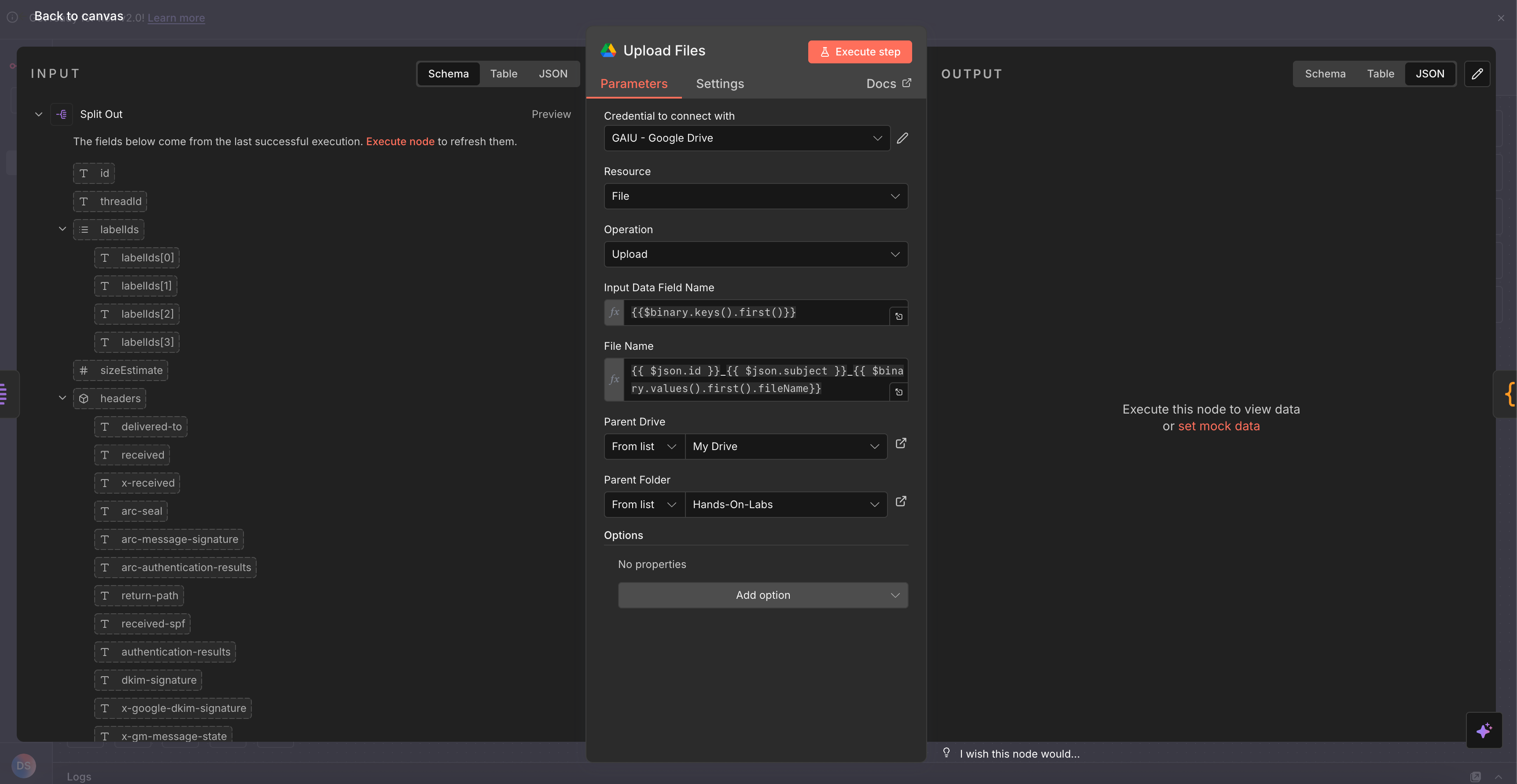
In n8n, find the Upload Files node
Click Create New Credential
Authenticate with your Google account
Select the Google Drive folder where you want attachments saved
Update the folderId field with your folder ID
How to find your folder ID:
Open Google Drive in your browser
Navigate to the folder you want
Copy the ID from the URL:
drive.google.com/drive/folders/[THIS_IS_YOUR_FOLDER_ID]
Customize filename structure: The workflow names files using this pattern: {email_id}_{subject}_{original_filename}
You can change this in the Upload Files node under the name parameter.

Step 5: Set Up Discord Webhook (10 minutes)
Open Discord and go to your desired channel
Click Edit Channel → Integrations → Webhooks
Click New Webhook and copy the webhook URL
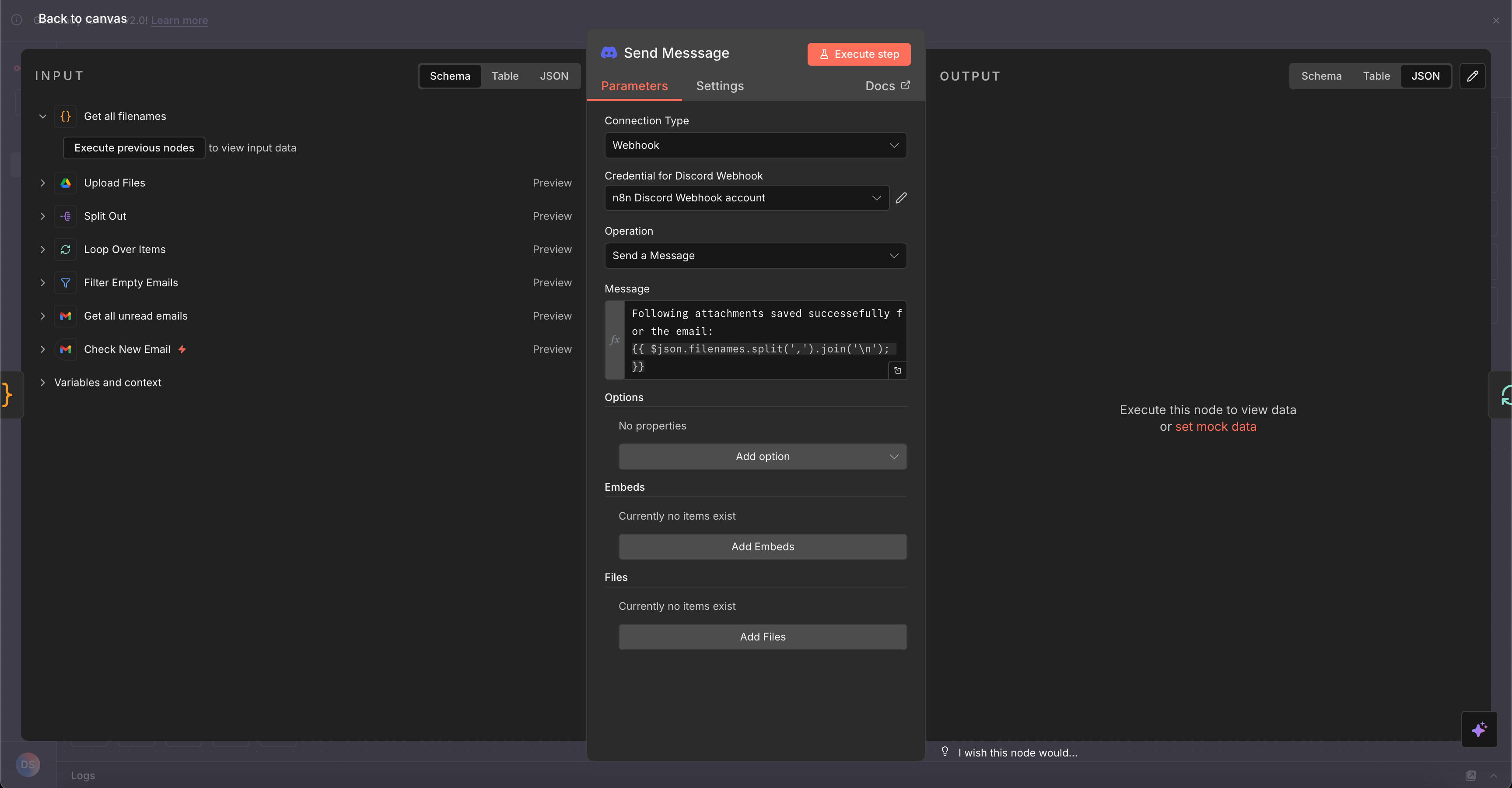
In n8n, find the Send Message node
Click Create New Credential
Paste your webhook URL
Test the connection
Don’t use Discord? Replace the Discord node with Slack, Telegram, or Email. The logic stays the same.
Step 6: Test the Workflow (10 minutes)
Send yourself a test email with 2-3 attachments
Wait 1 minute for the workflow to poll
Click Execute Workflow in n8n (or wait for automatic execution)
Check your Google Drive folder for the uploaded files
Check Discord for the notification message
If something breaks, check the error message in n8n. Common issues:
Missing OAuth2 credentials for Gmail or Google Drive
Wrong folder ID in Google Drive node
Discord webhook URL incorrect
Step 7: Activate the Workflow (5 minutes)
Once testing works:
Toggle Active in n8n
The workflow runs automatically every minute
You’ll receive Discord notifications whenever attachments are saved
You just learned the workflow. But the JSON file, the exact credential setup sequence, and the filter logic I tested across 40+ inboxes before it stopped breaking? That took me 6 hours to get right, not 45 minutes.
PluggedIn members get the tested config file, my pre-built filter templates, and the deployment checklist so you skip the part where it silently fails at 2am.
Customization
Change polling frequency: Edit the Check New Email node poll time. Options: Every Minute, Every 5 Minutes, Every 15 Minutes, or custom cron schedule.
Filter by sender or subject: Add a filter node after Get all unread emails to process attachments only from specific senders or with specific subjects.
Change notification channel: Replace the Discord node with Slack, Telegram, or Email. The Get all filenames node already formats the summary for you.
Organize files into subfolders: Modify the Upload Files node to dynamically create subfolders based on sender, date, or subject using n8n expressions.
Auto-archive processed emails: Add a Gmail node after the Discord notification to mark processed emails as read or apply a label.
Troubleshooting
Attachments not being saved?
Check Gmail OAuth2 credentials
Verify Download Attachments is enabled in the Gmail Trigger node
Make sure the email actually has attachments (check the Filter Empty Emails node output)
Files uploading to wrong folder?
Verify the folder ID in the Upload Files node
Check that your Google Drive credentials have write access to that folder
Discord notifications not showing?
Verify webhook URL is correct
Check that the webhook is active in Discord
Confirm the Send Message node is connected after Get all filenames
Workflow processing old emails?
The workflow only processes unread emails
Mark old emails as read or apply a label to exclude them
Adjust the Gmail Trigger filter to process emails from the last 24 hours only
Why This Matters
The 20 minutes you save daily isn’t just recovered time. But, it’s cognitive freedom. You stop starting your day as a file clerk and start it as a creator.
That morning hour you spent downloading and organizing?
Now it’s a client call that brings in $500. Or a LinkedIn post that attracts your next customer. Or deep work on the course you’ve been putting off for months.
But the real shift is psychological.
Manual attachment management trains you to think small. Every file you manually save reinforces the belief that your job is to move things around. Automation retrains your brain.
Automation - Your Business Identity
When your systems handle the mundane, you start asking bigger questions: What else could run without me? What would I build if I had 10 more hours per week?
You become the business owner who designs systems instead of operating them. Your clients don’t see someone scrambling to stay organized. They see someone who has their act together.
That perception changes what they’re willing to pay and how they refer you. The automation isn’t just about files. It’s about identity.
At $100 per hour, those 87 annual hours equal $8,700 in recovered capacity. That’s not theoretical savings. It’s real time you can redirect to revenue-generating work.
One additional client project. A course launch. Strategic partnerships.
The compound effect over three years?
You’ve reclaimed 261 hours and $26,100 in capacity. All from one workflow that took less than an hour to set up.

Key Takeaways
20 minutes daily on attachment management = 87 hours per year = $8,700+ in lost capacity at $100/hour rates.
Manual file handling isn’t a productivity problem. It’s a systems problem. Your tools don’t connect, so you become the connection.
n8n workflows run continuously in the background. Set it once, and it processes attachments 24/7 without your involvement.
The Gmail trigger checks every 60 seconds for new emails. Adjust this interval based on your volume. Every 5 minutes works for most solopreneurs.
Always test with a dedicated test folder first. Don’t point automation at your main Drive until you’ve verified the file naming and folder logic.
Start with one email type (like ‘invoices’ or ‘client contracts’). Once it works, clone the workflow for other attachment categories.
The biggest mistake is trying to automate everything at once. Pick your highest-volume attachment type and automate that first.
Map Your Attachment Chaos
Open your Gmail right now and search for emails with attachments from the past week (use ‘has:attachment’ in the search bar).
Count how many you manually downloaded and saved.
Write down the three most common types (invoices, contracts, screenshots, etc.).
For each type, estimate how long it takes you to handle one attachment from inbox to properly filed.
Multiply by how many you get per week.
That’s your weekly tax for disconnected tools. This number is your baseline and your motivation to automate.
Frequently Asked Question
Do I need coding skills?
No. This is visual. If you can follow steps, you can build this. Otherwise watch my video or subscribe to my Substack to chat with me in real time and resolve queries.
How much does it cost to run?
Free for most users. Add $20 monthly if you use n8n cloud instead of self-hosting. Google Drive is free up to 15GB.
Can I filter which emails get processed?
Yes. Add a filter node to process attachments only from specific senders, with specific subjects, or within a date range.
What if I get stuck?
Join the Substack chat. Post your error. Either I or someone else will help.
Does this work with Outlook or other email providers?
Not directly. You’d replace the Gmail nodes with Outlook or IMAP nodes. Same logic, different connector.
Can I save to Dropbox or OneDrive instead?
Yes. Replace the Google Drive node with Dropbox or OneDrive. The workflow logic stays the same.
Get PluggedIn
Stop rebuilding this workflow from scratch every time Gmail changes something.

Every week you delay is another 100 minutes of manual downloads, another $167 of capacity that should be billable.
Get PluggedIn to go from clicking through Gmail attachments 10 times a day to waking up with a Discord summary and a Drive folder that organized itself overnight
Download the Workflow
Free JSON Template:
Core attachment auto-save functionality
Multi-file support
Google Drive integration
Discord notifications
This setup guide
This version of your code is working great except that it gives me 5 emails instead of just 1, containing a list of the files uploaded.
I have sent the code as a notification , becauise there doesn't seem to be a way to attach it as a file: